
Reserve any asset for a future job, plan a whole kit in one action, and reshuffle the week with a single drag. The clash is caught at your desk, not when the van’s already loaded.
A plan that sits alongside reality
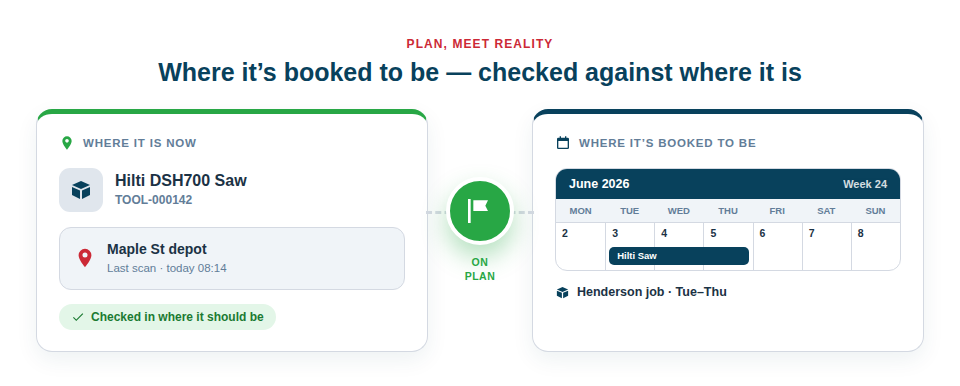
Crucially, the Calendar is a plan, not a second source of truth fighting your live data. A booking says where an asset should be; your normal scan-based check-in/out still records where it actually is. The Calendar even shows a small flag against each booking telling you whether the tool has been checked in where it’s meant to be — green for “where it should be”, amber for “checked in elsewhere”, red for “should be out by now but hasn’t been scanned”. You get the best of both: a confident plan and an honest picture of how the day is really going.
When a confirmed booking’s start time arrives, Asset Giant automatically updates the asset’s assigned project, client and location to match, and records it in the asset’s history — so your inventory keeps itself in step with your plan, with a full audit trail of who booked what.
Four views for four jobs
Everyone plans differently, so the Calendar offers four tabs that share the same date range and filters:
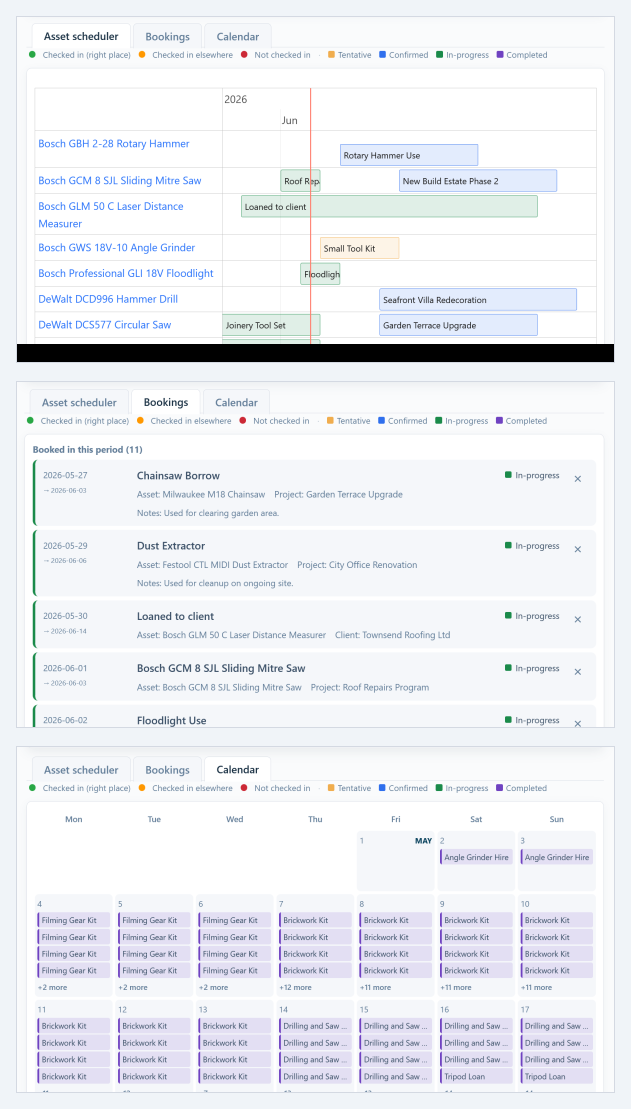
- The Asset Scheduler is the clearest “what’s where, when” picture: one row per asset, bookings shown as horizontal pills across a time grid. Best on a desktop, with mouse-wheel zoom and click-and-drag pan.
- The Bookings list is a card-based view that’s quick to read on a phone, with every card showing the labelled details (asset, client, project, location, assigned user) and a one-tap delete button.
- The Projects tab answers the other question a date range raises: which jobs are actually running then. Every project whose own dates fall inside the window gets a card with its number, its client, its status and the dates it runs, plus Bookings in this period naming the kit that is out on it.
- The Calendar grid is the familiar Day / Week / Month view, with bookings as colour-coded chips, project chips overlaid in purple, and drag-and-drop rescheduling.
Switching between tabs never loses your place — the date range you set, the filters you’ve chosen and the search you’re typing all carry across.
See what’s free, then book it
A single date range card drives every tab. Pick Day, Week or Month and step through with the arrows, or type any dates you like into the From and To pickers — they don’t have to be a clean week. Whatever window you choose, the Bookings tab splits everything into:
- Booked in this period — every reservation that lands inside the window, including whole-kit bookings collapsed into a single card.
- Available in this period — every asset that’s genuinely free for that whole window, with a clear count of how many units are spare for items you hold in bulk.
Spot something you want? One tap on Book opens a reservation already pointed at that asset and those dates. Planning the Henderson job goes from guesswork to a thirty-second job.
Click an empty rectangle to book it
The Asset Scheduler turns out to be the fastest way to make a booking once you know the trick: click any empty rectangle in the row of the asset you want, and the booking form opens with that asset and date/time already filled in to the rectangle’s exact bounds. A click on a Tuesday 4pm-5pm rectangle gives you a 4pm-5pm Tuesday booking. A click on a weekly rectangle gives you the whole week. As you zoom in and out, the rectangles change size sensibly — 15 minutes, 30 minutes, 1 hour, 2 hours, 4 hours, 6 hours, 12 hours, 1 day, 2 days, 4 days, 1 week, 2 weeks, 1 month — so the click-to-create dates always feel right for whatever level of detail you’re working at.
Need a longer window than one rectangle? Press and drag horizontally across as many rectangles as you like, and the booking opens with that span. A short click opens the existing booking; a press-and-drag creates a new one. They never get in each other’s way.
Book a whole kit in one go
Any list you’ve already built — a van kit, a first-fix set, a working-at-height pack — doubles as a bookable kit: instead of reserving each item by hand, you pull the whole list onto the calendar in a single action. Lists are the same saved selections you use elsewhere in Asset Giant, so the kit you load every morning is the kit you book for a job. See Lists & Kits for how lists work.
Real jobs need a set of tools, not one — so there’s one booking button, and it doesn’t care whether you’re reserving a single camera or a van’s worth of gear. You never have to decide which kind of booking you’re making before you start.
- Tick the assets you want — search, tap, add. Or pull in every item from a saved list you already use for that type of job, in one click. Better still, open the list and hit Create booking on it directly.
- Give each item its own quantity — three of your ten harnesses, leaving seven free for someone else.
- Set the dates, the job and the booking status once, applied to everything you’ve added.
- Watch the button tell you exactly what you’re about to get: Create booking, or Create 8 bookings.
You can also save your selection as a reusable list for next time — without losing your place. A booking made from a list shows on the Calendar as a single, tidy card rather than a wall of individual entries, and links straight back to the list, so “is the Carpentry Set out until Friday?” takes one click to answer. On the Scheduler you can switch the rows to Kits mode to see one row per job instead of one row per asset. Tick Include unbooked lists in the same row and every list you haven’t yet booked appears as an empty row, ready to be booked with a click.
When the gear you want is already out
Most planning tools tell you what you can’t have and stop there. Asset Giant tells you what to do about it.
The moment you’ve set your dates, every item you’ve added is checked at once. Anything already spoken for is flagged on its own row — with the booking that’s in the way named, and what it’s out for, so you can judge in a second whether it actually matters. A tool booked to a job that finished early is a very different problem from one on a client site until Friday.
Then you get three ways forward, not a dead end:
- Find dates that work — searches ahead for the next window where everything you’ve picked is free, and moves your booking there in a click.
- Book those that are free — takes what’s available now and leaves the rest, so a single clash doesn’t cost you the whole booking.
- Swap for alternatives — offers similar kit that is free for your dates. It only ever suggests; you decide, so you’re never quietly handed a different tool from the one you asked for.
It’s the difference between a system that blocks you and one that helps you finish the job.
Reschedule by dragging
Plans change. The Calendar treats that as the normal case, not the exception.
- On the Asset Scheduler, press and hold on a booking pill for about half a second, then drag horizontally to slide it to a new time. The cursor changes to a left/right arrow and the pill picks up a coloured ring, so you can see drag mode has engaged. Release, and a small toast appears at the bottom-right with an Undo link in case you change your mind.
- On the Calendar’s Day / Week / Month grid, pick up any chip and drop it on a different day. Timed bookings preserve their time-of-day; all-day bookings preserve their span. Drop on a different hour in the Day view to change the start time. Drop a project chip on a different day and the project’s start and end dates shift together by the same number of days.
- If the booking belongs to a kit, every asset in the kit moves together — so the kit stays in lock-step and you never have to drag five bars one by one.
It’s the kind of thing a paper diary makes you reach for an eraser to do. Here it’s a single drag.
Quantity-aware, and fair to your team
Because Asset Giant knows how many of each item you hold, multi-quantity assets can be booked by several jobs at once until they’re genuinely exhausted — you’re never wrongly blocked from booking the eighth of ten harnesses. Tentative holds reserve the asset just like a confirmed booking, so two people can’t both pencil in the same tool for the same day; confirmed and in-progress bookings stop you double-booking too. A completed booking can be marked manually if a job wraps early, and the calendar takes care of moving things from confirmed to in-progress to completed as the dates pass.
Day-of-month grid that finally makes sense
Click a day with too many chips and you no longer need to open a separate modal — the cell expands in place to show every booking, popping over its neighbours so the surrounding grid doesn’t shift. Still more than fits? A discreet “+ N more” line at the bottom tells you the rest are hidden, and Show less collapses the cell back. It’s the small touch that makes a busy month feel manageable again.
Calendar feeds tie everything together
On a paid plan, your bookings and projects can be subscribed by any phone or desktop calendar — Google, Outlook, Apple, or the calendar app on a phone — using the universal iCal standard. The whole team sees the schedule where they already look, and a due-back reminder tells the right people the day before a booking ends. See Calendar Feeds & Reminders for how both work.
Ready to stop the 7am clashes? The full step-by-step guide is in Book Kit Out for a Job and See What’s Free.