
The Folders Explorer is a dedicated page for managing your entire folder hierarchy. It provides a visual, interactive way to organize your digital filing cabinet. You can access it from the main menu under Organize -> Folders.
For an overview of what folders are for, see Organise Hundreds of Tools So You Can Find One.
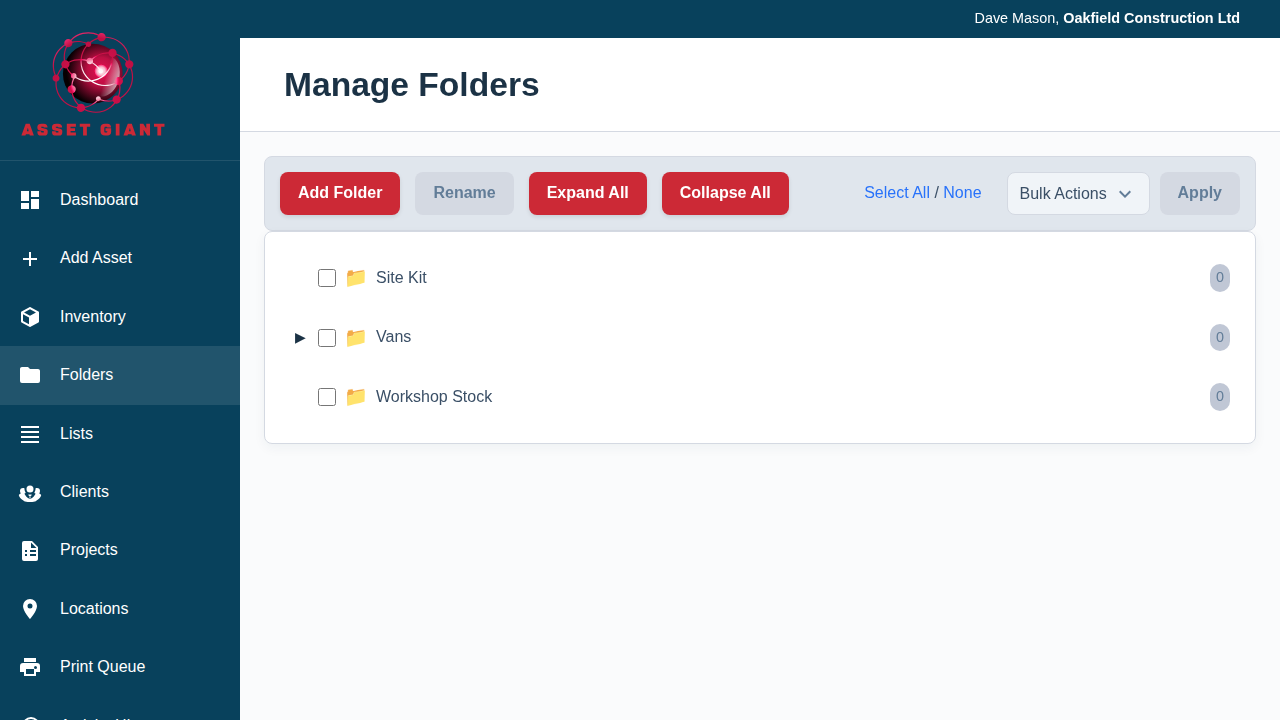
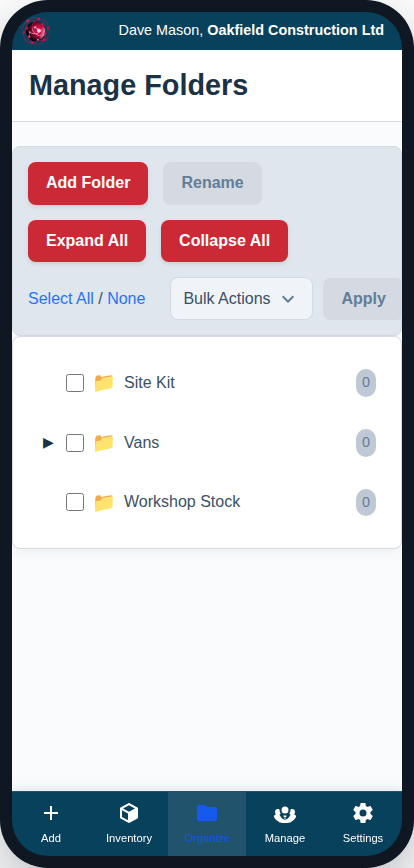
Creating Folders
- To create a top-level folder: Make sure no folders are selected, then click the “Add Folder” button.
- To create a sub-folder: First, click to select the intended parent folder. Then, click the “Add Folder” button. You will be prompted to enter a name, and the new folder will be created inside the one you selected.
Renaming, Moving, and Deleting
You must first select the folder(s) you wish to modify by clicking on them or using the checkboxes.
- To Rename: Select a single folder and click the “Rename” button.
- To Move: Select one or more folders. Then, in the “Bulk Actions” dropdown, choose “Move…” and click “Apply”. A modal will appear allowing you to select the destination folder.
- To Delete: Select one or more folders. In the “Bulk Actions” dropdown, choose “Delete…” and click “Apply”. A modal will appear asking if you want to also delete the assets inside the folders or simply make them uncategorized. Warning: Deleting contents is a permanent action.
Viewing Folder Contents
When you select one or more folders in the tree on the left, the inventory viewer on the right will automatically update to show you only the assets contained within those selected folders. This is a fast and powerful way to browse your inventory based on its structure.