
If you send the same shape of quote or invoice over and over — the monthly plant hire, the standard shoot day, the call-out with labour and delivery on the bottom — you can save it once as a template and start every future one from it.
This article covers saving a template, using one, keeping your templates tidy, and the few things a template deliberately does not remember.
What a template is (and is not)
A template is a blueprint, not a document. That distinction is worth two lines of your time because it is what makes templates safe to use:
- A template has no invoice number, no status and no share link. It never shows up in your list of quotes and invoices, never appears in your reports, and is never counted against the invoices allowance on your plan.
- Using a template always creates an ordinary draft — no number, fully editable, and nothing sent or issued until you press Issue yourself.
So there is no risk in making one, and no risk in trying one out.
What a template can hold
Everything below is optional. A template with nothing but your standard terms paragraph is perfectly valid, and so is one with twenty lines on it.
| What | Kept in the template? |
|---|---|
| Line items — hire items, rate items, free-typed lines, headings, subtotals and notes | Yes |
| Quantities, rates and discounts on each line | Yes |
| The tax rate chosen on each line | Yes, by name |
| Terms, notes for the client, internal notes | Yes |
| Client and project | Yes |
| Whether tax is charged, and how it is shown per line | Yes |
| Issue date, tax point, due date, hire dates | No — see below |
| Document number, status, totals | No — a template is not a document |
Saving a quote or invoice as a template
The quickest way to build a template is to build the document first and then keep it.
- Open any quote or invoice — a draft you are working on, or one you have already issued.
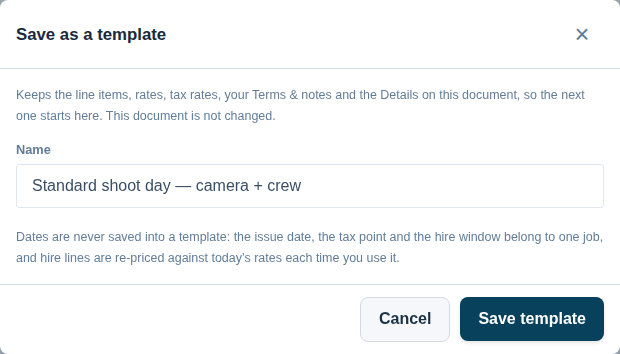
- Set it up exactly as you want future ones to start: the lines, the rates, the tax rates, the Terms & notes and the Details at the top.
- Press Save as template in the row of buttons at the bottom of the document.
- Give it a name you will recognise later — Monthly plant hire — Barratt, Standard shoot day, Call-out and first hour. A name arrives already suggested; type over it if you prefer.
- Press Save template.
The document you saved it from is not changed in any way — it keeps its number, its status, its totals and its lines. Saving a template only copies values out of it.
Starting a new document from a template
There are two ways in, and they do the same thing.
From the Templates tab:
- Go to Quotes & Invoices.
- Choose the Templates tab at the end of the tab strip.
- Press + Add from template, or Use on the template you want.
From anywhere in the documents area:
- Press + Add New.
- Choose From Template.
Either way, a panel opens listing your templates. Then:
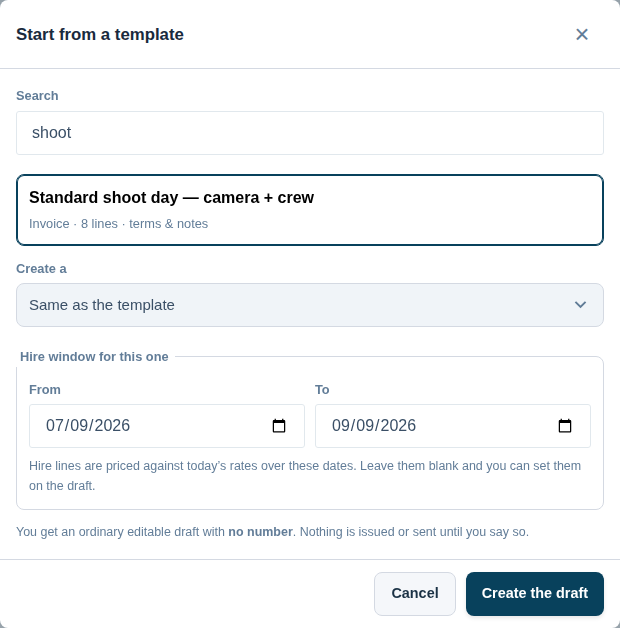
- Tap the template you want. It highlights.
- If you want a different document type from the one the template was saved as — a quote instead of an invoice, say — choose it under Create a.
- If the template contains hire items, you will be asked for a hire window. Give the dates the hire actually covers; the hire lines are priced against your current rates over those dates. You can leave them blank and set them on the draft instead.
- Press Create the draft.
You land straight on the new draft with every line, heading, subtotal and note already in place. Change whatever you like, then issue it when you are ready.
Renaming and deleting templates
Both live on the Templates tab.
- Rename changes only the name. The lines, rates, terms and everything else are untouched.
- Delete removes the template. Documents you have already made from it are not affected in any way — a document copies the values across, so it never depends on the template afterwards.
There is no need to keep a template you have outgrown. Deleting one is safe.
What a template does not remember, and why
Dates
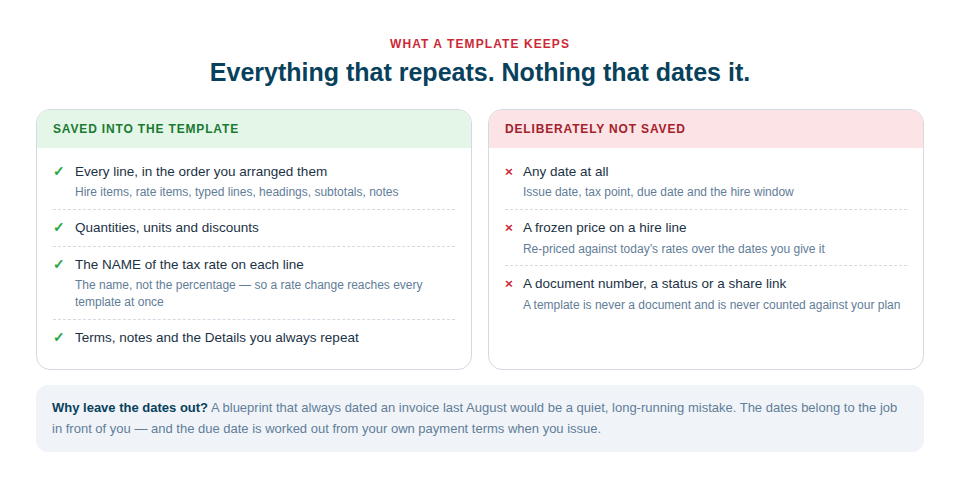
A template stores no dates at all — not the issue date, the tax point, the due date, or the hire window. This is deliberate. A template that always dated an invoice with the day you first saved it would be a quiet mistake that ran for months. Instead, the issue date and due date are set when you issue the document, using the payment terms in your company settings, and the hire window is asked for at the moment you use the template.
Hire prices
Because a hire charge depends on both the rate and the number of days it covers, a hire line in a template carries no fixed price. It is re-priced against your current rates over the dates you give it. That means a rate increase flows into everything you make from that template from the day you make the change, without you having to go back and edit anything.
What happens if something has changed since you saved it
If your business has moved on since a template was saved, Asset Giant will not guess. It tells you on the draft, before anything is issued:
- A tax rate that is still in your settings but has changed percentage — the line simply uses the current percentage. That is the intended behaviour, and it is why a template stores the tax rate by name rather than by number.
- A tax rate that has been renamed or removed — the line is created with no tax rate, and a message names the missing rate. Nothing is substituted for it, because a standard rate is not a safe stand-in for a line that was zero-rated, exempt or reverse-charge. Pick the right rate on the draft before you issue.
- A rate item that has been deleted — the line stays, with its description and its price, and only the link back to your rate-item catalogue is dropped.
- A hire item no longer in your inventory — that line is left out, and you are told how many were left out.
- A client or project that has been deleted — the field is left blank, and you are told.
Every one of these appears as a plain message at the top of the draft. You are looking at an editable document with no number on it, so anything that needs your attention can simply be fixed there and then.
Tips
- Name templates for the job, not the document. “Monthly plant hire — Barratt” tells you what to reach for; “Invoice template 2” does not.
- Save the awkward one first. The document worth templating is the one you dread rebuilding — the long hire schedule, the mixed-tax job, the quote with a page of terms.
- Keep a skeleton. A template of headings and subtotals with no prices is a genuinely useful thing to start a complicated quote from.
- One template per client is fine. They cost nothing and appear in no report.