
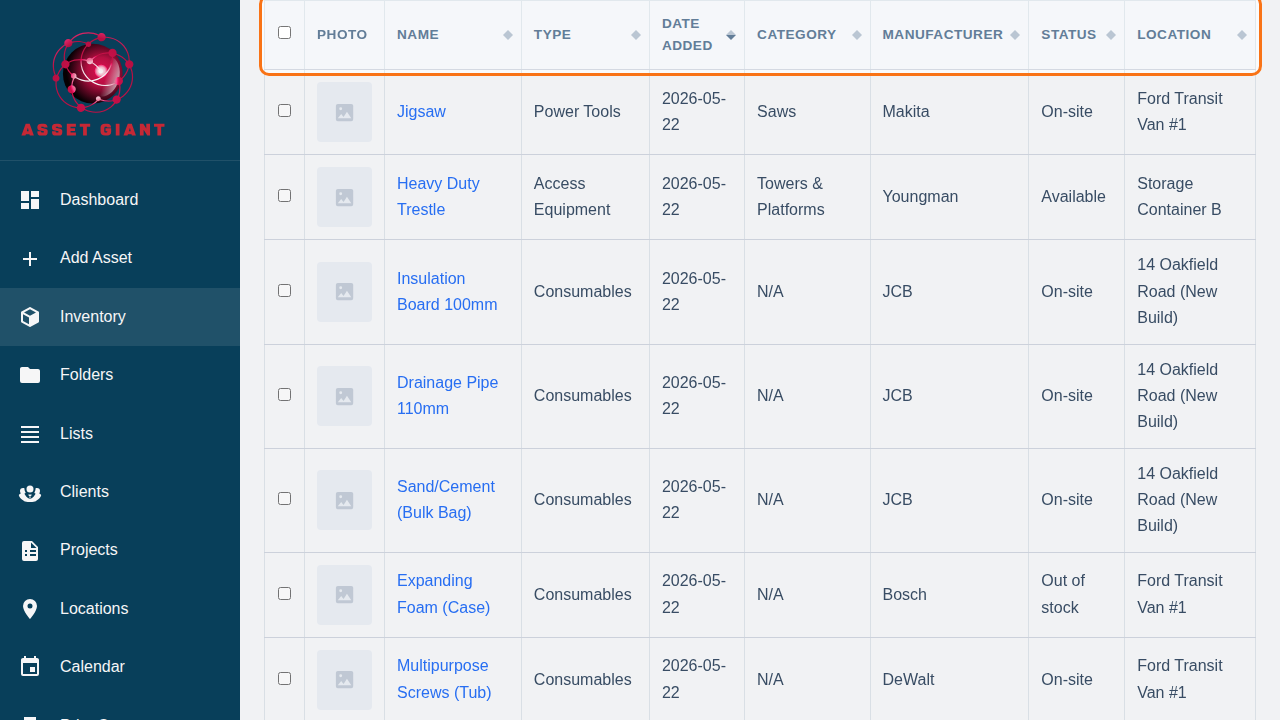
On the desktop version of the Inventory Viewer, you can sort your assets by most of the columns in the table. This helps you group and find items based on your needs.
How to Sort
- Navigate to the Inventory page.
- Look for the column headers in the table (e.g., “Name”, “Date Added”, “Status”).
- Headers that can be used for sorting will have up and down arrows next to them.
- Click on a column header to sort the entire inventory by that value.
- First Click: Sorts the list in ascending order (A-Z, oldest to newest, lowest to highest).
- Second Click: Reverses the sort to descending order (Z-A, newest to oldest, highest to lowest).
The arrow next to the active sorting column will become bold to indicate which sort order is currently applied.
Available Sorting Options
You can sort your inventory by:
- Asset Name
- Asset Type
- Date Added
- Category
- Manufacturer
- Status
- Location
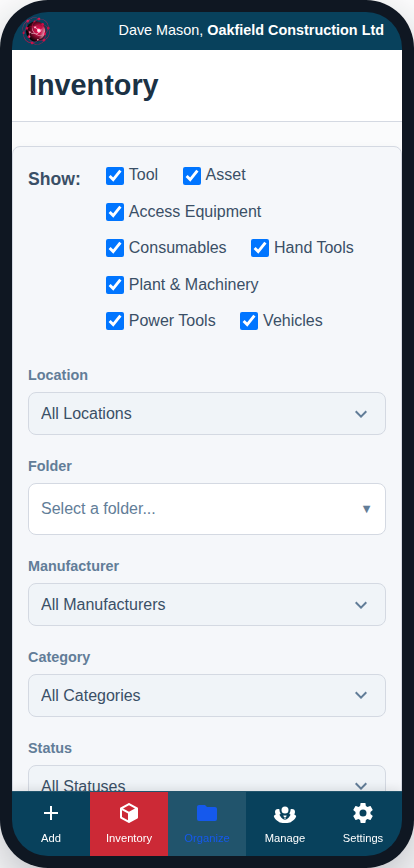
Note: The clickable sort headers are only shown in the desktop table view. The mobile card view doesn’t have its own sort controls, so it follows whichever sort is currently applied. By default your inventory is sorted by Date Added, newest first, so the most recently added items appear at the top.