
Hire charging is rarely as simple as days multiplied by a rate. This article covers the two things you set up once — rates on your assets and a charge calendar for your company — and then shows how a hire line is worked out so you can check it and change it.
Step 1: put rates on the things you hire out
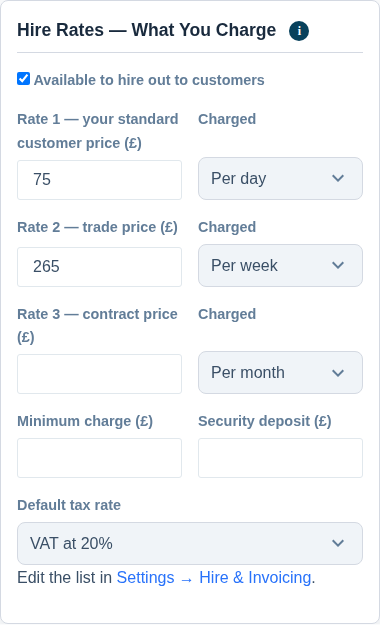
Rates live on the asset itself, so open any asset for editing and expand the Hire & Sale Prices — What You Charge card.
- Leave Available to hire out to customers ticked. Untick it only for something you would never bill out.
- Fill in one, two or three rates. They are your standard, trade and contract prices, and each one has its own period beside it — hour, day, week, month, or fixed for a single charge regardless of how long the item is out.
- If you also sell this item rather than only hiring it out, fill in the sale price — what one of them costs a customer to buy outright. That is the figure that fills itself in when you add the item to an invoice with + Sale item. It is not the Purchase Price in Financials, which is what you paid.
- Optionally set a minimum charge — the floor below which this item is never billed, however short the hire.
- Optionally set a security deposit.
- Choose the tax rate that normally applies to hiring this item out.
Leave every rate blank on anything you do not hire out. A blank rate means “not offered”, not “free” — and the same goes for the sale price: leave it blank if you never sell this item, and you can still type a price straight onto an invoice.
A common setup for a single item is a day rate on rate 1 and a week rate on rate 2 — for example £30 a day and £150 a week.
Step 2: set your charge calendar
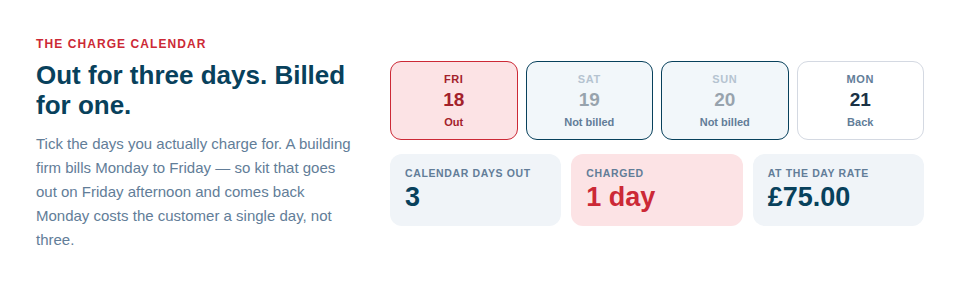
This is the setting that makes the difference between an invoice your customer accepts and an argument. Go to Settings → Hire & Invoicing → Charge Calendar.
- Chargeable days. Tick the days you actually bill for. A hire yard normally ticks all seven. A building or trades firm ticks Monday to Friday, which makes a Friday-to-Monday loan one chargeable day rather than three.
- Week length (charge days). How many charge days make a week. On a Monday-to-Friday operation that is 5.
- Part periods. What to do with the leftover: round up to a whole period, round up to the nearest half period, or charge in proportion.
- Minimum hire (days). A company-wide floor on the length of any hire.
- Grace hours on return. The tolerance you already give people, made explicit. Set it to 2 and a van back at nine the next morning does not become another day.
You only do this once. Every hire line on every future document follows it.
Step 3: add the hire to a document
- Open or start a quote or an invoice — see Creating Quotes and Invoices.
- Set Hire from and Hire to in the Details card. These are the dates the whole hire covers.
- Press + Hire item and pick your assets.
Each item comes on as a line, already priced.
How the figure is worked out
Asset Giant applies your rules in this order:
- The dates you gave become chargeable days, skipping any weekday you do not charge for.
- Chargeable days become periods in the line’s unit, using your week length.
- Your part-period rule is applied, and then your minimum hire.
- The money is rate × periods × quantity, then any discount, and finally the item’s own minimum charge as a floor.
- A fixed rate skips all of this — one charge, whatever the dates say.
Where an item has more than one rate, Asset Giant prices every one of them over your dates and charges whichever comes out lowest. On the £30-a-day and £150-a-week example, a twelve-day hire is billed as two weeks at £300 rather than twelve days at £360, and a fourteen-day hire is £300 rather than £420. Where two rates come out exactly equal, the lower-numbered one is used. If a particular customer is on your trade or contract terms, choose that rate on the line and it is used regardless.
Checking and changing a line
Press Details on any hire line. You will see:
- Which rate the line is priced from — Automatic — cheapest unless you pin it to a particular band.
- The period it is charged in.
- The number of periods it worked out, in plain words — for example “worked out as 3 × per day at £120.00”.
- Any discount, and a Net (override) for the line total.
Every one of those is editable. Type over the number of periods, change the quantity in the Qty box on the line itself, apply a discount percentage, or override the line total outright when you have agreed a flat price. Nothing about the calculation is hidden or locked.

Charging for things that are not assets
Labour, call-outs, delivery, disposal and any other fixed charge are rate items, not assets. Set them up in Settings → Hire & Invoicing → Rate Items, then add them to any document with + Rate item.
Two things worth knowing:
- Rate items do not count against your asset allowance. They are a separate catalogue and they cost you nothing on any plan.
- Adding one to a document copies its details onto the line. Changing “Labourer — day rate” from £180 to £195 later never alters an invoice you have already issued.
Billing what has already gone out
Bookings that have ended and have not yet been put on an invoice collect in the Uninvoiced list on your Quotes & Invoices screen, so nothing goes out and quietly comes back unbilled.
Bookings you made for your own work rather than for a customer are filtered out, and the page tells you how many were filtered rather than silently shortening the list. On each booking there is a hired out to a customer choice that decides this; it follows whether the booking has a client until you answer it yourself. See Reserving Assets for a Project.
Tips
- Do the charge calendar before you quote anything. It changes every figure that follows.
- A week rate is worth adding even if you rarely use it. It costs nothing and protects the customer from being billed ten days when a week would have been cheaper.
- Use grace hours rather than being generous by hand. Then everyone in the office bills it the same way.
- Check the Details panel on the first few lines you build. Once you have seen the working two or three times you will trust it, and you will also spot a charge calendar that does not match how you really operate.