
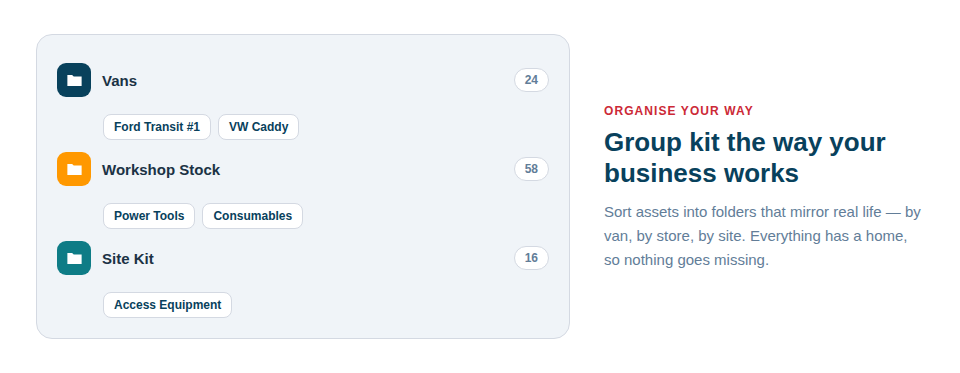
A flat list of everything quickly becomes overwhelming. Folders give every asset one clear home, like a document filed in a single drawer — a tidy, intuitive structure that mirrors how your business is organised and that anyone can navigate.
A clean home for every item
The discipline of “one home per item” is what keeps folders genuinely useful rather than becoming another mess:
- One asset, one folder — no confusion, and no item showing up in three places at once.
- A nested structure — group folders inside folders to match the way you think about your kit, such as a “Vans” folder containing one folder per vehicle.
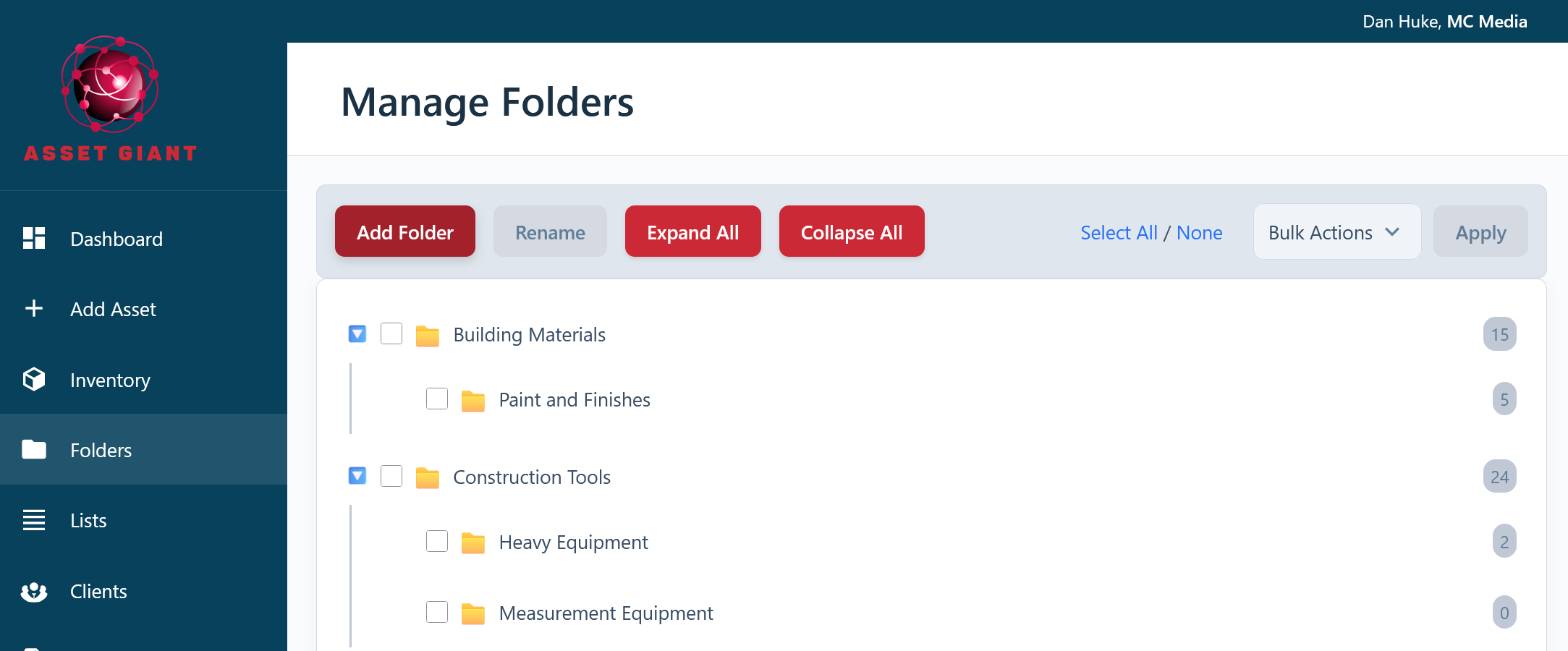
- Easy reorganisation — move items and rearrange the structure with drag-and-drop in the Folders Explorer as your business changes.
Folders, lists and categories: a clear division of labour
It helps to understand how folders sit alongside the other two organising tools, because together they make even a large inventory effortless to navigate. A folder is an asset’s single storage home — where it lives. A list is a flexible group an item can belong to alongside many others — useful for kits and jobs. A category describes what kind of thing an item is. You don’t have to choose between them; they work together, each answering a different question.
In practice, folders are where you start when you want a tidy, browsable structure:
- Set up folders that reflect your storage — vehicles, stores, sites, departments.
- File each asset into the one folder that represents its home.
- Browse the Folders Explorer to see what lives where, and drag items between folders as things move permanently.
Best Practice: Use folders for an asset’s permanent home and lists for temporary or overlapping groupings. Trying to track a tool’s day-to-day location with folders alone leads to constant reshuffling; locations and scanning handle that far better.
For more, see Create Folders and Move Your Kit Into Them and the overview in Organise Hundreds of Tools So You Can Find One.