
The mobile scanner is designed for fast, in-the-field updates. It allows you to move tools and assets between locations simply by scanning a series of QR codes.
The Scanning Workflow
The process always follows the same three steps:
- Scan the destination.
- Choose your action (Check In or Check Out).
- Scan the items you are moving.
Step-by-Step Guide
1. Open the Scanner
On your mobile device, open the Manage menu in the bottom navigation bar and tap Scan at the top of the list. The camera will open.
2. Scan the Location
Scan the QR code of the location (e.g. the sticker on your van’s dashboard or on the workshop wall) you are moving items to. You can also choose a location from the on-screen list if it isn’t labelled.
3. Choose Your Action
Once a location is recognised, a card appears with the actions you can perform at that location. For moving tools around, the two you’ll use most are:
- Check In: Choose this when items are arriving at this location (e.g. loading tools back into the van at the end of the day). The scanned items have their Current Location set to this location.
- Check Out: Choose this when items are leaving this location (e.g. taking tools out of the workshop to head to a job site). The scanned items have their Current Location cleared, marking them as out and on the move. You can also say who is taking them (a team member, or anyone by name) and when they are due back — both optional. When you do, the inventory list shows a Checked out pill with who has it and when it is due — red once the date has passed — and the AI assistant can answer “what has Dave got?” and “what is overdue?”.
You don’t need a location to check items out. Tap Check In / Out at the top of the scanner, choose the Check Out tab, say who is taking the kit and when it is due back (or leave both blank), then scan the items and tap Finish Check-Out. Scanning an item that is already out asks whether to check it out again.
Check In and Check Out only update an asset’s location, who has it and when it is due back, and add a record to its history. They do not change an asset’s status or its Assigned User. If your locations are home bases and a check-out is a loan, choose Keep its location under Settings → Preferences → Check In / Check Out: the item stays listed where it lives with the Checked out pill on top, and Check In can put it straight back there in one tap.
4. Scan Your Items
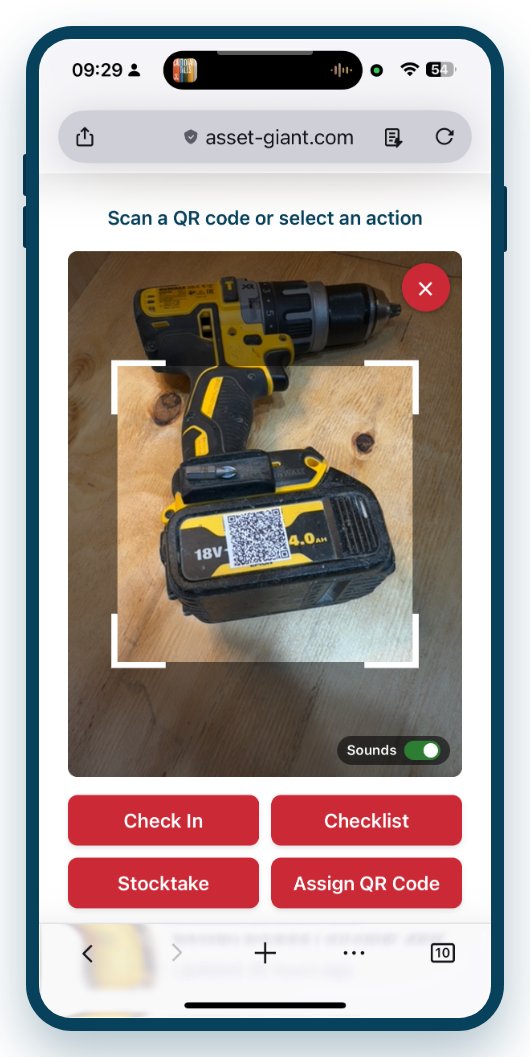
The camera stays live. Now scan the QR code on each tool or asset you are moving. Each time you scan an item:
- A short confirmation appears and the device gives a quick vibrate.
- The item is added to a running list on screen, where you can tap Remove if you scanned something by mistake.
5. Finish
You can scan as many items as you need. When you’re done, tap the “Finish Check-In” (or “Finish Check-Out”) button. The changes are applied to all the scanned items at once and recorded in their history.