
Custom Fields allow you to tailor the Asset Giant platform to your business’s specific needs by adding your own data fields to the “Add/Edit Asset” page.
How to Access the Custom Fields Manager
- Navigate to Settings from the main menu.
- Click on the “Custom Fields” tab.
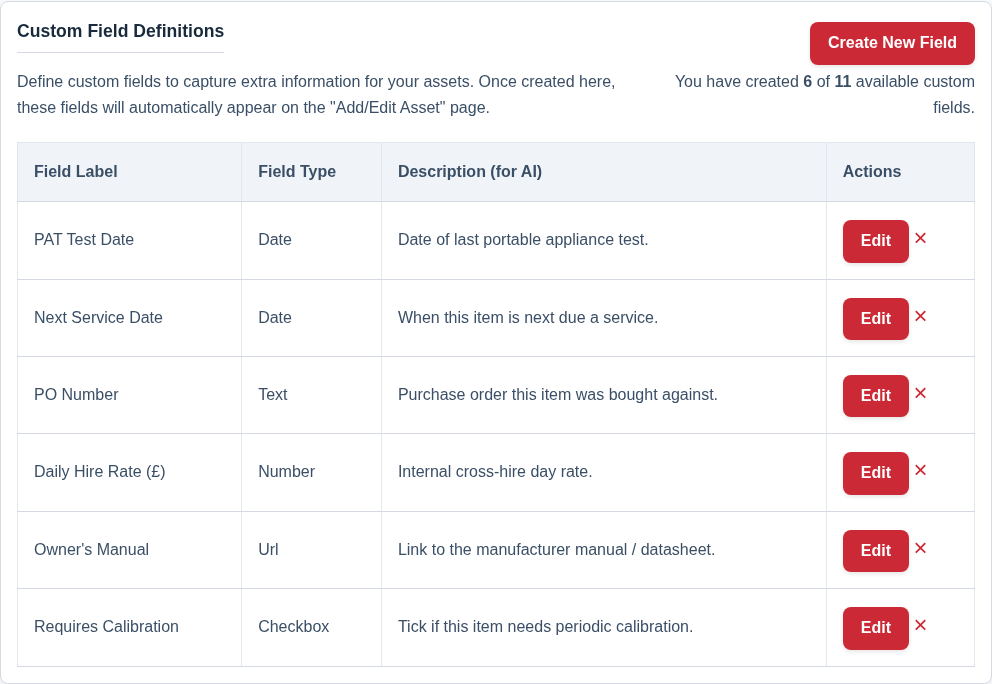
Creating a New Custom Field
- Click the “Create New Field” button.
- A modal popup will appear.
- Field Label: Enter the name for your field as you want it to appear to users (e.g., “Next Service Date”).
- Field Type: Choose the type of data this field will hold. This matters for data entry and for filtering later, and it is set once — the type cannot be changed after the field is created.
- Text: A single line of text.
- Text Area: A larger box for multiple lines of text.
- Number: For numerical data.
- Date: A date picker.
- URL: A web address.
- Checkbox: A simple Yes/No toggle.
- Select (list of options): A dropdown of the options you write — Owned / Hired / Sub-hired, or Van 1 / Van 2 / Yard. Everyone picks from the same list, so the values stay tidy and filter cleanly.
- Options (Select fields only): Type one option on each line, up to 200 options of up to 100 characters each. Pick a Default option if you want one filled in on new assets; leave it blank and the field starts empty.
- Shows on: Which assets this field belongs on. Leave both pickers on All and it appears on everything; tick asset types, categories, or both, and it appears only where it fits — a Safe working load field on your lifting gear, a Lens mount field on cameras. A category covers everything filed under it, sub-categories included. Narrowing a field never deletes anything: a value already entered stays on the asset, shown read-only. Full detail is in Showing a Custom Field Only Where It Applies.
- Description (for AI): This field is optional. If you add a short note about what the field is for, the AI will use it when suggesting a value during AI lookups. You can leave it blank if the label alone is self-explanatory.
- Click “Save Field”.
The new field will now appear on the “Add/Edit Asset” page — on all of your assets, or on the ones you scoped it to under Shows on.
Reordering Your Custom Fields
If you manage company settings, each row in this table carries a drag handle. Drag a field into a new position and that becomes the order it appears in for everyone in your company — on every asset’s Custom Fields card, and in exports and the spreadsheet import template. The same handles appear inside the Custom Fields card on the Add/Edit Asset page, so you can reorder fields from either place.
Changing a Select Field’s Options
Click Edit on a Select field’s row to change its list. You can add options at any time, and a new option is available to pick, to filter by and to build a reminder on straight away — no asset has to be using it first.
An option can be removed once no asset is using it. If some assets still hold it, the save tells you which options they are and how many assets hold each, so you can move those assets onto another option first — Bulk Actions → Edit does the whole batch in one pass (Edit, Move or Delete Many Assets at Once).
Deleting a Custom Field
To delete a custom field, simply click the red ‘X’ button in its row in the table.
WARNING: Deleting a custom field is a permanent action that cannot be undone. When you delete a field, all data that has been entered into that field for every asset in your inventory will be permanently erased.