When a job is coming up, you don’t just want to know where your tools are today — you want to reserve the ones that job needs so nobody else grabs them first. In Asset Giant you do this by creating a booking against the project. A booking holds the asset for a date window and ties it to the project, so the generator you’ve earmarked for the Henderson loft, the camera body promised to Friday’s shoot, or the PA system going out to Saturday’s event is locked in well before the van is loaded.
There are two ways to reserve assets for a project. The quickest, when you’re already looking at the project, is the Book kit for this project button. The more general way — for one-off additions or planning from scratch — is the New booking button on the Calendar.
This article focuses on the project side of booking. For the full tour of the Calendar itself — the three views, drag-to-reschedule, the reality flag and more — see Book Kit Out for a Job and See What’s Free.
The quickest way: Book kit for this project
Open the project you want to plan for (Projects → open the project, or see How to Add and Manage Projects). On the Edit Project page you’ll see a Book kit for this project button in the top-right actions.
Clicking it takes you straight to the Calendar and opens the booking form with:
- the project already selected as the booking’s target, and
- the booking dates pre-filled from the project’s own start and end dates (if you’ve set them) — still fully editable, so you can narrow the window to just the days you need the kit.
From there you simply add the assets you want to reserve and save. Because the project is already chosen, every asset you add is reserved against that project in one action — no need to set the project on each booking by hand.

Building the kit
There are two ways to choose what to reserve:
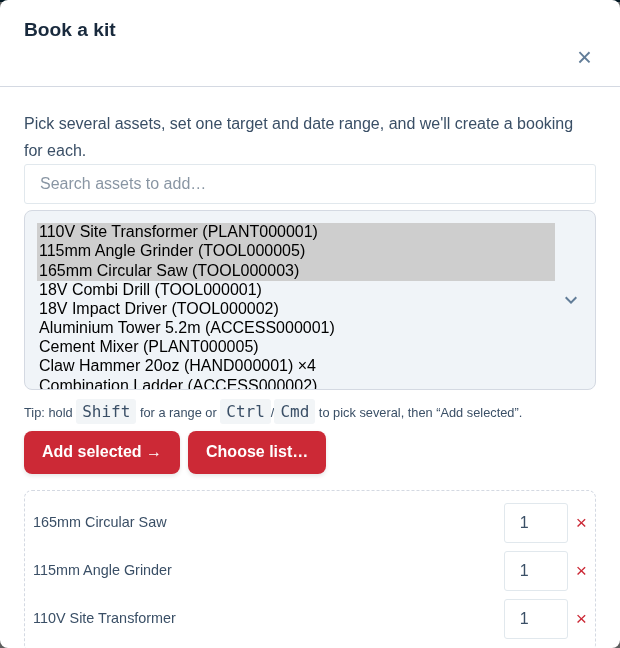
- Tick the assets you want. Search to narrow the list, tap the rows you need, and click Add selected. Each asset lands in the panel below with its own quantity box, so you can take 3 of your 10 harnesses and leave the rest available.
- Pull in a saved list. Click Add from a list… to load every bookable asset from a Make a Kit List for a Job you already use for that type of job — a van kit, a first-fix set, a working-at-height pack — in a single click. You can still add extra items afterwards.
Set the start and end (or tick All-day), choose a status (see below), and click the create button. It states exactly what you’re about to get — Create booking for one asset, Create 8 bookings for a kit of eight.
Asset Giant checks every item against the chosen window as you go and tells you about clashes before you commit — naming the booking that’s in the way and what it’s out for. You can then find dates that work, book only the items that are free, or swap a clashing item for a similar one that isn’t, all without losing the rest of your selection.
You can also click Save as list to turn the current selection into a reusable list for next time — without losing your place.
The general way: booking from the Calendar
You can also reserve assets for a project straight from the Calendar (find it in the main menu, and under Manage on a phone):
- New booking handles both a single asset and a whole kit — you don’t pick which up front. Tick one asset or twenty, then under Assign to choose the Project (you can also add a Client, Location or User). Set the dates and status, and save.
- Opened this way, remember to pick the Project under Assign to yourself — that step is what the project page’s button does for you.
Either way, the key step is choosing the Project in the booking’s Assign to section — that’s what ties the reservation to the job.
Seeing what’s actually available
You don’t have to guess whether an asset is free. As you fill in a booking, each item shows its own availability for the window you’ve chosen (“3 of 4 free”), and anything already spoken for is flagged with the clashing booking named — so you can’t accidentally double-book, and you can see straight away whether the clash actually matters.
To plan a whole window at a glance, use the Calendar’s views: the Asset Scheduler shows one row per asset with bookings as bars across a time grid, and the Bookings tab splits everything into what’s booked and what’s available for the period you’re viewing. Quantity-aware items (where you hold several of the same thing) show how many units are still spare. Full detail is in Book Kit Out for a Job and See What’s Free.
How tentative bookings behave
Every booking has a status, and it’s worth understanding what each one does:
- Tentative — a planning hold. A tentative booking reserves the asset just like a confirmed one — the slot is held and nobody else can book the same asset for the same window. It’s for when the job is likely but not yet nailed down; use the booking name or Notes to record that it’s provisional.
- Confirmed — a firm reservation. When a confirmed booking’s start time arrives, Asset Giant automatically updates the asset’s assigned project, client and location to match, and records it in the asset’s history.
- In-progress — set automatically when the start time arrives.
- Completed — set automatically when the end time passes; you can also mark it manually if a job wraps early.
- Cancelled — set when you delete or cancel a booking. Cancelled bookings disappear from the views but stay in the asset’s history.
The important takeaway: tentative is not a soft hold — it genuinely reserves the asset. That’s deliberate, so two people can’t both pencil in the same tool for the same day.
Editing or rescheduling a project’s bookings
Plans change, and the bookings change with them:
- Edit a booking by clicking it on any Calendar view. A booking that’s part of a kit opens as the whole group, where Edit asset list lets you add or remove items and Save changes applies them to every member at once.
- Reschedule by dragging. On the Asset Scheduler, press and hold a booking bar for about half a second, then drag it to a new time. On the Day / Week / Month grid, drag a chip to a new day. If the booking belongs to a kit, every asset in the kit moves together. A toast with an Undo link appears after each move.
- Reschedule the project, reschedule the kit. Drag a purple project chip to a new day and the project’s start and end dates shift together — a quick way to slide a whole job.
- Cancel a booking with its × (delete) button, or Cancel booking in the booking form to release every member of a kit in one action.
A few things worth remembering
- A booking is a plan, not a record of reality. Reserving an asset doesn’t move it on the spot — only a scan-based check-in/out records where it actually is. The two work together; the Calendar shows a small flag on each booking telling you whether the asset has been checked in where it should be.
- One assignment, many bookings. An asset is assigned to a single project at a time (on its Assignment card), but it can be booked for as many projects and dates as you like. When a confirmed booking goes live, its project, client and location flow onto the asset automatically — see Keep Track of Which Van, Site or Job a Tool Is On.
- The fastest project workflow is the Book kit for this project button — it pre-fills the project and its dates so you only choose the assets.
- Tentative still reserves. If you want a flexible hold, name it accordingly — but the slot is held.
- Everything can be undone — every reschedule and delete shows an Undo link for a few seconds.
To share a project’s schedule with the wider team’s phone or desktop calendar (Google, Outlook, Apple), see Calendar Feeds: See Your Bookings in Google, Outlook & Your Phone. For the complete Calendar reference, see Book Kit Out for a Job and See What’s Free.