
Typing out every detail of every tool is slow. Asset Giant’s AI Lookup does the heavy lifting for you: it can recognise a tool from a photo, or take the few facts you already know (like a make and model) and fill in the rest. Crucially, nothing is changed until you say so — the AI’s suggestions land in a review window where you stay in full control.
You’ll find two buttons in the header of the Add/Edit Asset page:
| Button | What it does | When to use it |
|---|---|---|
| Identify image | Looks at the photos on the asset and works out what the item is. | You have a photo but don’t know the make or model. |
| Fill with AI | Uses the details you’ve already typed (e.g. Manufacturer and Model) as clues to look up the rest. | You know what the item is, but want the remaining specs filled in. |
Both buttons open the same AI Lookup review window.
Before you start: set the Asset Type
The AI needs to know roughly what kind of thing it’s looking at, so it can give sensible answers. Set the Asset Type first (in the Core Details card). If you haven’t, the AI Lookup window will prompt you to choose one before it runs.
Method 1: Identify from a photo
- On the Add/Edit Asset page, open the Media card and click Add to upload a clear photo of the item. For the best results, see Best Practices for Taking Asset Photos for AI.
- Make sure an Asset Type is set in Core Details.
- Click Identify image in the header. The AI examines your photo and opens the review window with its suggestions.
When using Identify image, the AI works purely from the picture — the “Use as search hint” ticks (explained below) are ignored.
Method 2: Fill in the rest from what you know
If you don’t have a photo, or you already know the make and model, type those details in first (for example, Manufacturer “Sony” and Model “FX6”), then click Fill with AI. The AI uses the values you’ve marked as search hints to find and fill in the remaining details.
The AI Lookup review window
This is where you stay in control. Every field sits in a row, and nothing is saved until you click Update asset.
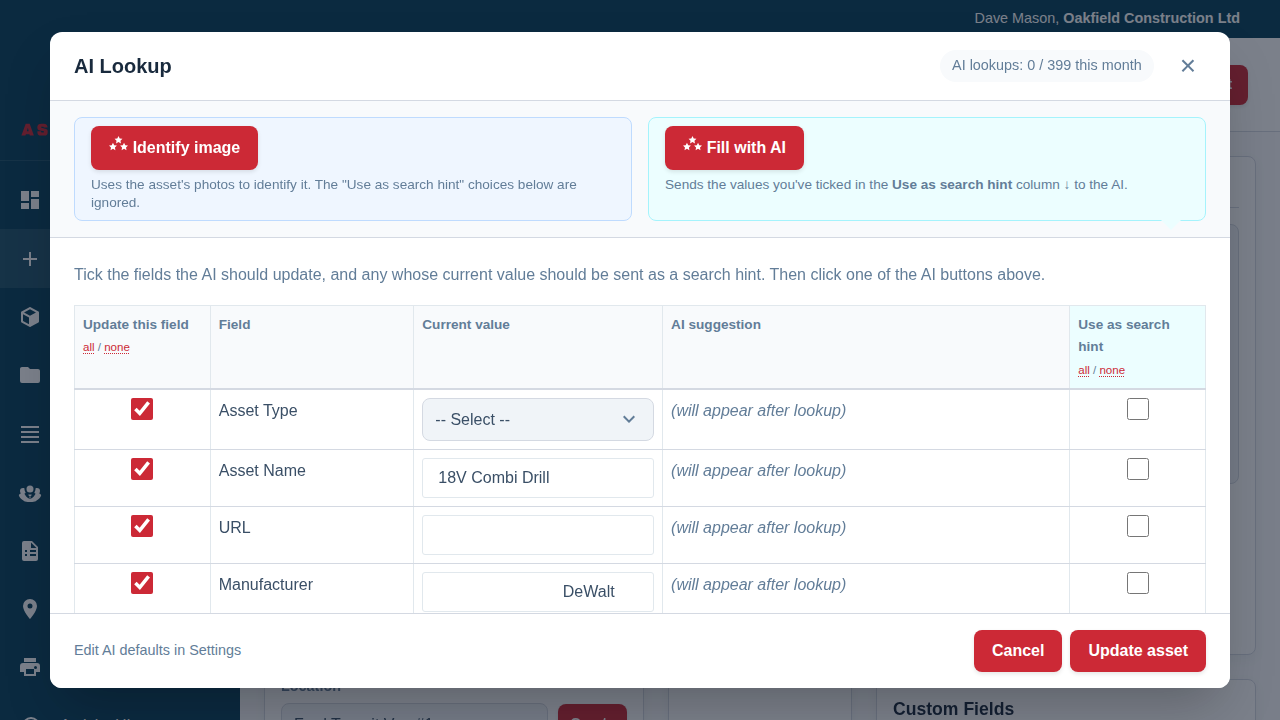
The table has two tick-box columns:
- Update this field — tick a row to let the AI’s suggestion (or a value you’ve edited) be written back to the asset. Untick any row you want to leave alone. Use the all / none links at the top of the column to select everything or clear it in one click.
- Use as search hint — tick a row to send its current value to the AI as a known fact. For example, ticking Manufacturer “Sony” tells the AI “this is definitely a Sony”, which sharpens the results. (These hints are used by Fill with AI, and ignored by Identify image.)
Between them sit two columns you can edit directly:
- Current value — what’s on the asset now. You can tidy this up by hand, even without running the AI at all.
- AI suggestion — what the AI proposes. This is also editable, so you can accept most of a suggestion and tweak the wording before applying it.
Re-running and refining
Not happy with the first attempt? Adjust your search hints or edit a value, then click Rerun to ask the AI again — your tick selections are kept. This is handy when, for example, you add the model number as a hint and want a fresh, more accurate result.
Applying the results
When you’re happy, click Update asset. Only the rows you ticked under Update this field are written back, and the asset is saved. Click Cancel to close the window without changing anything.
Setting your defaults: which fields are ticked for updating, and which are used as search hints, can be pre-configured for your whole company so the window opens the way you like it. Use the Edit AI defaults in Settings link in the window, or see Find Your Way Around Asset Giant on Phone and Desktop to find the AI Settings tab.
The AI Lookup window works the same way on a phone, so you can snap a photo and identify a tool right there on site.
A note on accuracy: the AI is a brilliant head-start, not a replacement for a quick check. Always glance over the suggestions before clicking Update asset, especially serial numbers and prices.
Keeping an eye on your usage
Each AI lookup counts towards your plan’s monthly allowance, shown at the top of the window (for example, “AI lookups: 0 / 399 this month”). See Check Your Plan, Your Usage and What You Can Add for more on limits.