
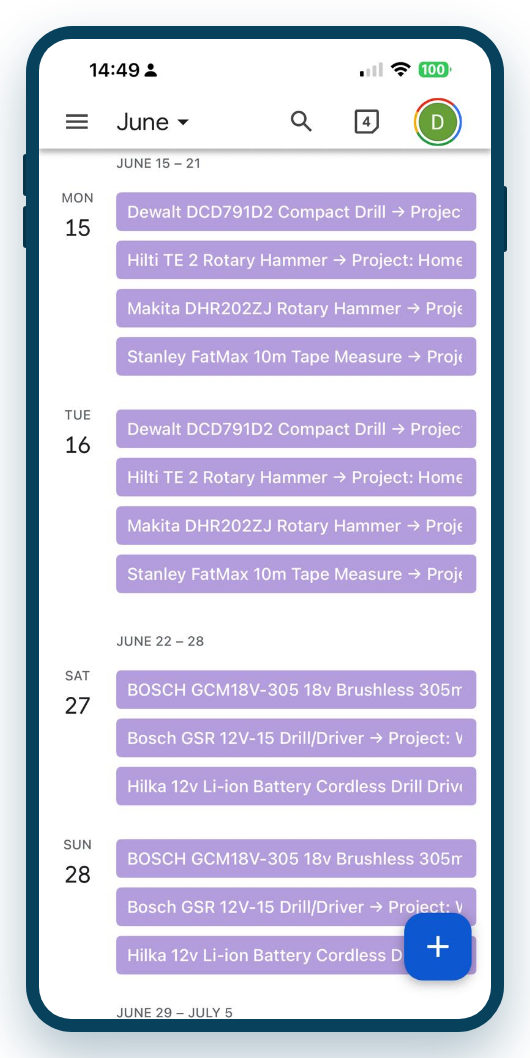
Your bookings and projects don’t have to live only inside Asset Giant. On a paid plan you can subscribe the calendar you already use — Google Calendar, Microsoft Outlook, or the Calendar app on your iPhone or Android — to a live feed of your Asset Giant schedule. The feed is read-only and refreshes automatically, so once it’s set up you never touch it again: new bookings simply appear in your normal calendar, next to your meetings and site visits.
This is an iCal feed (the open standard nearly every calendar app understands). You copy a web link from Asset Giant and paste it into your calendar app’s “subscribe / add by URL” option.
Choosing the right feed
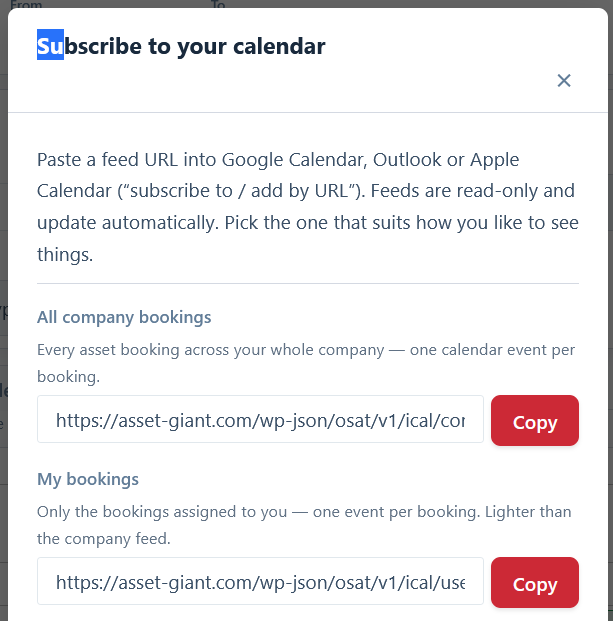
Open the Calendar page and click iCal feeds. You’ll see several feeds, each with a short description. Pick the one that matches how you like to work:
- All company bookings — every asset booking across your whole company, one calendar event per booking. Best for an office view of everything that’s planned.
- My bookings — only the bookings assigned to you, one event each. Lighter and more personal.
- Projects — every project in your company shown as multi-day events by their start and end dates — not just your own (projects aren’t assigned to individual team members). Bookings aren’t included. Great as a second feed layered over your bookings so you can see jobs and kit together.
- Daily summary (company) — one all-day event per day. Open the day and the event’s notes list everything happening that day: each booking (with its asset, client, project and location) and every project. This keeps your calendar tidy if you don’t want dozens of separate entries.
- Daily summary (just me) — the same once-a-day entry, but listing only your own bookings.
You can subscribe to more than one at the same time. A common setup is My bookings plus Projects, or simply the Daily summary if you just want a single heads-up each morning.
Adding a feed to your calendar
The exact wording differs between apps, but the steps are always similar:
- In Asset Giant, click iCal feeds, find the feed you want, and click its box to select the link, then copy it.
- Google Calendar (on a computer): in the left sidebar, next to Other calendars, click + then From URL, paste the link, and click Add calendar.
- Outlook: go to Add calendar then Subscribe from web, paste the link, give it a name and click Import.
- Apple Calendar (Mac): File then New Calendar Subscription, paste the link, and choose how often it refreshes.
- iPhone / iPad: Settings then Calendar then Accounts then Add Account then Other then Add Subscribed Calendar, and paste the link.
- Android: subscribing is done through Google Calendar on a computer (step 2); the calendar then syncs to the Google Calendar app on your phone.
Once added, your Asset Giant items appear automatically and update on their own.
Calendar alerts, or a reminder — when to use which
Because the feed lives in your own calendar, your calendar’s own alerts work on it: a buzz an hour before a kit is due back, the evening before a job mobilises, or first thing on the morning of a delivery — through whatever your calendar already does, on your phone, your desktop or a smart speaker.
That is one of two ways to be told about a date, and they suit different jobs:
- A calendar alert is personal and about the schedule. Use it when you want your own nudge about something in your own diary.
- A reminder rule is set once for the company and watches a date on the kit itself — a PAT test due, a warranty running out, a booking or checked-out item due back. It emails the right people (your team, the person holding the item, or an outside address such as your testing contractor) a chosen number of days ahead, lists the items on the Alerts page, and needs no calendar at all. Use it when something has to happen before a date, and when people other than you need to know. Reminders are included from the Crew plan — see Getting Alerts Before a Date Passes.
It’s also a simple way to put bookings in your team’s diaries: share the relevant feed and each person can add it to their own calendar and set the alerts that suit them.
Keeping your feed private
Each feed link contains a secret token unique to you, so treat it like a password — anyone with the link can see that read-only schedule. If a link is ever shared by mistake, click Regenerate token in the iCal feeds dialog. This instantly revokes all your old links; just re-copy and re-add the feeds you still use.
Calendar feeds are available on paid plans. To plan the bookings that fill these feeds, see Book Kit Out for a Job and See What’s Free.