
The “Personal Profile” section is where you manage your own user account details.
How to Access Your Profile
- Navigate to Settings from the main menu.
- The “Personal Profile” tab is the first one and should be selected by default.
Updating Your Information
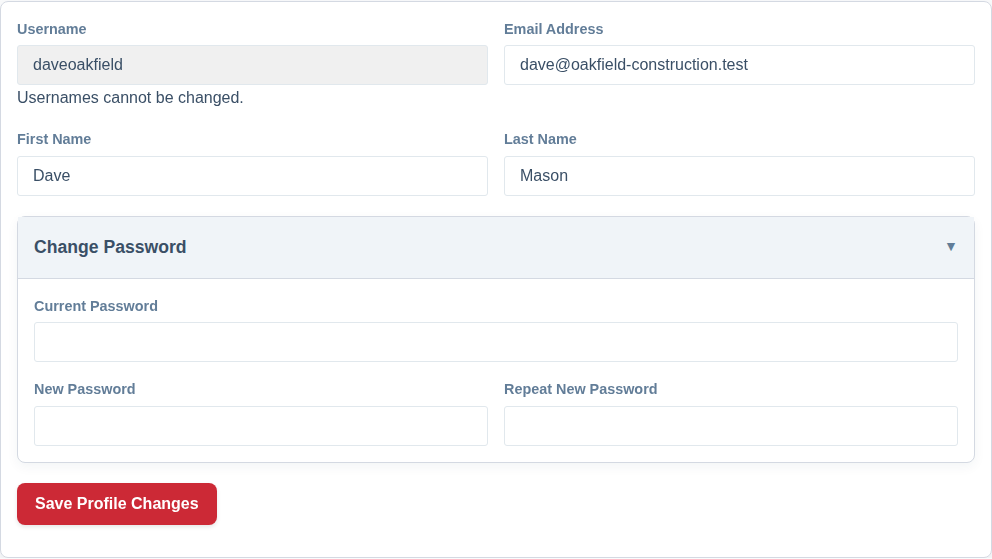
On this page you can change:
– Email Address: This is the email you use to log in.
– First Name & Last Name: These are used throughout the app to identify you.
The Username field is greyed out and cannot be changed after your account is created.
Helpful Tips
This tab also has a Helpful tips setting. When it’s on, short guided pop-ups appear automatically the first time each feature is useful to you. Untick “Show me guided tips automatically as I use the app” if you’d rather explore in peace — you can still run any tour on demand from the dashboard or the user menu. This choice applies only to your own account. See Guided Tours and Help Tips for more.
Changing Your Password
For security, changing your password requires you to know your current one.
- Click the “Change Password” section to expand it.
- Enter your Current Password in the first field.
- Enter your New Password in the second field.
- Repeat the New Password in the third field to confirm it.
- Click the “Save Profile Changes” button at the bottom of the form.
The system will update your details. For security, after a password change, you may be logged out and required to log back in with your new password.