
Your manufacturer list grows as you work — every time somebody types a new brand on an asset, imports a spreadsheet or accepts an AI suggestion. Settings → Manufacturers is where that list is tidied: rename a brand, decide what order it appears in, and remove one you no longer need. The order and the names you set here are used everywhere manufacturers are listed, including the Add Asset form, the inventory filters and the folder filters.
Getting there
- Go to Settings.
- Open the Manufacturers tab.
- The page is headed Manage Manufacturers, and each row shows the brand name, how many assets use it, and a × to remove it.
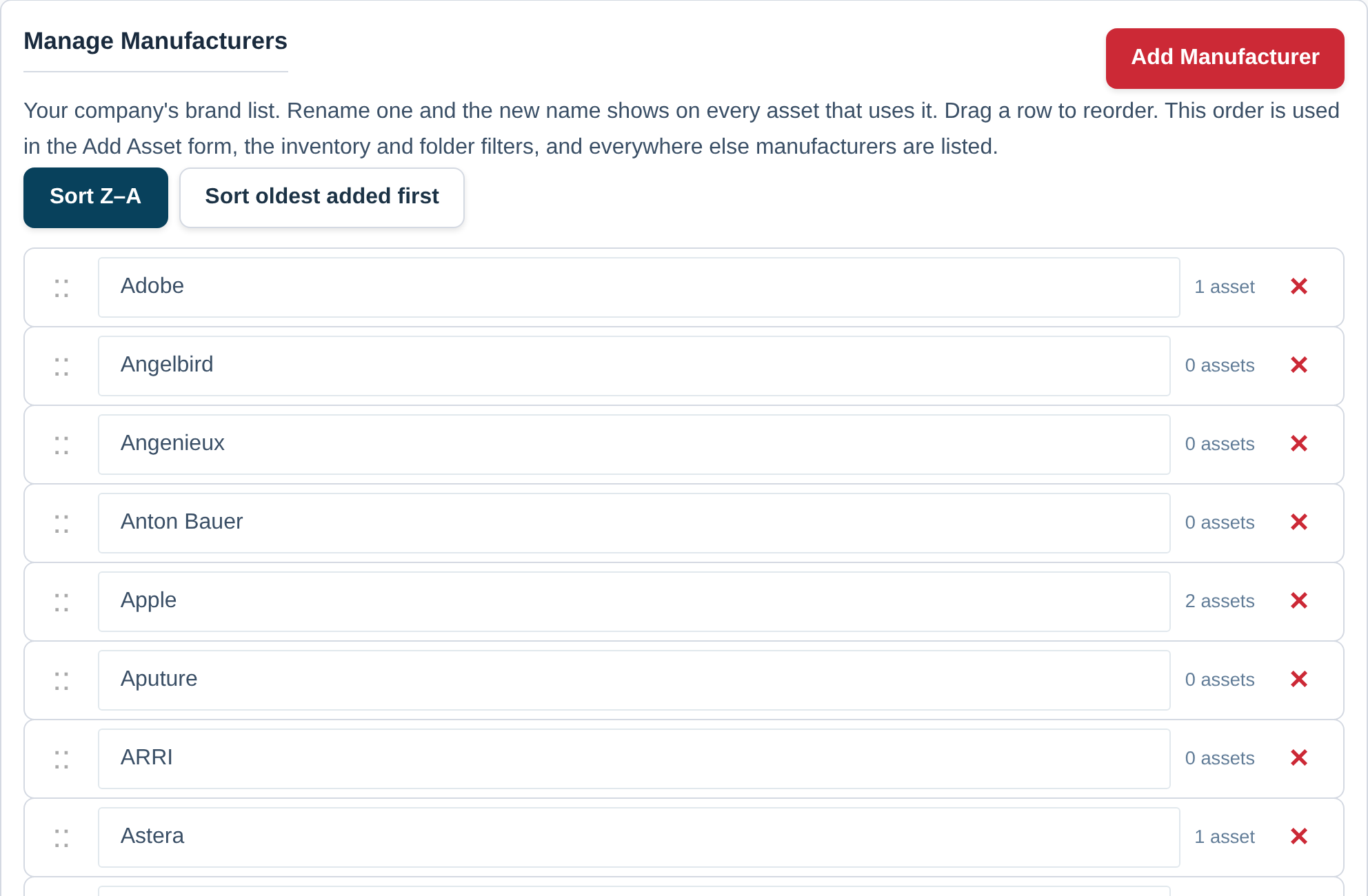
Renaming a brand
Click into the name on its row, type the correct spelling and click away. The new name is saved and every asset using that brand shows it straight away — there is nothing to repeat on the asset records themselves, and the inventory sorts under the new name as well.
Two brands cannot share a name, so if a name is already taken you are told rather than ending up with two rows you cannot tell apart. A name can be up to 120 characters.
Best Practice: Settle on one spelling per brand — “DeWalt”, not “Dewalt” and “DEWALT” — before an import adds a second version of it. The matching done on import is by name, so a tidy list keeps a spreadsheet landing on the brands you already have.
Putting the brands you use most at the top
The list is in your own order, not alphabetical, and that order is what every picker in the app uses. There are three ways to set it:
- Drag a row by the handle on the left, on a desktop or laptop.
- Use the ▲ and ▼ buttons on the row — the way to do it on a phone or tablet.
- Press a sort button to reorder the whole list at once: Sort A–Z, or Sort oldest added first. Each button names what the next press will do, so pressing it again reverses that order.
A brand created somewhere else in the app — on the Add Asset form, by the importer, or from an AI suggestion — goes to the bottom of the list, so a hand-made order is never disturbed by a new entry appearing in the middle of it.
Adding a brand here
Press Add Manufacturer, type the name and save. Most brands arrive from the asset form or an import, so this is mainly for setting a list up before the assets exist — ahead of a spreadsheet import, for instance.
Removing a brand
Press the × on its row. If any assets use the brand you are told how many before anything happens:
No asset is ever deleted with a brand. The affected assets simply stop having a manufacturer, and you can set them to another one with Bulk Actions from the inventory — see Edit, Move or Delete Many Assets at Once.
Who can change the list
The manufacturer list is company-wide, so what you set here is what everybody on your account sees. Changing it needs an Owner or Admin account, the same as the other Settings tabs — see Managing Your Team Members and Roles.
For the Manufacturer, Model and Serial Number fields on an asset itself, see Record a Serial Number for Insurance. For tidying categories the same way, see Organise Your Assets into Categories and Sub-Categories.