
Asset Giant has an on-site app built for the places your kit actually goes: basements, containers, plant rooms, loading bays, lift shafts and the far end of a yard. It keeps a copy of your inventory on the phone, so a scan in a basement is as good as a scan at the desk. Everything a person records down there is held on the device the moment they tap it, and goes up as soon as the app is opened back in signal — nobody has to remember anything, write anything down, or come back and do it twice.
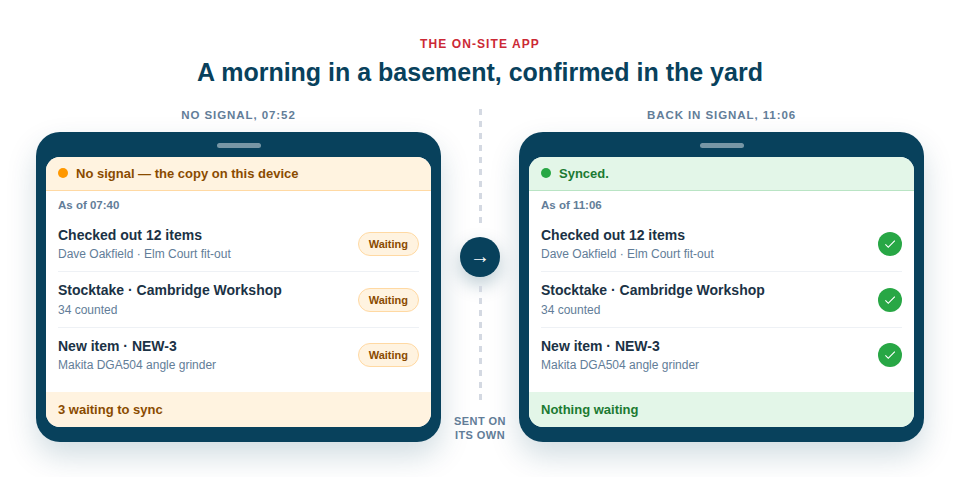
The whole on-site job, with no bars
What a person can do standing in front of a tool does not change when the signal does:
- Scan a sticker and see the item’s card — what it is, where it is and who has it.
- Check an item out to a person, or back in to a location, and check a whole load in or out at once by scanning them one after another and confirming the lot with one button.
- Run a stocktake of a store, a container or a van, scanning as many items as there are to scan.
- Work a kit list off, with every line ticked as it is found and the missing ones listed at the end.
- Add a new item, with a photo, the moment it arrives on site.
- Search the copy on the phone by name, reference, make, model or location — which is also the way through a sticker that is under three inches of mud.
A few things reach outside the app and so need a connection: AI lookups, PDFs and label printing, exports, documents, invoices and billing. Those wait for the full site.
It never says saved when it means waiting
With no signal the app says waiting to sync, and it keeps saying that about that exact entry until the server has confirmed it. The number still waiting is on screen the whole time, and the app sends it as soon as it is open with a connection — including when somebody simply picks the phone up and opens it again.
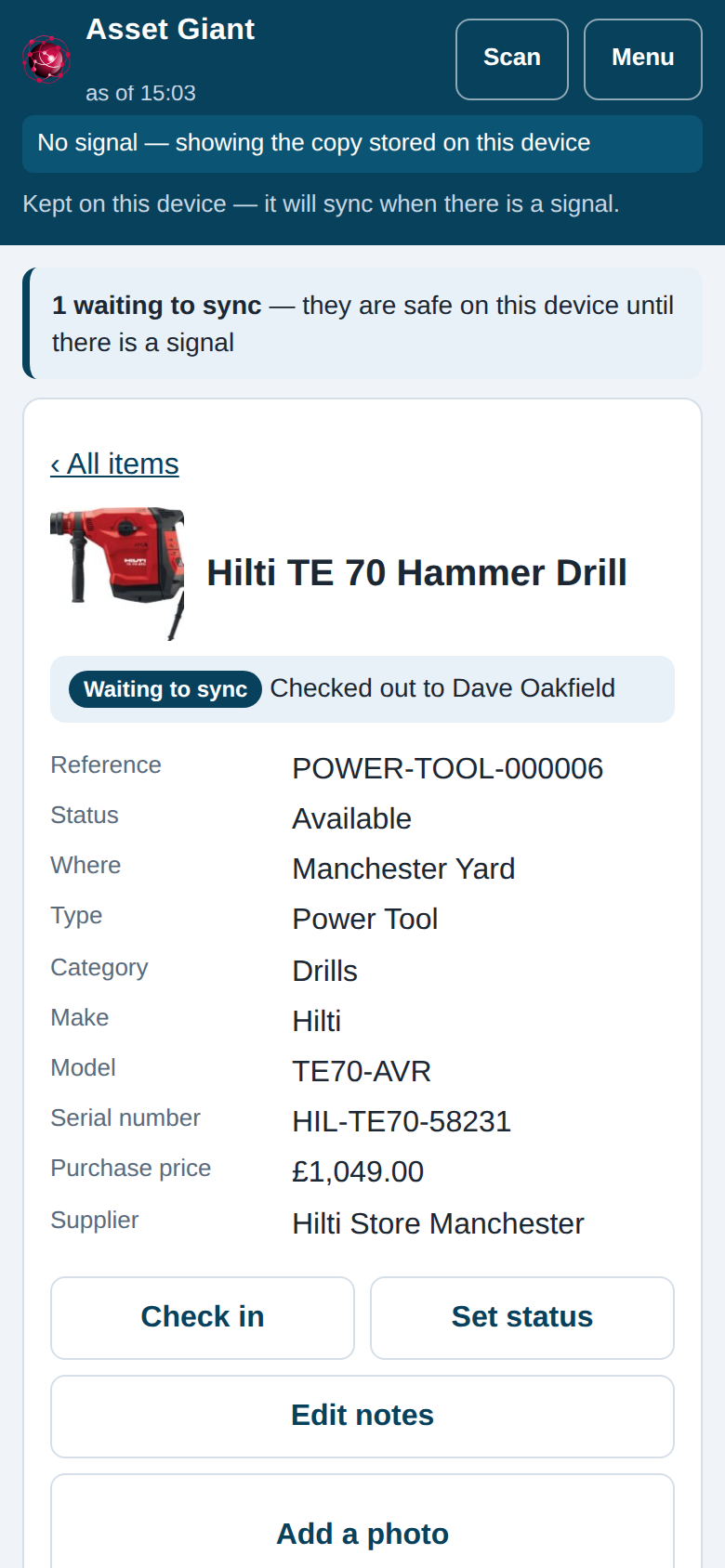
That honesty runs all the way through. A tool added on site is given a temporary reference such as NEW-3 — deliberately not shaped like one of your asset IDs, so there is never any doubt which is which. Write NEW-3 on a strip of tape and it identifies the tool until the real asset ID is issued at sync, and a month later that reference still finds the item in your inventory and still reads on its history.
One icon on the home screen
A person adds Asset Giant to their phone’s home screen once, from the browser, with a signal. From then on the icon opens straight into the on-site app, and the screen says how fresh the copy on that phone is — as of 09:12 — on every page. There is a Sync now button for before they leave the yard, and a Scan button beside it for everything done with the phone in one hand.
Best Practice: Tap Sync now before leaving for a job so the copy on the phone is fresh, and open the app again on the way back into signal. For the jobs where the phone stays in a pocket altogether, print the same kit list as a tick sheet — see Printable Paper Checklists.
The on-site app is included with every paid plan. For the step-by-step, see Using the App With No Signal; for the scanner itself, Getting Started with the QR Scanner and Mobile QR Scanner.