
The reliability of your asset tracking system depends on the quality of your printed QR code labels. A damaged or poorly printed label can be difficult or impossible to scan. Here are some best practices to follow.
1. Choose the Right Label Material
Standard paper labels will not survive on a construction site or in a workshop. Always use a durable, waterproof, and tear-resistant material.
- Recommended: Polyester or vinyl labels are excellent choices. They resist water, oil, dirt, and abrasion. Avery produces a line of “Durable” or “Tough” labels specifically for these environments.
- Lamination: For maximum durability on high-contact tools, consider placing a piece of clear, heavy-duty packing tape over the QR code label after you’ve applied it.
2. Match the Label Template
Before printing, double-check that the Sheet Format you selected in the Print a Sheet of Labels from the Print Queue exactly matches the product code on your label packaging. A mismatch is the number one cause of misaligned labels.
3. Use the Highest Print Quality
When you print the PDF, make sure your printer settings are configured for the best possible quality.
- Printer Type: In your printer’s settings dialog, ensure you have selected the correct media type (e.g., “Labels” or “Heavy Paper”). This adjusts the heat and speed for a better print.
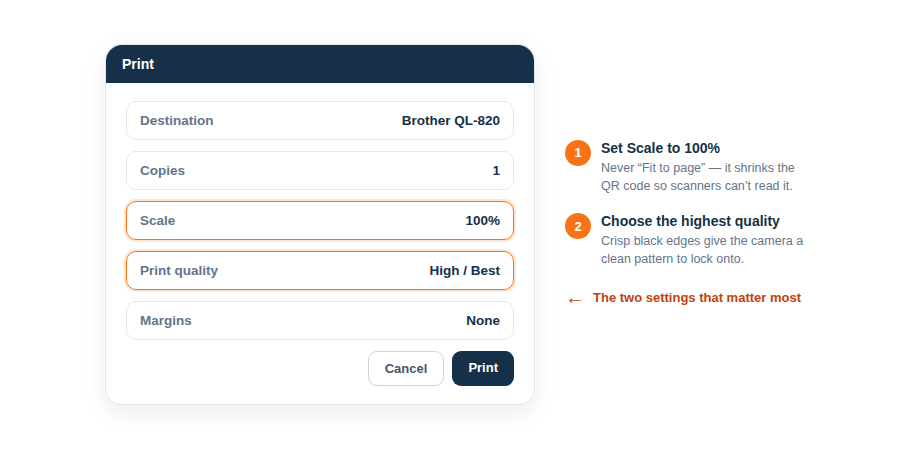
- Print Quality: Always choose “Best,” “High,” or the highest DPI setting available. A draft-quality print may not be sharp enough for a phone camera to read easily.
4. IMPORTANT: Print at 100% Scale
This is the most critical step. In your printer settings, look for the “Scale” option. You must ensure it is set to 100% or “Actual Size”.
- Do NOT use “Fit to Page,” “Scale to Fit,” or “Shrink to Fit.” These options will resize the entire document, causing the labels to be misaligned with the physical sticker sheet.
By following these simple guidelines, you can produce rugged, reliable labels that will scan quickly and easily every time.