
Asset Giant allows you to do more than just track your own tools. You can also link your assets to the jobs you do and the clients you serve. Understanding this relationship is key to unlocking the full power of the system.
The Relationship Hierarchy
The relationship flows in a logical sequence:
A Client -> can have multiple -> Projects -> which can have multiple -> Assets
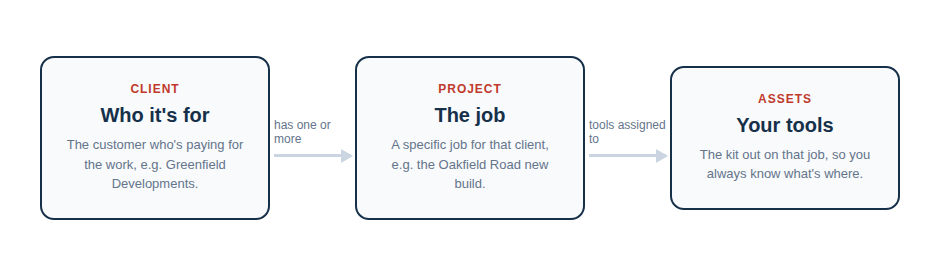
- Client: This is the top-level entity, representing the customer you are doing work for (e.g., “The Riverside Hotel”). How to Add and Manage Clients.
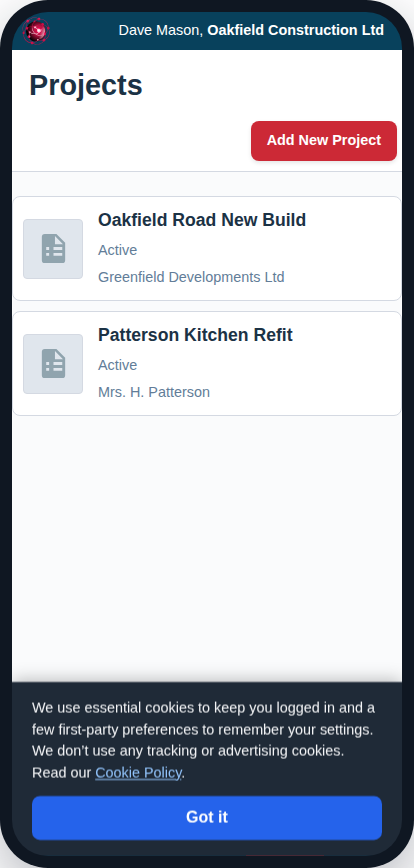
- Project: This is a specific job or work order for that client (e.g., “Summer Gala — June 2026”). A client can have many projects over time. How to Add and Manage Projects.
- Asset: This is a piece of equipment used on that project (e.g., “Shure wireless microphone kit”). An asset can also be something permanently installed for that client (e.g., a “Ceiling-mounted projector” in their conference room).
Why Use These Relationships?
By linking these items together, you gain powerful insights and save time.
- Complete Job History: When you view a Client’s page, you can see a full list of every Project you’ve ever done for them.
- Job-Specific Asset Lists: When you view a Project’s page, you can see every single Asset that is currently assigned to that job. This is invaluable for tracking equipment on-site.
- Tracking Customer Equipment: If you install equipment at a client’s property, you can assign that Asset directly to the Client. This allows you to quickly look up service history, warranty details, and serial numbers years after the job is complete.
While you don’t have to use all of these features, taking a moment to link an asset to a project or client when you add it will build a rich, interconnected history of your work over time.