
Whether you are creating a new asset or editing an existing one, the final step is always to save your work.
Location of the Save/Update Buttons
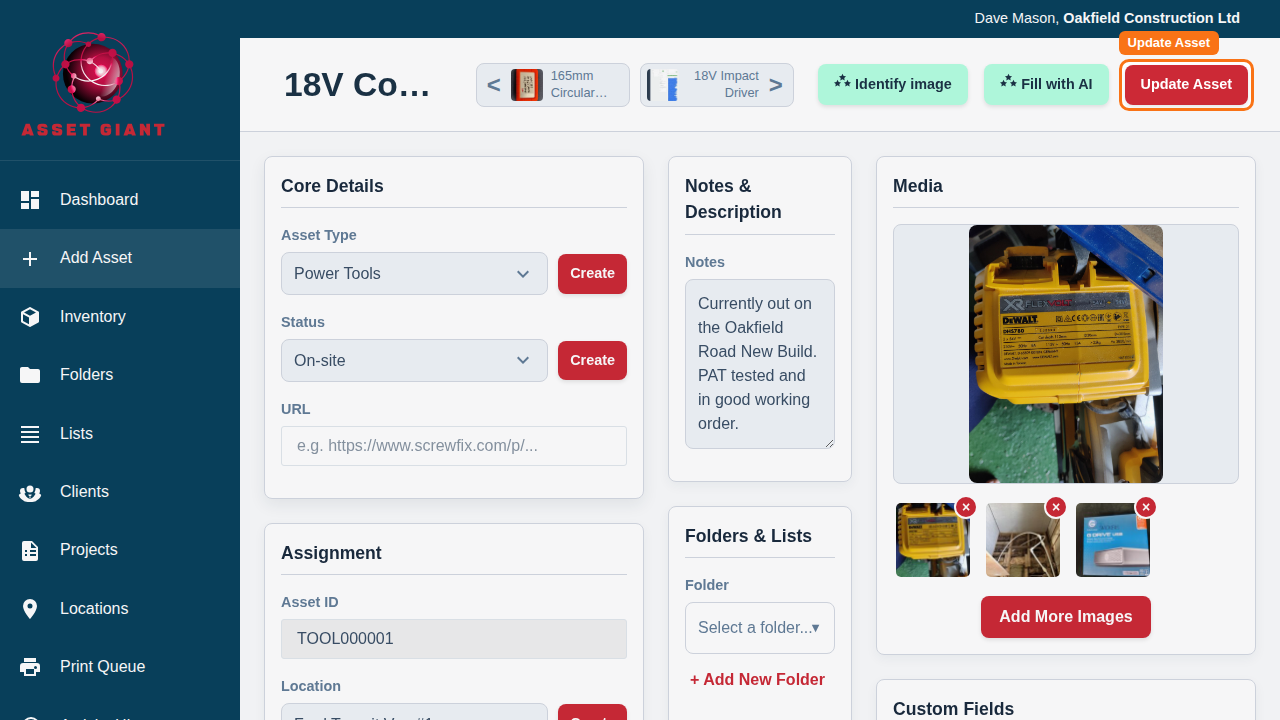
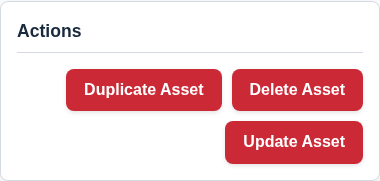
The primary save button is located in the header at the top right of the Add/Edit Asset page. For convenience, an identical button is also located in the “Actions” card at the very bottom of the page. Both buttons perform the same function.
- When creating a new asset, the button will read “Save Asset”.
- When editing an existing asset, it will read “Update Asset”.
The Save Process
When you click the button, all the information you have entered across all the cards on the page is sent to the server and saved to the database.
- New Assets: Upon saving a new asset for the first time, the system will generate its unique Asset ID, and the page will reload in “edit mode.” You will then see the Asset Navigator appear, and the button text will change to “Update Asset”.
- Existing Assets: When updating, your changes are saved, and a “Success” notification will appear. All changes are logged in the asset’s “Activity History” card.
Important: If you navigate away from the Add/Edit Asset page before clicking “Save” or “Update,” any changes you have made will be lost.