
The Team Management screen is where you control who has access to your company’s inventory data, and what each of them is allowed to do. It’s available to Owners and Admins.
How to Access Team Management
- Navigate to Settings from the main menu.
- Click on the Team Management tab.
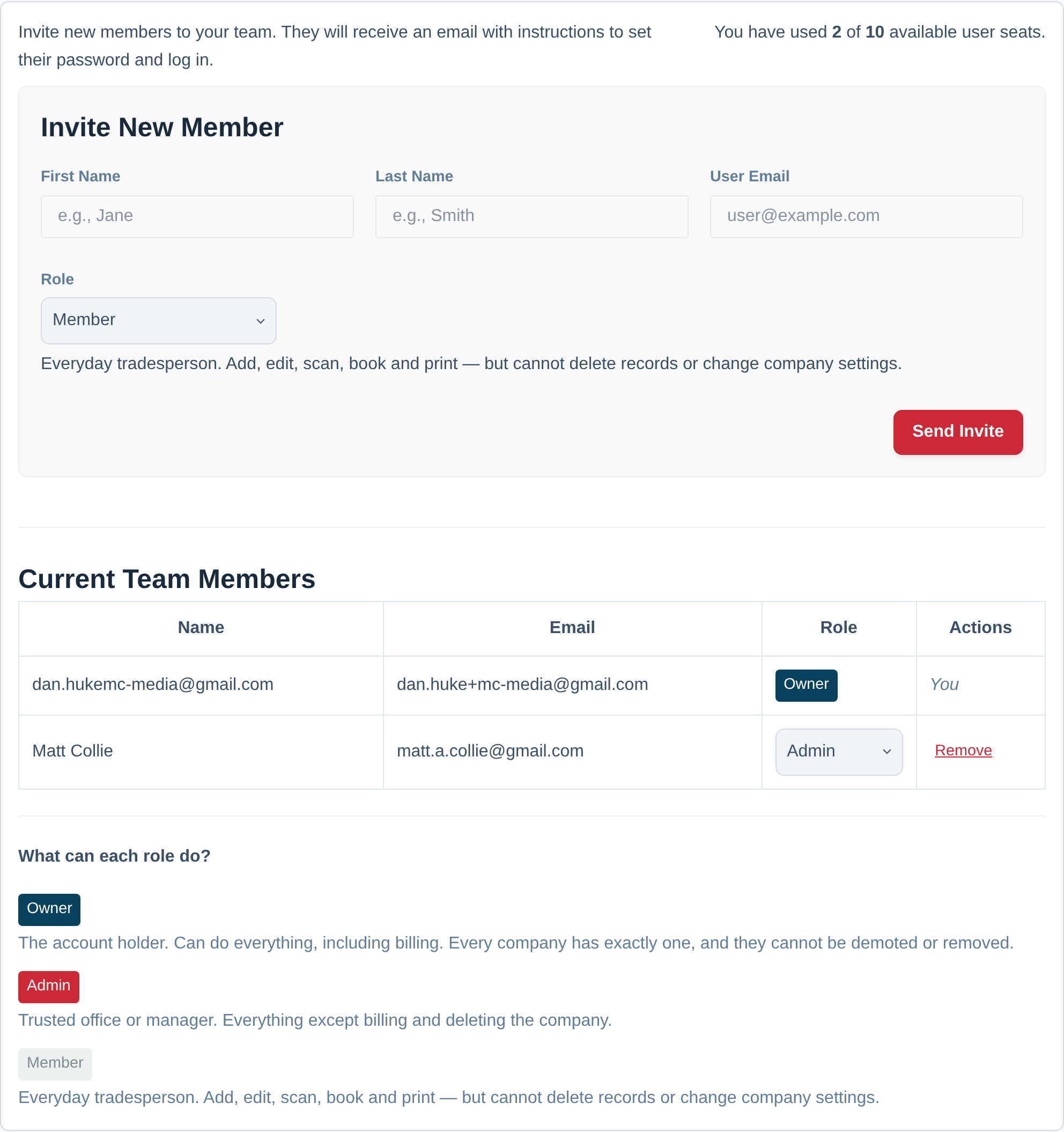
Inviting a New User
- Fill out the First Name, Last Name and User Email in the “Invite New Member” form.
- Choose their Role. A short description of what that role can do appears underneath as you change it, so you can check before you send.
- Click Send Invite.
The user will receive an email with a unique link to set their password and log in. Once they do, they’ll have access to your company’s data — at the level their role allows.
When Your Team Is Full: Adding an Extra Seat
The seat meter beside the invite form shows how many of your plan’s user seats are in use. If they are all taken, you have two options and you can see both on the screen:
- Add an extra user seat. On any paid plan, the Add a user seat button shows the price per seat and opens a short confirmation showing what you will pay now and what your bill becomes. The seat is available immediately. Only the days left in your current billing period are charged for at the time, your renewal date does not move, and from then on the extra user is part of your usual single payment.
- Move up a plan. If you need several more people, the next plan up includes more seats and usually costs less than the equivalent number of extra seats. Upgrade to Add Users takes you to the plans page.
Only someone who can manage the subscription sees the seat button, because it changes what your company pays. If you can invite people but not buy a seat, you will still see the meter and the price.
To give a seat back, use Remove a seat. The seat stays available until the end of the period you have already paid for, and your next bill drops back automatically. Nobody is removed from your team to make the number fit: if you are above your seat count, new invites pause until there is room, and everyone who already has access keeps it.
If you’re not sure which role to pick, Member is the right answer for most people — it covers all the day-to-day work and nothing else. Choose Scanner for a labourer or new starter who only needs to scan kit in and out, and Viewer for a client or subcontractor who needs to see the inventory without changing anything. You can always promote someone later.
Getting new starters up to speed: because each user has their own help tips, guided tours do a lot of the training for you. When a new team member logs in for the first time, short in-app pop-ups introduce the features they’ll use most — no sit-down session required. See Guided Tours and Help Tips.
The roles at a glance
| Role | View inventory | Scan / check in-out | Add & edit assets | AI lookup & assistant | Delete records | Company settings | Manage the team | Billing |
|---|---|---|---|---|---|---|---|---|
| Viewer | ✓ | ✗ | ✗ | ✗ | ✗ | ✗ | ✗ | ✗ |
| Scanner | ✓ | ✓ | ✗ | ✗ | ✗ | ✗ | ✗ | ✗ |
| Member | ✓ | ✓ | ✓ | ✓ | ✗ | ✗ | ✗ | ✗ |
| Admin | ✓ | ✓ | ✓ | ✓ | ✓ | ✓ | ✓ | ✗ |
| Owner | ✓ | ✓ | ✓ | ✓ | ✓ | ✓ | ✓ | ✓ |
A note on the AI column: AI photo lookup and the dashboard assistant are Member-level and above, and lookups draw on your company’s shared credit allowance rather than a personal one — so every person you give AI access to is spending the same pool. That is why Scanner deliberately has none.
For the detail on exactly what sits inside each of those columns, see User Roles: Owner, Admin, Member, Scanner and Viewer.
Changing a User’s Role
In the “Current Team Members” list, each person has a role dropdown. Pick the new role and confirm — the change takes effect immediately, the next time that person loads a page.
A few things you won’t be allowed to do, by design:
- You can’t change your own role. This stops you accidentally locking yourself out.
- You can’t change the Owner’s role, or remove them. The Owner is the account holder.
- You can’t leave the company with nobody able to manage the team. The Owner always counts towards this, so if you are the Owner you will never hit it — an Owner plus one Member, Scanner or Viewer is a perfectly valid team, and you can change or remove that second person freely. You don’t need a separate Admin.
If one of these stops you, you’ll see a message explaining which rule you’ve hit.
Removing a User
To remove a user’s access to your company:
- Find the user in the list.
- Click the Remove button.
- Confirm the action in the popup.
What happens when a user is removed?
- They will immediately lose all access to your company’s data.
- Their user account is not deleted, it is simply unlinked from your company.
- Any assets they created remain with the company.
- Their name will remain attached to entries in the Activity History for audit trail purposes.
If someone says they can’t do something
Nine times out of ten this is their role rather than a fault. A Member won’t see the company settings tabs or Delete buttons on records; a Scanner won’t see Add Asset or Print Queue in the menu; a Viewer sees the inventory with no bulk actions on it. Those controls are hidden rather than shown-and-broken, so there’s nothing to click. Either do the task for them, or change their role on this screen.
Changing someone from Scanner to Member (or the other way) takes effect the next time they load a page — they don’t need to log out and back in.