
When everyone files items their own way, filters and reports quietly break. Categories give your team a shared, two-level classification of what an item is, so you can slice your whole inventory by type in an instant and trust the results are complete.
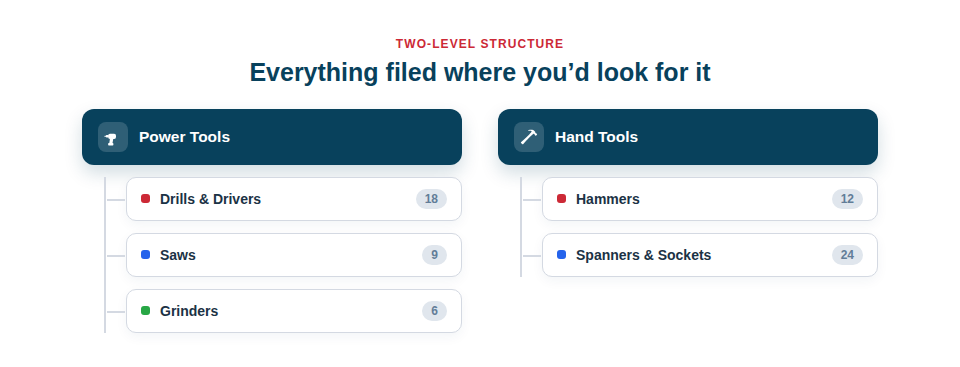
Group by what things are
Categories are deliberately simple, which is what keeps them consistent across a team:
- A two-level structure — a parent category and its sub-categories, such as Power Tools and, within it, Drills & Drivers or Saws. Two levels are enough to be useful without becoming a maze.
- Consistent classification — because everyone picks from the same tree, filters and reports stay clean and complete.
- Your own tree — build the categories that match your trade, rather than wrestling with a fixed list that doesn’t quite fit.
How categories work with folders and lists
Categories are one of three complementary organising tools, and the easiest way to keep them straight is by the question each answers. A category says what kind of thing an item is. A folder says where it lives. A list says which groups it belongs to. An asset typically has one category, one folder and any number of lists, and together they let you navigate even a large inventory from whichever angle suits the task.
Setting them up is a one-time job that keeps paying off:
- Define your parent categories and their sub-categories to match your trade.
- Assign a category to each asset as you add it (the AI will often suggest a sensible one from a photo).
- Filter and report by category whenever you want to see, value or service a whole class of equipment at once.
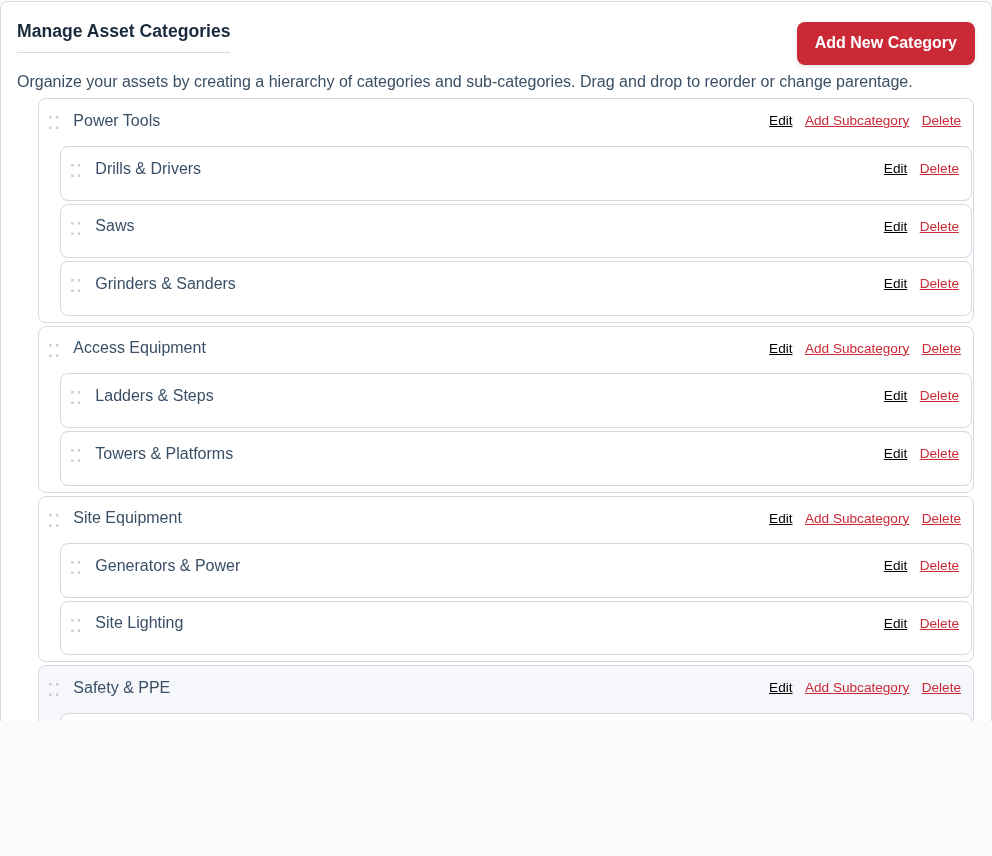
Best Practice: Keep your category tree broad and shallow. A handful of clear parent categories with a few sub-categories each is far more usable than a deep, over-detailed hierarchy that people struggle to file into consistently.
To manage them, see Organise Your Assets into Categories and Sub-Categories.