
Asset Giant puts the scanner where the work happens — in your phone. It runs straight in the browser with no app to install, so records get updated at the point of action, on site.
A scanner you already own
Because it uses the phone’s own camera, the practical barriers that sink other systems simply aren’t there:
- Any smartphone works. If your phone can take a photo, it can scan — any reasonably modern iPhone or Android handset will do, with no particular model required.
- Use your own phone. No barcode guns to buy, charge, share out or replace, and nothing to install.
- Works where you work. In the van, up the scaffold, in the lock-up — anywhere with a signal.
- One tool for every job. The same scanner handles identifying items, checking them in and out, running stocktakes and working through checklists.
- Ready for the whole team. Every member of staff already has the hardware in their pocket, so everyone can keep the inventory current.
Fast and familiar, so it actually gets used
A tool only helps if people use it, and the scanner is deliberately simple enough that adoption isn’t a battle. You tap the Scan button, point the camera at a code, and you’re straight into the relevant action. There’s nothing to learn beyond “point and tap”, which means a new starter can be contributing on their first day rather than waiting for training.
In everyday use it looks like this:
- Open Asset Giant on your phone and tap Scan.
- Point the camera at an asset or location QR code.
- Choose what you’re doing — identify, check in or out, run a stocktake, or work a checklist.
- Carry on; the records update as you scan.
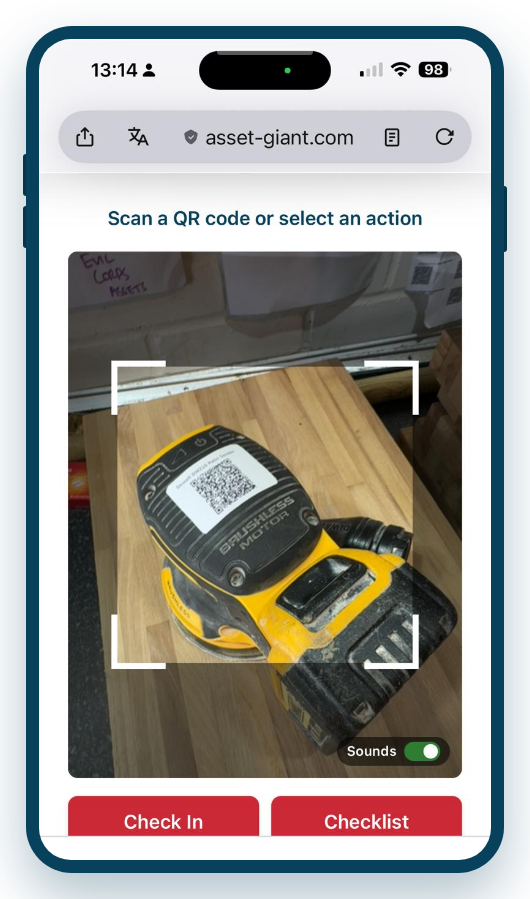
Best Practice: Give the scanner permission to use your camera the first time you open it, and add Asset Giant to your phone’s home screen, so it’s one tap away whenever you need it on site.
To get going, see Getting Started with the QR Scanner and Using the Mobile Scanner to Check Items In/Out.