
Everything to do with your paperwork lives under Quotes & Invoices in the main menu. This article walks through building a document from scratch, issuing it, and getting it to your client.
Before you start, it is worth spending five minutes in Settings → Hire & Invoicing so your documents come out right first time. That is where your tax rates, your VAT and registered details, your payment terms and your document numbering live.
Start a new document
- Go to Quotes & Invoices.
- Press + Add New.
- Choose Quote, Invoice or Credit Note. If you have saved templates, From Template is there too — see Using Quote and Invoice Templates.
You land on an empty draft. Nothing is committed and nothing is numbered until you press Issue, so there is no harm in experimenting.
Fill in the details
The Details card at the top carries the things that describe the document rather than price it:
- Client and Project. Both are optional, and both have a button beside them to create a new record on the spot if the one you need does not exist yet. See How to Add and Manage Clients and How to Add and Manage Projects.
- Hire from and Hire to. The dates the hire covers. These only appear once the document has a hire line on it, so a straightforward labour-and-materials invoice never asks for them.
- Issue date and Due date. The due date is worked out from the payment terms in your settings, and you can override it.
- Tax point (date of supply). Leave it alone unless the supply happened in a different VAT period from the invoice date. It is not the invoice date, and it is what decides which return the tax falls into.
- Add tax. Turn this off for a document that carries no tax at all, and everything tax-related disappears from the screen and from the printed document.
Add your lines
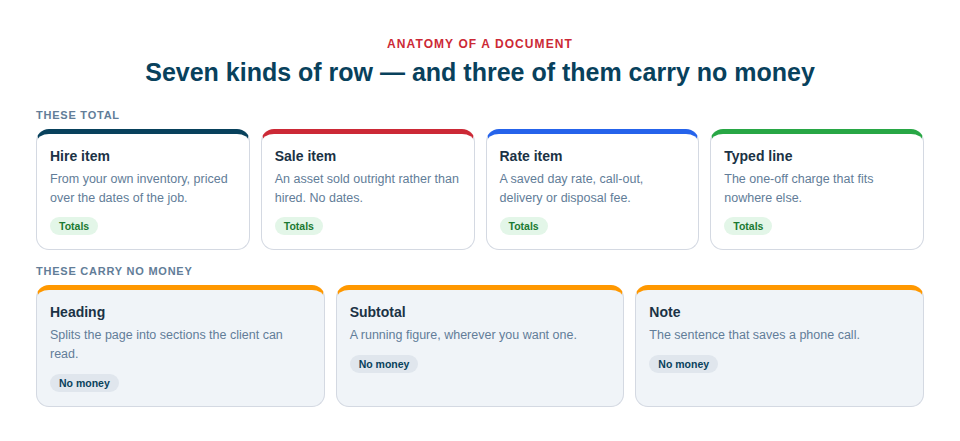
The Lines card is where the document is really built. The bar above the list offers four ways in:
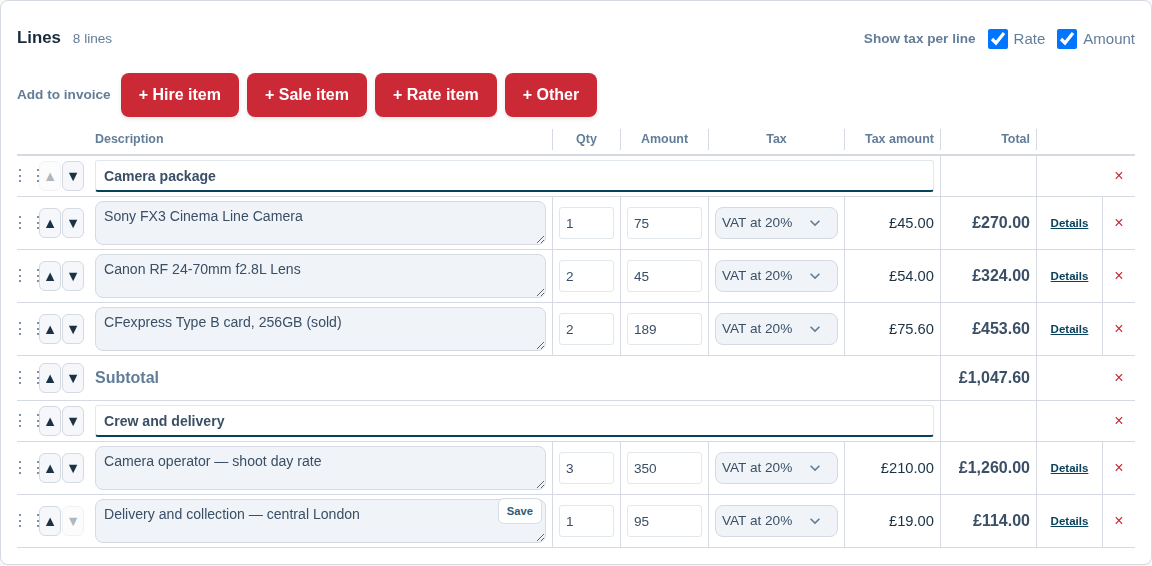
- + Hire item — pick assets from your own inventory. They are priced from that asset’s rates over the hire dates. See Pricing a Hire.
- + Sale item — pick an asset you are selling rather than hiring. Same inventory, no dates and no charge calendar, and the quantity comes off the item’s stock when you issue the invoice.
- + Rate item — pick from your saved catalogue of non-asset charges: day rates, hourly rates, call-outs, delivery, disposal, and so on. You manage that catalogue in Settings → Hire & Invoicing → Rate Items.
- + Other — a menu with five more:
- Free-text line — a one-off charge you simply type.
- Section heading — splits the document into named parts, such as Plant, Labour and Materials.
- Subtotal — a running total wherever you want one.
- Note (no charge) — a sentence for the client, with no money attached.
- From a list, project or booking — pulls in a whole kit list or everything booked out on a job in one go.
Each money line has a description, a quantity, an amount, its tax rate and its total. Quantities take decimals, so half a day or 2.5 metres is a line, not a fudge. Drag the handle at the left of any line to reorder it, and use the Details link on a line to reach which rate it is priced from, the period, the number of periods, a discount percentage and a manual override of the line total.
Choosing how tax appears
At the top right of the Lines card you will find Show tax per line, with two separate choices: Rate and Amount. Tick either, both or neither.
- Rate shows “20%”, “Zero rated” or “Reverse charge” against each line.
- Amount shows the tax in money on each line.
They are separate because they answer different questions, and plenty of documents want one without the other. On a document that mixes tax treatments — anything with a zero-rated, exempt or reverse-charge line on it — the Rate column is switched on and locked, because the invoice is required to say which line is which.
Terms and notes
The Terms & notes card holds three separate boxes:
| Box | Who sees it |
|---|---|
| Terms | Printed on the document — your payment terms and hire terms |
| Notes for the client | Printed on the document |
| Internal notes | Never shown to the client and never printed |
Issue it
Save draft keeps your work without committing anything. Issue is the step that matters:
- The document gets its number, taken from the sequence you set up in Settings.
- The document is frozen — your company details and the client’s details are copied onto it as they are today, so it still reads correctly in two years’ time.
- An invoice starts counting towards the due date, and will show as overdue on its own if it passes.
Once issued, the lines cannot be edited. That is deliberate: an invoice is a record of a transaction, not a working document. If something is wrong, cancel it, raise a credit note against it, or copy it to a fresh draft and start again.
On the Free Forever plan you can issue five invoices a month. Every paid plan is unlimited. Quotes and credit notes are unlimited on every plan, including Free.
Send it
Once issued, the buttons at the bottom of the document offer:
- Preview PDF — download or print it.
- Email — send it from inside Asset Giant, with an optional copy to yourself. A Sent marker then appears beside the status.
- Copy share link — a private link your client can open on any device without an account. If you have connected Stripe, that page also carries a Pay now button: see Getting Paid and Recording Payments.
Turning a quote into an invoice
When a quote is accepted, open it and press Convert to invoice. The lines cross over exactly as they were quoted — the invoice charges what you quoted, not what the asset’s rate happens to be today — and the two documents stay linked. The quote is marked accepted at the same time.
A quote can be converted once. If you try again, Asset Giant tells you which invoice already exists rather than making a second one.
To correct an invoice that has already gone out, open it and press Credit note. You can raise more than one credit note against the same invoice for partial credits, and the original invoice number is printed on the face of each.
Copying a document
Copy to makes a fresh draft from any quote or invoice, issued or not. The lines are copied exactly as they stand, and the copy carries no number, no status and no link back to the original — which is what makes it safe. It is the right tool for “the same job again”; a saved template is the better tool for “this job every month”.
Tips
- Set your tax rates and payment terms before your first real document. Both are copied onto a document when you issue it, and an issued document is frozen.
- Use headings and subtotals generously. A client who can see what the plant cost and what the labour cost asks fewer questions and pays sooner.
- Put anything you would not want the customer to read in Internal notes. It is never printed and never shared.
- Draft freely. A draft has no number, appears in no report and counts against nothing.