
Once an invoice is issued you have three jobs: get it in front of the client, get the money in, and know where you stand. This article covers all three.
Sending an invoice
Open any issued invoice and use the buttons at the bottom:
- Preview PDF downloads the document so you can print it or attach it yourself.
- Email sends it from inside Asset Giant. Tick Send me a copy if you want one. Once it has gone, a Sent marker appears beside the status, so you never have to wonder whether it went.
- Copy share link gives you a private web address for that one document. Your client can open it on a phone with no account and no login, and it shows the invoice exactly as it prints.
Your bank details and payment terms print on the document itself. Set them once in Settings → Hire & Invoicing → Payment Terms, where you also set the number of days that decides the due date.
Letting clients pay by card
If you want clients to be able to pay online, connect your own Stripe account.
- Go to Settings → Hire & Invoicing and find the Online payments card.
- Press Connect with Stripe.
- If you already use Stripe, sign in and choose that account. If you have never used Stripe, you can create an account during the same step.
- You come back to Asset Giant, and the card shows the account, the date it was connected and the currency it settles in.
Once it says Ready to accept payments, the share page for any issued invoice with a balance carries a Pay now panel.
What happens to the money
This is worth being clear about:
- The card is charged on your own Stripe account. You are the merchant.
- The money goes straight into your Stripe balance. Asset Giant never holds it and never routes it.
- Asset Giant takes no cut and no fee on anything your clients pay you.
- Stripe’s own processing fees apply, exactly as they would if you used Stripe directly.
When the Pay now button will not appear
It is deliberately withheld unless everything is right, because a payment button that fails is worse than no button at all. It appears only when all of the following are true:
- The document is an invoice — a quote is not owed, and a credit note is money going the other way.
- It has been issued and has not been cancelled.
- There is still something outstanding on it.
- Your Stripe account is connected and Stripe has finished its own checks.
- The invoice is in a currency your Stripe account settles in.
- The amount is above Stripe’s own minimum (£0.30 in sterling).
If any of those is not met, your client simply sees the payment details on the invoice instead. The Online payments card in Settings tells you which one it is.
Recording a payment yourself
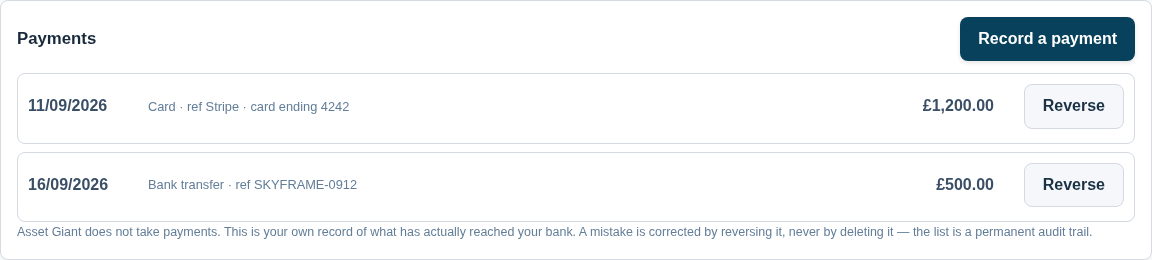
Bank transfers, cheques, cash and card-machine takings are recorded by hand, which takes a few seconds.
- Open the issued invoice.
- Press Record a payment on the Payments card.
- Enter the amount, the date, how it was paid and any reference.
- Save.
Card payments taken through the share page record themselves, so you do not need to enter those.
When your client pays, Stripe notifies Asset Giant and the payment is written onto that invoice automatically:
- The amount and the date it was taken.
- The method, shown as Card (Stripe).
- Stripe’s own payment reference, so you can match the row against your Stripe balance.
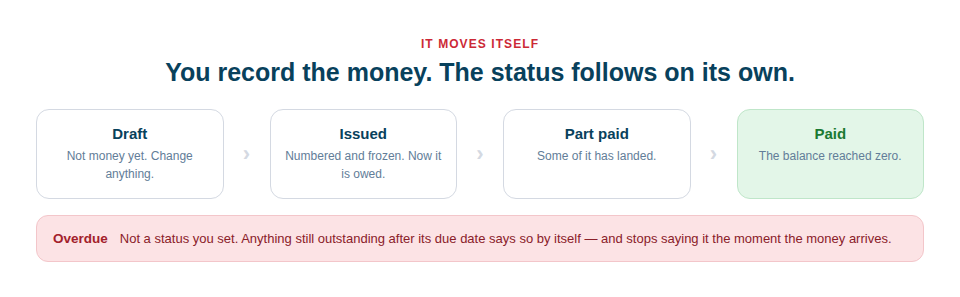
- The invoice status, which moves itself to part paid or paid at the same time.
There is nothing to import and nothing to reconcile by hand. If you later refund the payment in Stripe, that comes back the same way as its own negative row, so the balance stays correct.
The invoice moves itself from issued to part paid to paid as the money comes in. If the due date passes while anything is outstanding, it shows as overdue on its own.
Correcting a payment
A payment is corrected by reversing it, never by deleting it. Both the original entry and the reversal stay on the record. That is what makes the list a genuine audit trail — it can always answer “why did last month’s figure change?”, which a list somebody had tidied up could not.
If the invoice itself is wrong rather than the payment, raise a credit note against it instead. A credit note reduces what is owed; it is never counted as money received.
Seeing where you stand
Press Reports on the Quotes & Invoices screen for three views:
- Aged owing — every issued invoice still outstanding, grouped by how overdue it is. Drafts never appear, and anything paid or credited in full drops off by itself.
- Client balances — the same money grouped by client, so one phone call can cover everything that customer owes.
- Tax report by rate — output tax by rate over a date range you choose, with zero-rated, exempt and reverse-charge amounts listed separately rather than added together. Credit notes are subtracted.
Each client and each project also has its own Financials tab showing what has been quoted, invoiced and paid against it.
Who is allowed to do what
Issuing an invoice, setting its status, cancelling it, recording a payment and opening the money reports are all reserved for owners and admins. A team member can build and save drafts but cannot commit them, because issuing an invoice is a commercial act. See Managing Your Team Members and Roles.
Tips
- Send the link, not just the PDF. A link opens on a phone in one tap, and it is where the Pay now button lives.
- Fill in your payment instructions even if you take cards. Some customers will always pay by transfer, and an invoice with no bank details on it invites a phone call.
- Check Aged owing once a week. Five minutes on a Friday is worth more than an hour of chasing a month later.
- Reverse, do not delete. If a payment was entered wrongly, reversing it leaves a record that explains the change.