
The Bulk Generate tool is the first step in the “bottom-up” labeling workflow, where you print your labels before the assets are logged in the system. See Print QR Labels Now and Assign Them to Assets Later for more on this concept.
Generating Your Codes
1. Navigate to QR Code Settings
From the main menu, go to Settings and click on the “QR Codes” tab.
2. Open the Bulk Generate Tool
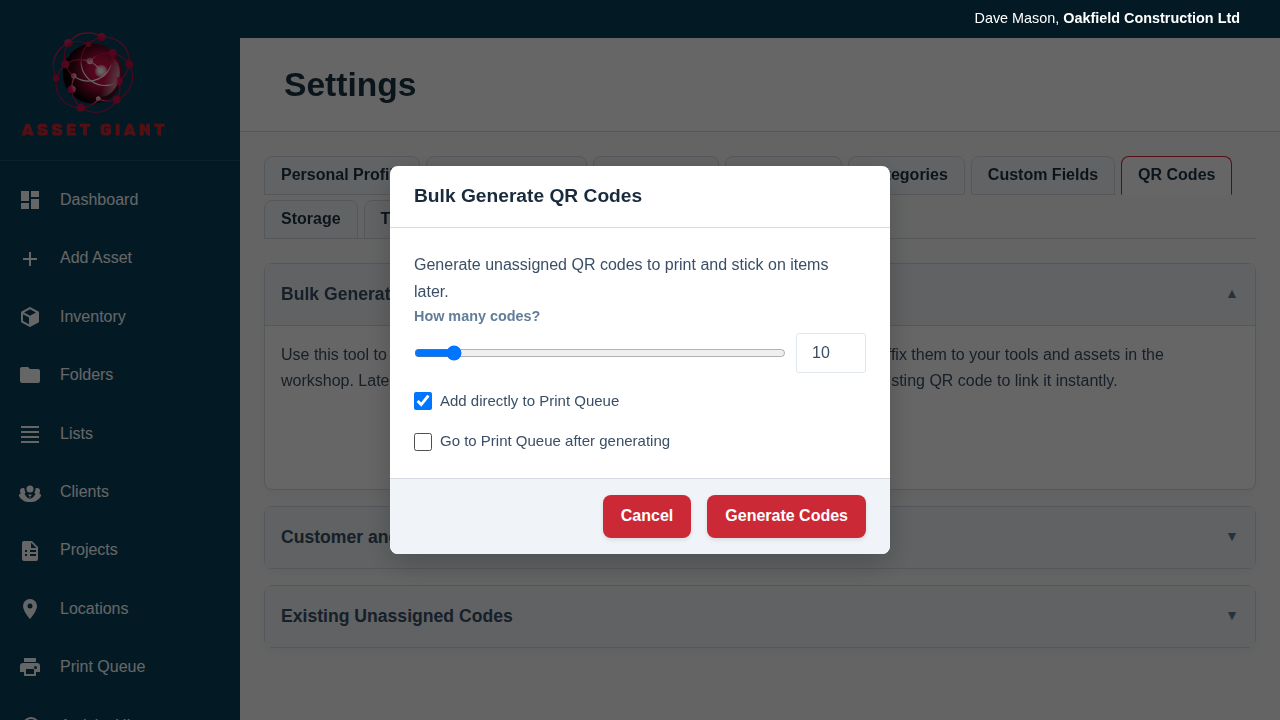
Inside the “Bulk Generate QR Codes” section, click the “Generate New QR Codes” button. This will open a modal popup.
3. Choose Your Options
In the modal, you have a few options:
- How many codes?: Use the slider or the number input to select how many unassigned codes you want to create (up to 100 at a time).
- Add directly to Print Queue: This option is checked by default and is highly recommended. It will automatically add all the new codes you create to the Print a Sheet of Labels from the Print Queue, ready for you to print a label sheet.
- Go to Print Queue after generating: Check this box if you want to be taken directly to the Print Queue page immediately after the codes are created.
4. Click “Generate Codes”
The system will create the requested number of new, unassigned QR codes.
What Happens Next?
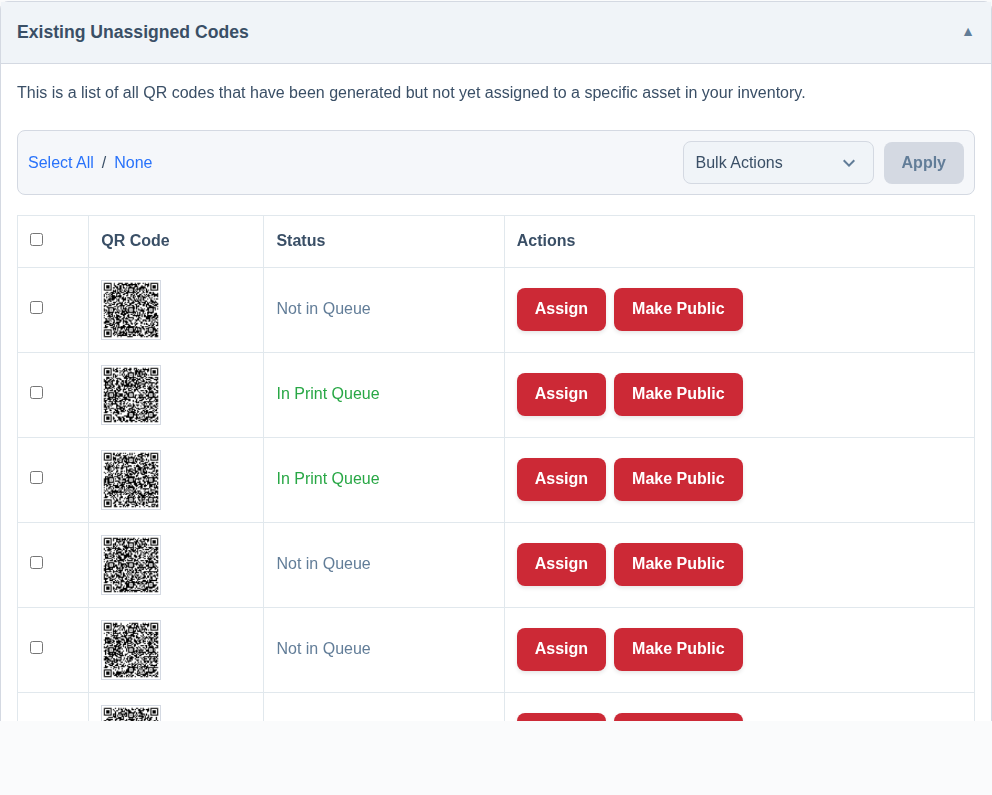
After generation, your new codes will appear in the “Existing Unassigned Codes” table on the same settings page. If you left the “Add to Print Queue” option checked, they will also be waiting for you on the Print Queue page, ready to be turned into physical labels.