
Asset Giant is the equipment sign-out sheet that chases the return for you. Check a tool, camera or radio out to a person with a due-back date, and its record, the inventory and the scanner all show who has it and when it is expected; set one alert rule and the people you choose are emailed the day before it is due, the same morning, or the moment it is overdue — with the item shown in red until it comes back in.
Checking items in and out is on every plan. Due-back alerts are included from the Crew plan.
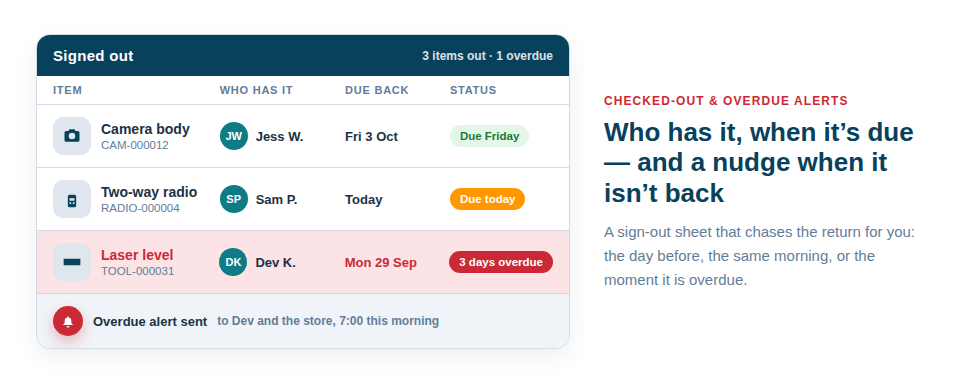
Every check-out records who, and when it is due back
A check-out takes a scan or a tap (see Check Items In & Out). Choose the person — someone on your team, or a name typed in for a subcontractor or a client’s crew — and a Due back date, and the item is marked out:
- On the item — a Checked out pill at the top of the Assignment card, with “First Last, due Fri 3 Oct” beside it, a date you can change, and Check in when it comes back.
- In the inventory — the same pill on the row, so a list of everything out and who has it is one filter away; several items can be checked out to one person in a single step.
- On the scanner — Check In / Out tabs, so a batch of kit going out for the day is scanned to one person once, and scanned back in the same way.
When the due-back date passes, the pill turns red wherever the item is shown. Checking an item out that is already out is allowed, and asked about first, so a tool that changed hands on site without coming back to the store still ends up against the right name.
The alert is one plain rule
Items due back are one of the things an alert rule can watch, alongside warranties, test dates and stock running low (see Alerts Before a Date Passes). The Alerts tab in Settings already holds a Checked-out item due back rule and a Booking due back rule, both switched on, so every item with a due-back date shows in the app when it is due; choose who is told and they get an email too. Or write your own:
- What — a checked-out item due back, or a booking due back.
- Which items — everything, or only some. Filter by asset type, category, folder, location or status, or hand-pick particular items. “Survey kit” to the office and “Hire fleet” to the yard can be two rules.
- When — how many days’ notice you want: the day before, the same day, or 0 so only overdue items are raised. Whatever the notice, an item that is overdue stays on the list until it is checked in.
- Who — people on your team, the person the item is assigned to, and up to ten outside addresses such as a site manager or a hire desk. An outside address is asked once to confirm before it receives anything.
- Each item, or a summary — an email per item as it comes due, or one daily or weekly round-up at a time you choose.
- Your own line — a note at the top of every email from the rule: “Return kit to Unit 4 by 8am” or “Ring the yard if a hire is running over”.
Each email names the item and the date it was due, with a button that opens the record — where the pill shows who has it. Checking the item in clears the alert by itself.
Bookings due back too
Kit booked to a job, a shoot or an event on the calendar (see The Asset Booking Calendar) has an end date, and a rule can watch it in the same way. The people you name are told the day before a booking ends, or when it has ended and the kit has not been checked back in, so the next job’s booking is not waiting on a van that has not come back.
Where it shows up
- By email — to the people the rule names, per item or as a summary. Anyone can switch their own alert emails off in their Personal Profile without affecting anyone else.
- In the app — a count in the menu, an Alerts page listing everything due and overdue with the most overdue first, and an Attention needed panel on the dashboard. Each row opens the item so it can be checked in on the spot; read an alert and mark it as seen to file it without hiding it from anyone else.
- On the record — the check-out and the check-in are both logged with who, where and when, so the sign-out history of any item is on its Activity card (see Activity History & Audit Trail).
Best Practice: Give every check-out a due-back date, even for a day, and start with one rule at one day’s notice to whoever runs the store. Add a per-item rule to the assignee for anything expensive or shared — a camera body or a laser level — so the person holding it is nudged before the office has to ask.
Included from the Crew plan
Due-back alerts are part of the Crew plan and every plan above it; check-in and check-out, the pill and the due-back date are on every plan, including Free Forever. Plan detail is in Simple, Scalable Plans; the step-by-step guide is Alerts for Checked-Out Items and Bookings Due Back.