
Turning a public page on one item at a time is fine for a handful of distribution boards. For a fleet of generators, a yard of lighting towers or a van full of test gear, you want it to happen by itself. Asset Giant lets you set it up once, in Settings → QR Codes → Public Asset Pages, and every new item that fits your rules arrives with its page already live.
What you need
- Permission to manage settings for your company
- A plan that includes public QR codes and pages
Getting there
- Open Settings and choose the QR Codes tab.
- Open Public Asset Pages.
Everything on this card has a small i beside it. Tap one for the explanation rather than hunting through this article.
Creating public pages by default
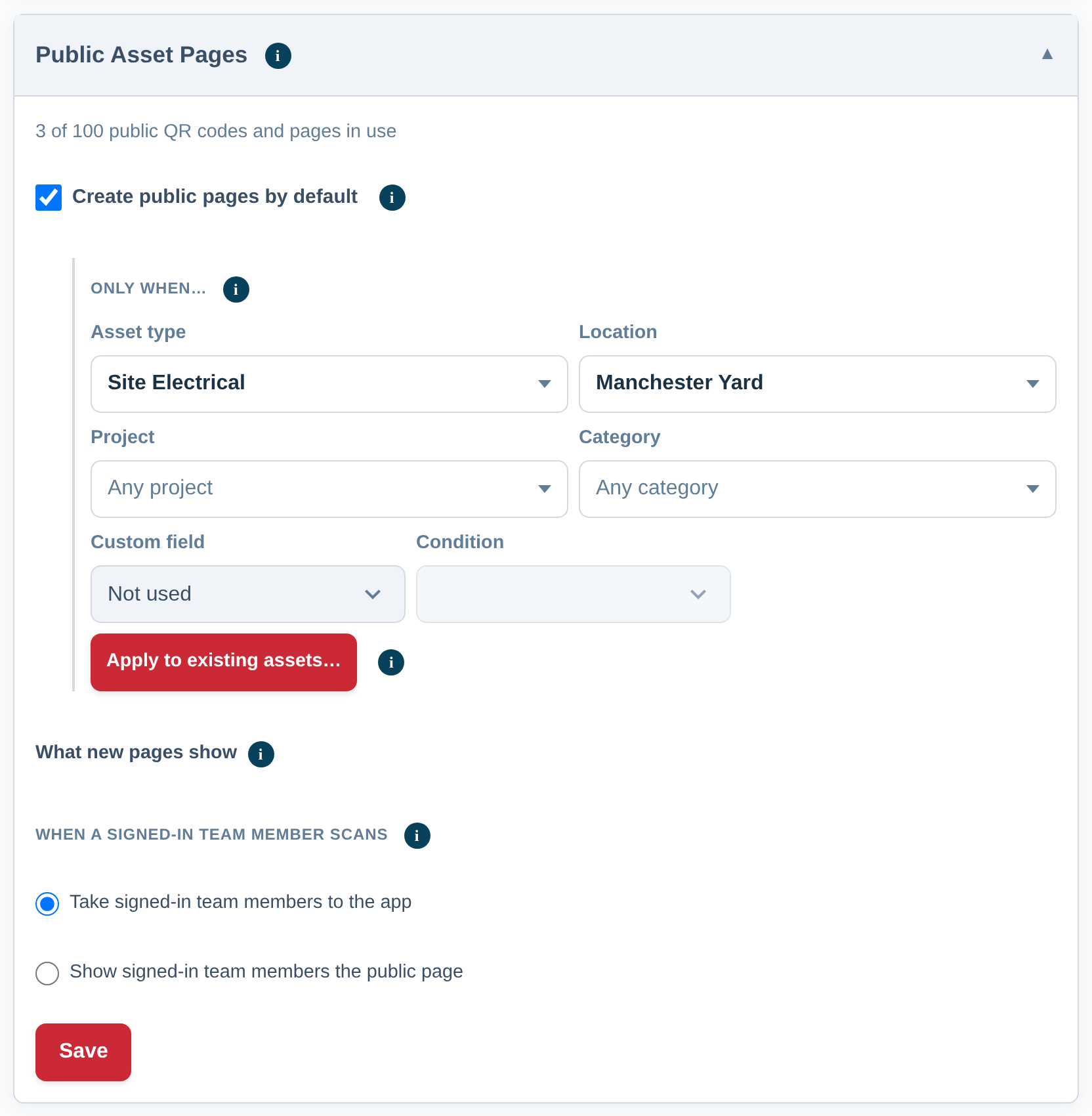
Tick Create public pages by default and a set of rules appears underneath.
Leave every box empty and every new item gets a public page. Narrow it by filling any of them in:
- Asset type — only ladders and hoists, say.
- Location — only the kit kept at one depot.
- Project — only the items sent out on one job.
- Category — only your Access category.
- Custom field — only items whose own field matches a condition you set, such as a site reference that contains “SZC”.
The custom field box follows the kind of field you pick. A date field gives you a date picker and lets you ask for anything between two dates; a number field asks for numbers and does the same; a drop-down field gives you its own list to tick, so you can say “any of these” or “none of these” without typing a word.
Two things decide how they combine, and the i beside Only when… says the same:
- Several choices in one box mean “any of these”.
- Choices in different boxes must all be true.
So picking two asset types and one location means “either of these two types, as long as it is at that location”.
These rules only ever apply to new items
A rule is checked the moment an item is created, however it is created — the Add New page, a duplicate, the quick-add window, a spreadsheet import, the setup wizard or an AI lookup. It is never applied again afterwards, so nothing on your existing register changes behind your back.
Catching up the items you already have
If you want the rules applied to what is already in your register, use Apply to existing items. It counts what is on screen, so you can try a rule and see the number before you commit to it. Nothing changes until you press the button in the message it shows you, and pressing it saves the rule as well. These pages count against the same allowance as everything else, so if your plan has not got room for all of them it offers you the number that will fit.
What new pages show
Open What new pages show to choose the fields every public page starts with — the same list you see on an individual item’s QR card, plus one extra choice.
That extra is Any job this item has, under Inspection & testing. Tick it and each page shows whichever inspections or tests that particular item actually carries, including types you add next year. Tick a named job instead and only that job appears.
Default contact number is the number behind the Call button on every public page. Any item can be given its own number on its QR card instead — handy when a machine is out on hire — and an item with nothing in that box uses the one you set here.
Items that have their own choices set on their QR card keep them. Changing the company defaults does not touch them.
When a signed-in team member scans
The last choice on the card is about your own people. Everyone else always sees the public page.
- Take signed-in team members to the app — your crew scans straight into the item, where they can check it out, log a job or edit it. Every account starts here.
- Show signed-in team members the public page — your crew sees the public page too, with an Open in app button on it.
Keeping an eye on the allowance
A line at the top of the card shows how many public QR codes and pages are in use against your plan, and it turns amber as you approach the limit.
If your allowance fills up while items are still being created, they are created without a page — never refused — and the card tells you how many missed out, with a link to the plans. Press the × on that notice once you have read it.