
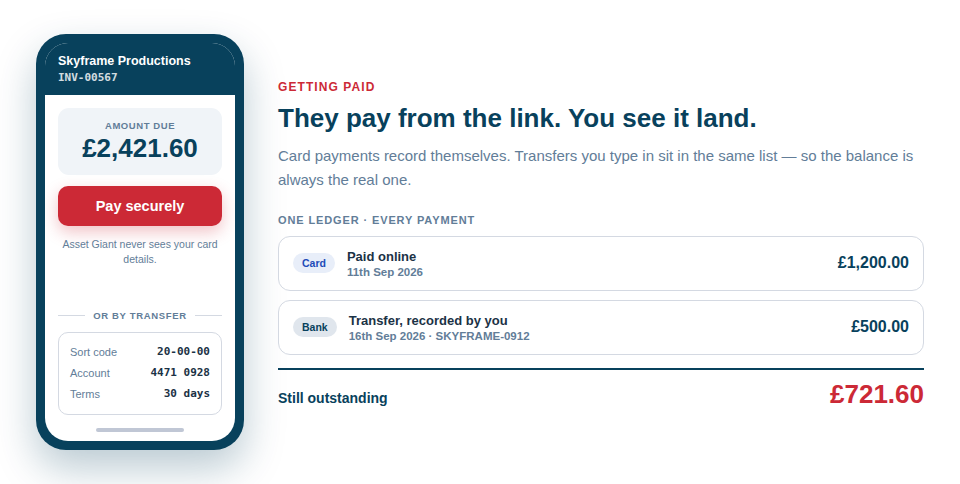
Asset Giant closes the loop after the invoice goes out. It travels as a link the client can open on their phone, they can pay by card the moment they read it, and every payment — card or bank transfer — is recorded against the document it belongs to.
A link, not an attachment
Every issued document gets a private share link. You can email it from inside Asset Giant with a copy to yourself, copy the link into your own email, or send the PDF — whichever suits the customer. The share page opens without a login, on any phone, and shows the document exactly as it prints.
Once a document has been emailed, a Sent marker appears beside its status, so “did that ever actually go?” is a question you can answer rather than guess at. Your payment terms, payment instructions and bank details print on the face of the document, and the due date is worked out from the terms you set once in Settings.
Pay by card, straight into your account
Connect your own Stripe account and the share page gains a Pay now panel showing exactly what is outstanding. Your client pays by card and the money goes into your Stripe balance.
This is worth being precise about, because it is unusual:
- The charge is made on your Stripe account, not ours. You are the merchant of record.
- Asset Giant never holds or routes the money, and takes no cut and no application fee — not a percentage, not a fixed charge, nothing.
- Stripe’s own processing fees apply, exactly as they would if you billed through Stripe directly.
- Connecting takes one step. If you already use Stripe you sign in and pick that account; if you have never used it, you can set one up during the same step.
- Card payments are on our paid plans. Free Forever still raises, sends and tracks invoices, and records payments as they arrive — it is the Pay now button your client sees that comes with a paid plan.
The Pay now panel only appears when it genuinely should — on an issued invoice, with something still outstanding, in a currency your account settles in. A quote is not owed, a credit note is money going the other way, and a cancelled invoice is neither. If anything is not right, the button is withheld and your client is simply pointed at the payment details on the invoice rather than being shown something that would fail.
You are never obliged to use it. Plenty of firms will keep printing their bank details and taking bank transfers, and everything below works the same either way.
A payments record you can trust
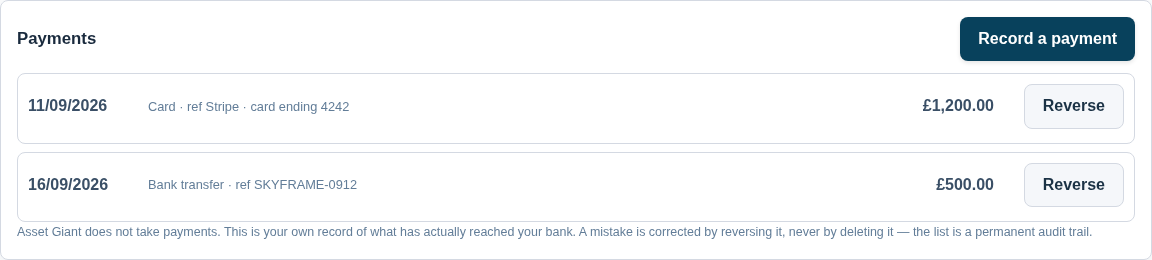
Every payment sits on the invoice as its own dated row: what came in, when, how, and any reference. Anything you take yourself — a transfer, a cheque, cash, a card machine on site — you record by hand in a few seconds.
Card payments record themselves, and this is worth being precise about. When your client pays on the share page, Stripe tells Asset Giant, and Asset Giant writes the payment onto that invoice: the amount, the date, the method as Card (Stripe), and Stripe’s own payment reference so you can match it against your Stripe balance. The invoice moves itself to part paid or paid at the same moment. You do not enter anything, and there is no import step and nothing to reconcile by hand. A refund made in Stripe comes back the same way, as its own negative row — so the invoice keeps telling the truth even when money goes back out.
A mistake is corrected by reversing it, never by deleting it. Both entries stay, which is what makes the list an audit trail rather than a running total somebody could quietly tidy up. An invoice moves itself from issued to part paid to paid as the money arrives, and goes overdue on its own when the due date passes.
Three views of the money
Behind the Reports button on your Quotes and Invoices screen:
- Aged owing — every issued invoice still outstanding, bucketed by how long it has been overdue. Drafts never appear, because a draft is not money, and anything paid or credited in full drops off by itself.
- Client balances — the same money grouped by who owes it, so a call to one customer covers everything at once. Credit notes are shown separately and are never counted as a payment.
- Tax report by rate — output tax by rate for a period you choose, with zero-rated, exempt and reverse-charge lines listed separately rather than added together. Credit notes are subtracted. If you are not VAT registered, the report says so plainly instead of implying you charged tax.
Every client and every project also carries its own Financials tab, so “what have we quoted and billed on this job?” reads the same from either direction.
Who can do what
Drafting a quote or an invoice and issuing one are deliberately separate permissions. A team member can build the paperwork; issuing it, setting its status, cancelling it and recording a payment are commercial acts reserved for owners and admins, along with the money reports. See Add Your Whole Team.
Where to go next
Start with Creating Quotes and Invoices for the step-by-step, and Getting Paid and Recording Payments for connecting Stripe and recording what arrives. If you bill kit out by the day or the week, Hire Pricing and Charges explains how a hire line is priced before it ever reaches an invoice.