
An asset ID is the short code that identifies one single item in an inventory — TOOL000001, LAD000014, IT-000118. Asset Giant creates one for every asset you add, in a format you choose, so you never have to invent a number or check whether it has been used before.
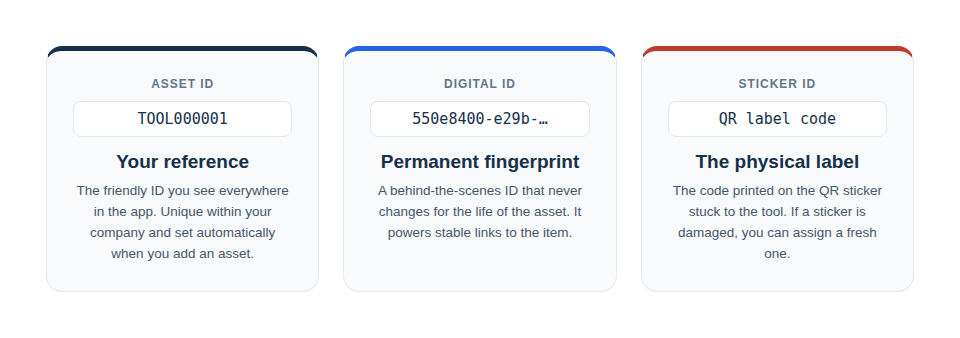
Each asset actually carries three separate identifiers. This article is about the first one — the Asset ID you see, print and use day to day.
How asset numbering works
An asset ID is built from two parts: a prefix and a number.
- The prefix is short text that says what kind of thing this is — TOOL, LAD, VAN. You set it per asset type.
- The number is the next one in that asset type’s own sequence, padded with leading zeros so every ID is the same length and sorts correctly.
When you save a new asset, Asset Giant reads the Asset Type you picked, takes the next number in that type’s sequence, and joins the two together.
- Automatic: you never type an ID yourself.
- Sequential: the number rises by one for each new asset of that type.
- Unique: no two assets in your company share an ID.
Asset ID format examples
Each asset type carries its own prefix and its own running number, so the ID says what the item is before you have read the name.
| Asset type | ID prefix | Next number | Example asset ID |
|---|---|---|---|
| Tool | TOOL | 1 | TOOL000001 |
| Ladder | LAD | 14 | LAD000014 |
| Laptop | IT- | 118 | IT-000118 |
| Vehicle | VAN | 3 | VAN000003 |
| Consumable | CON | 2,405 | CON002405 |
Try it with your own prefix and starting number — the block below shows the next five IDs that format would produce.
Build an asset ID
The next five asset IDs
TOOL000001TOOL000002TOOL000003TOOL000004TOOL000005
Every number is padded to six digits, so your IDs stay the same length and sort in order. You set the prefix and the next number for each asset type in Settings → Preferences.
Choosing a numbering system
A few things are worth settling before you print a hundred labels:
- Keep the prefix short. Three or four characters read cleanly on a small label and are quick to say out loud.
- Leave room in the numbers. Six digits carry you to 999,999 of a type, so the format never has to change part-way through.
- One sequence per type, not one for everything. Separate sequences keep tools, vehicles and consumables from interleaving, and make a gap in the numbers meaningful.
- Start where you already are. If your existing records run to 400, set the next number to 401 and the new IDs continue the series.
How to set or change your asset ID format
You control both parts of the format.
- Go to Settings, then the Preferences tab.
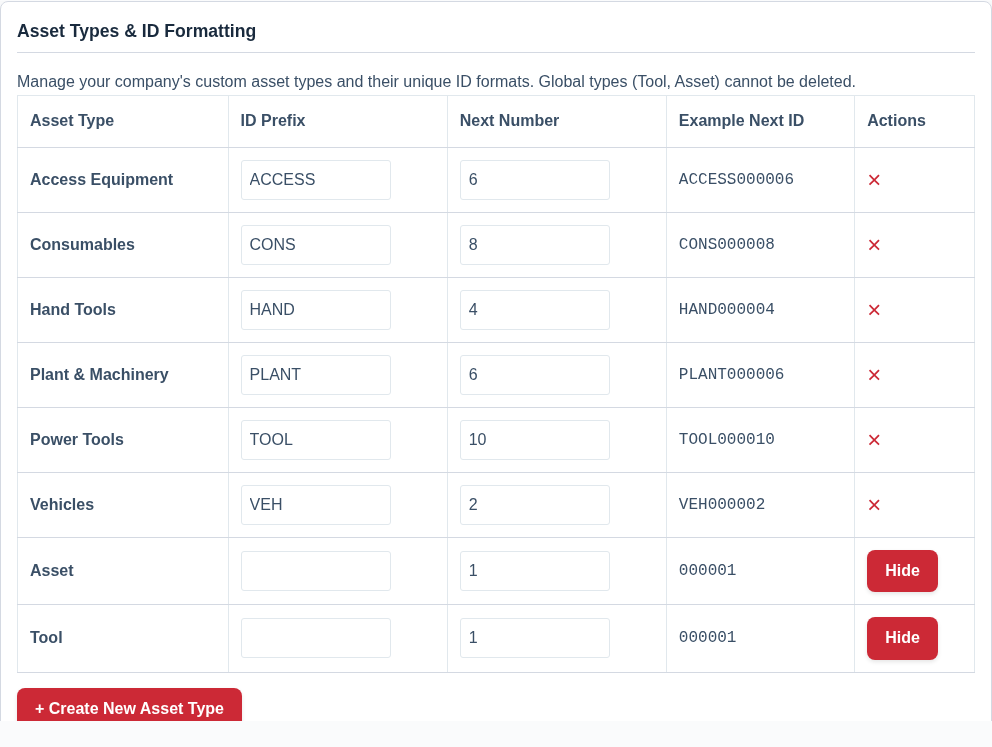
- Find the Asset Types & ID Formatting table.
- Set the ID Prefix and the Next Number for any asset type.
- Click Save All Preferences.
The Example Next ID column previews the result before you save. Changes apply to newly created assets; IDs already issued stay as they are, so nothing you have labelled needs reprinting. For the full walkthrough, see Change the Prefix and Numbering on Your Asset IDs, and for the asset types themselves see Set Up Asset Types for the Kit You Track.
Where your asset ID appears
- On the QR label you print for the item, alongside its name — see Printing QR Code Labels.
- In the inventory list, where it is searchable.
- On exports, PDFs and CSV files — see Exporting a List to PDF or CSV.
- Wherever the item is referenced in its activity history.
Asset IDs and QR codes
The asset ID is separate from the code inside the QR sticker. The sticker carries its own web address, so a change to your ID format leaves every label you have already printed working exactly as it did. See Give an Asset a QR Code and Send It to Print and Public vs. Private QR Codes: What’s the Difference?.