
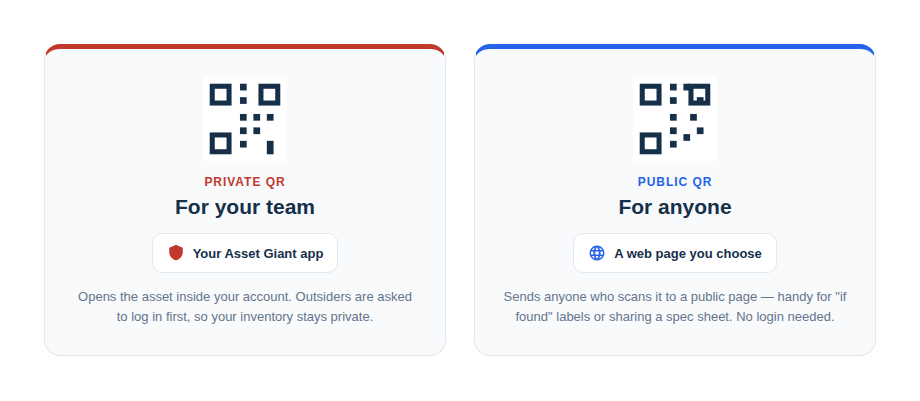
Asset Giant has two types of QR codes, each serving a distinct purpose. Understanding the difference is key to using them effectively.
Private QR Codes (Your Inventory)
This is the standard QR code used for managing your own assets.
- Purpose: To identify and track your internal inventory.
- How it Works: When you or a team member scans a private QR code, it redirects to that asset’s Add/Edit Asset page within the Asset Giant application.
- Security: To view the asset’s page, the person scanning must be logged into your Asset Giant account and have permission to view the asset. An outsider scanning the code never sees your inventory: by default they are taken to the login page, and you can choose what a public, logged-out scan shows in your settings.
This is the default type of code used for all your tools and assets.
Public QR Codes (For Your Customers)
This is a special type of QR code designed to be used by people outside your company, such as your clients. This is a premium feature available on paid plans.
- Purpose: To provide a link to an external website or resource for your customers.
- How it Works: When anyone scans a public QR code, it redirects them to a URL that you specify. This could be your company website, a specific product page, a service request form, or a help document.
- Security: These codes are completely public and do not require a login.
Example Use Case:
Imagine you run an equipment hire company. You send a generator out to a customer’s site.
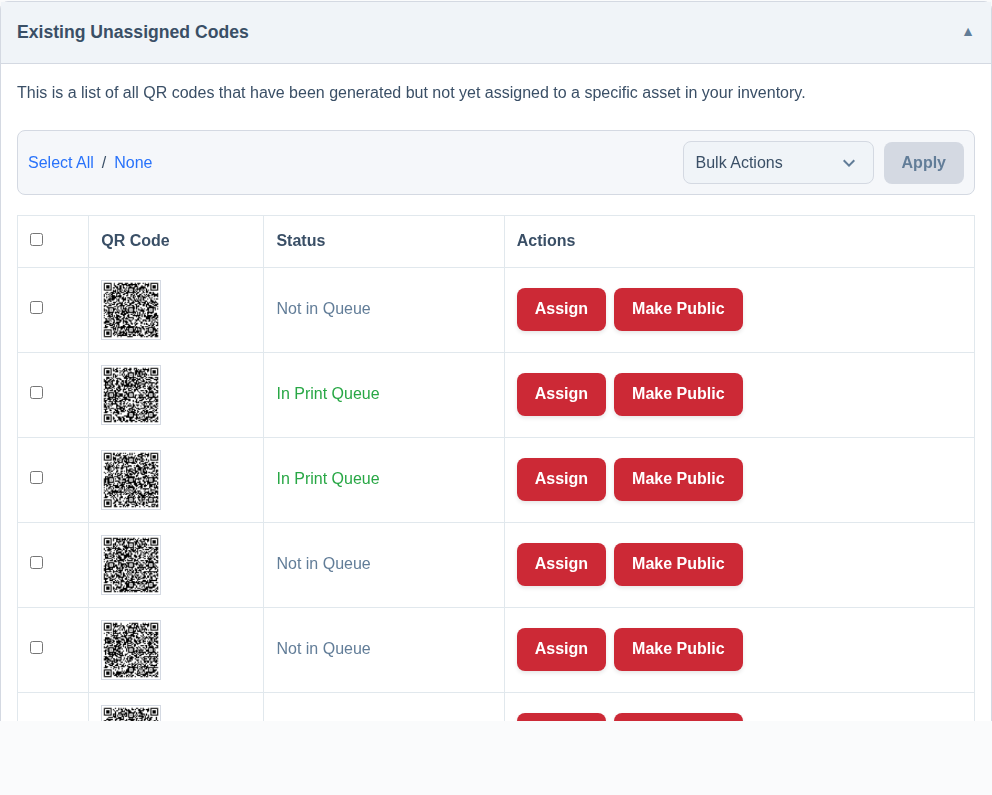
- In Settings -> QR Codes, you “Make Public” one of your unassigned codes.
- You set its Redirect URL to your company’s “Report a Fault or Extend Your Hire” web page.
- You place the printed QR sticker on the generator.
Now, mid-hire, the customer’s unit develops a fault or they want to keep it another week. They can simply scan the QR code with their phone, and they will be instantly taken to your website to log the problem or extend the booking. You can even “associate” this public code with the generator asset in your internal inventory to keep track of which code you placed where.
To manage your public codes, go to Settings -> QR Codes.