
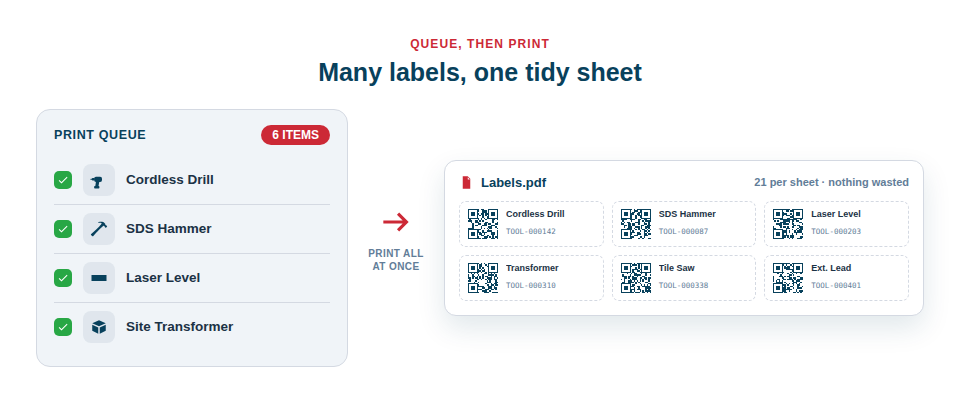
Printing labels one at a time wastes sheets and time. The print queue lets you drop everything into one place and print the whole batch together — neatly laid out across full sheets, with nothing binned.
Print in batches, not one by one
The queue is designed to fit the natural rhythm of work: you add items to it whenever it’s convenient, and print when it makes sense to.
- As you create assets — or generate a batch of blank codes — add them to the print queue.
- When you’ve gathered enough, choose your label sheet layout.
- Generate a single PDF with every label correctly positioned on the page.
- Print, peel and apply the whole batch in one go.
No half-used sheets, no misaligned labels
Because Asset Giant lays out the entire page for you, two everyday annoyances simply disappear. You fill each sheet efficiently, so you stop throwing away mostly-unused labels. And every label lands precisely on its die-cut, so you stop ruining sheets through guesswork alignment. The queue also gives you a useful holding area: items waiting for a label are clearly visible, so nothing gets forgotten between being added and being printed.
This batching approach pairs especially well with bulk-generated codes and with bulk actions, letting you, for example, select every unlabelled tool at once and queue the whole set for printing.
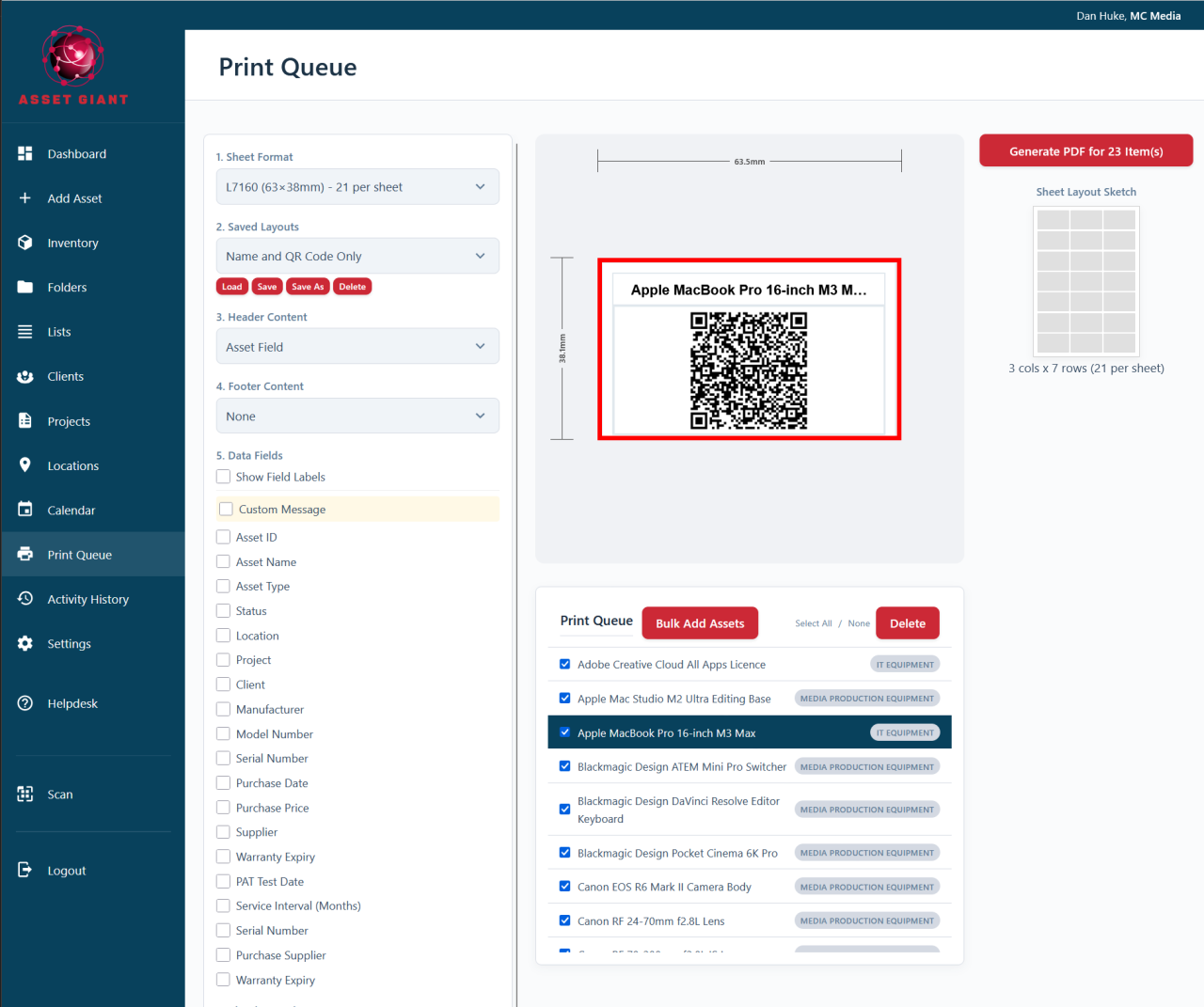
Best Practice: Build up the queue over a few days and print a full sheet at a time. It’s the most economical way to use label stock and keeps printing to an occasional, deliberate task rather than a constant interruption.
For the full guide, see Print a Sheet of Labels from the Print Queue.