
Asset Giant can tell the right people before a date on your kit passes — a PAT test due, a calibration, a warranty running out, a booking due back. You write one reminder rule: what to watch, how many days’ notice you want and who should hear about it. From then on the emails arrive by themselves, listing the items and their dates while there is still time to book the test, make the claim or chase the return.
Reminders are included from the Crew plan. On Free Forever every date is still recorded and you can filter your inventory by what is due soon; moving to Crew switches the reminders on (see Check Your Plan, Your Usage and What You Can Add).
Step 1: Make sure the date is on your assets
A reminder works from a date that is already stored against each item, so first check where that date lives:
- Warranty expiry is on every asset’s Financials card — nothing to add (see What a Tool Cost and What It’s Worth Now).
- Bookings due back and checked-out items due back come from the booking or the check-out itself.
- Any other date — PAT test due, LOLER inspection, calibration, MOT, insurance renewal, next service — needs a date custom field. Go to Settings then Custom Fields, add a field with the type Date, and fill it in on each asset (see Add Your Own Fields to Track Anything Extra). If the dates are in a spreadsheet today, import them: a column of dates becomes a date field on every asset, and the import can create the reminder for you at the same time (see Importing Your Existing Spreadsheet).
Dates that come round again — a PAT test every twelve months, an inspection every six, a ladder check every two weeks — can be set to repeat on the field, every so many days, weeks or months. When the work is done, press Mark as done today on the reminder and the next date rolls forward on its own, counted from the date it was due, so the cycle you set is kept.
Step 2: Write a reminder rule
Go to Settings then Alerts. If you have no rules yet you are offered three one-tap starters — warranties expiring 30 days ahead, every date you track, and bookings due back the day before. Otherwise press + New rule.
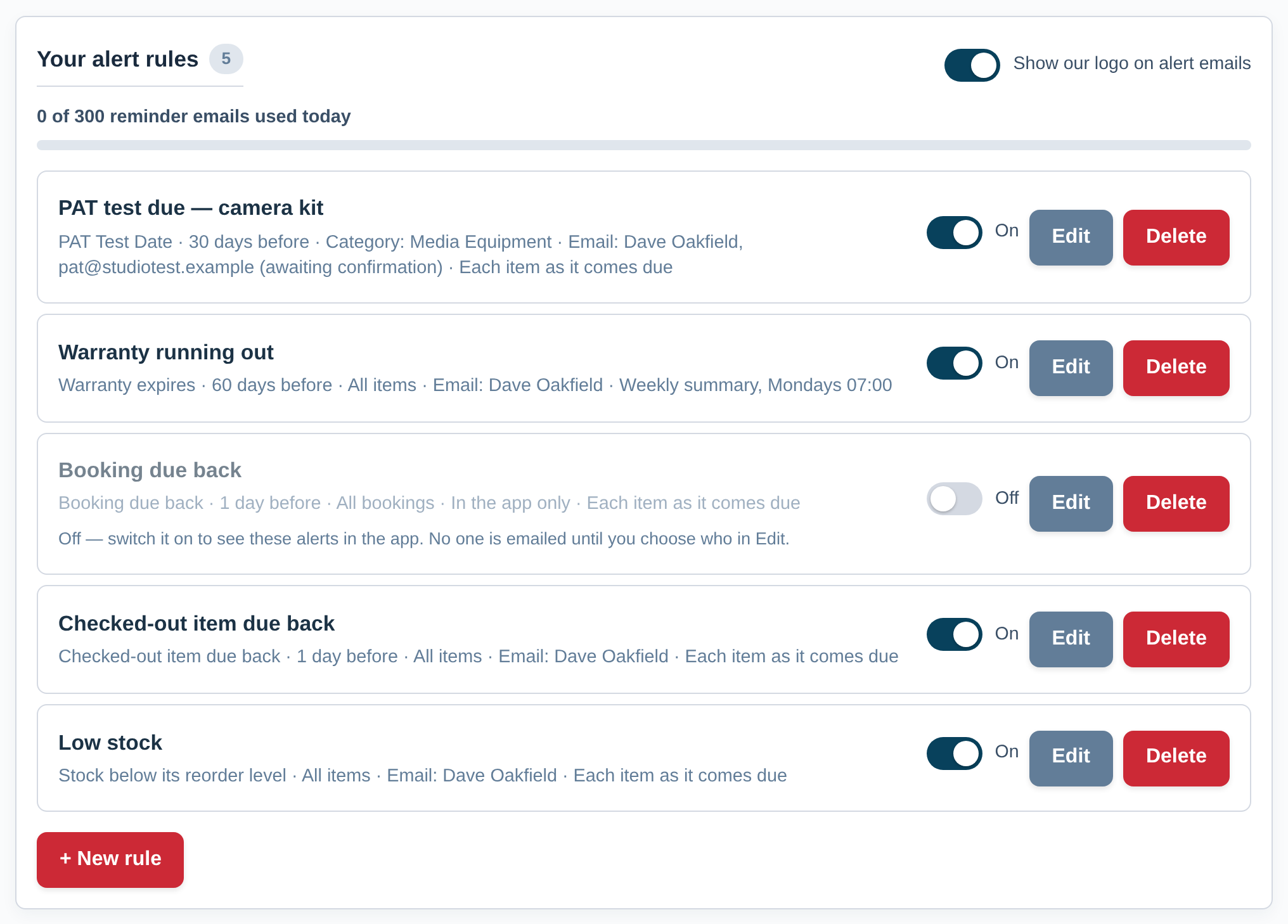
The form asks a few plain questions, in order.
What, and when
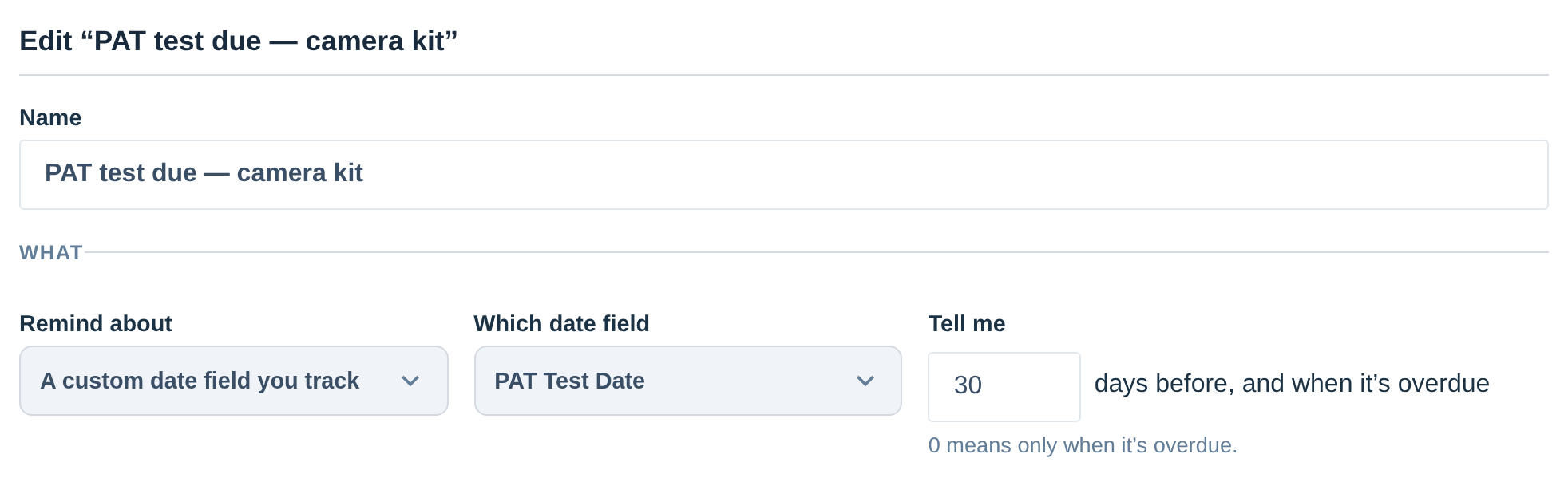
Give the rule a name your team will recognise — the name is the heading of every email it sends. Under Remind about, choose what it watches: a date field you track (then pick which one), warranty expiry, a booking due back, a checked-out item due back, or stock below its reorder level. Then set how many days’ notice you want in Tell me … days before. Thirty days is the usual starting point for a test or a warranty; one day suits a booking. Whatever the number, an overdue item is always included — and 0 means only once it is overdue.
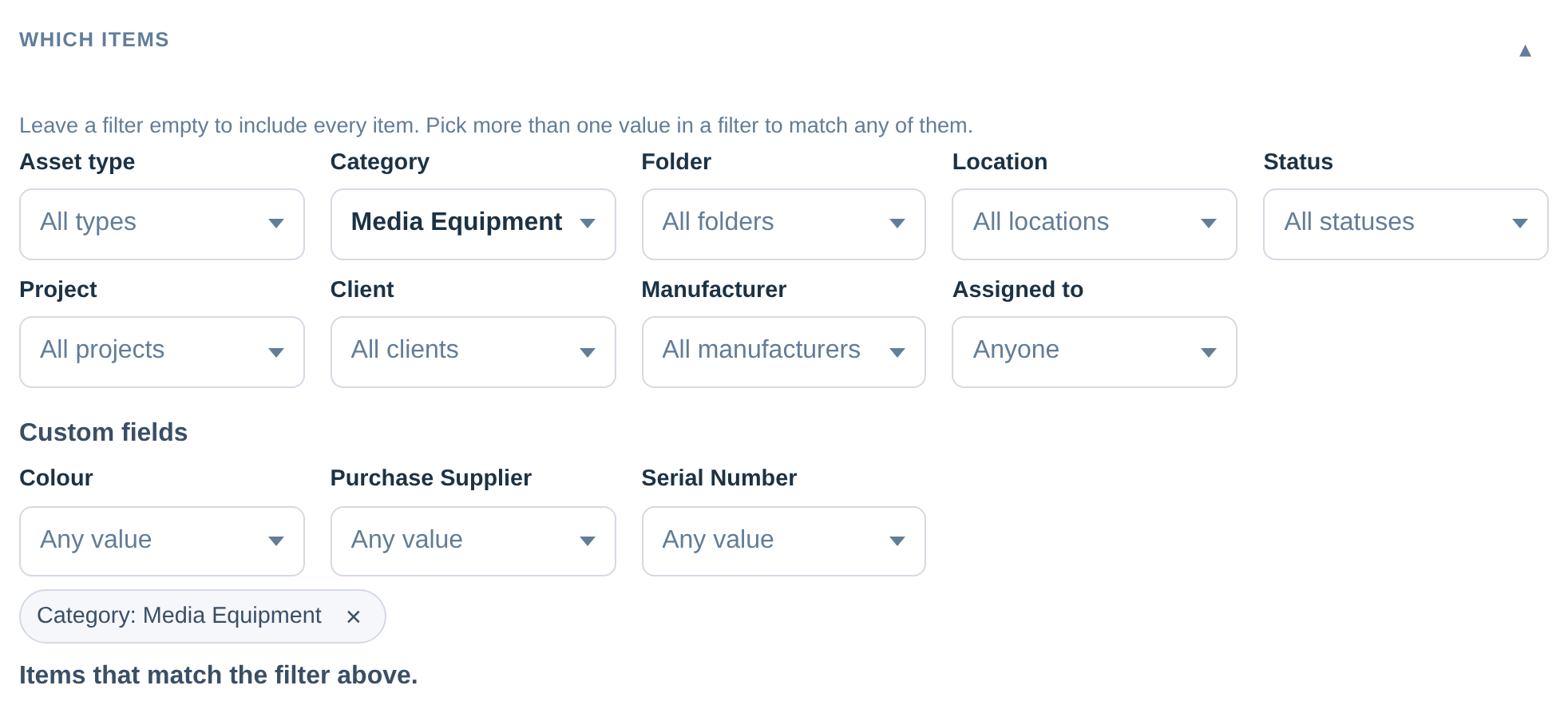
Which items
Leave every filter empty and the rule covers all your items. Or narrow it by asset type, category, folder, location, status, project, client, manufacturer or assigned user — and by your own custom fields, which appear under Custom fields with the values to pick from. Where a field is a list of options, the rule offers the field’s own options, so you can build a rule on an option before any asset is using it. Pick more than one value in a filter to match any of them; pick values in two filters and an item must match both. A PAT test due on camera kit rule and a PAT test due on site tools rule can go to different people.
Under Specific items you can also hand-pick particular items — to cover only those, or to leave those out. The filters above still apply.
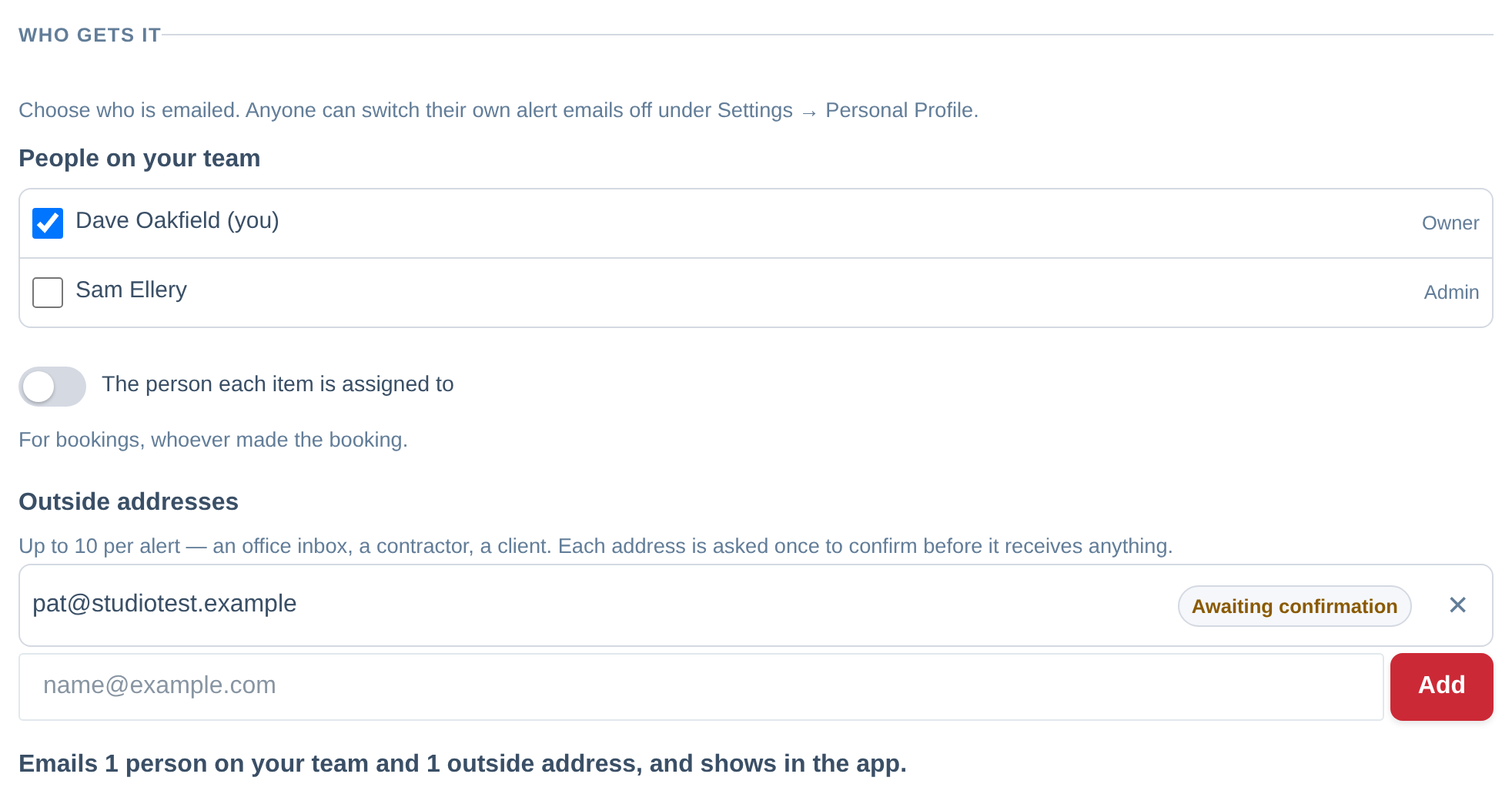
Who gets it
Tick the people on your team who should be emailed — any role. Switch on The person each item is assigned to and whoever holds the item is told about it (for bookings, whoever made the booking).
You can also add up to ten outside addresses — an office inbox, your testing contractor, a client. An outside address is asked once to confirm before it receives anything: it gets a single email asking whether that’s fine, and it shows as Awaiting confirmation in the rule until the person presses Yes, send me their reminders on the page that email opens. Once confirmed, the same address can be picked from your address book for any other rule. If the person presses Stop these reminders instead, the address shows as declined and cannot be added again for 30 days.
A rule can have nobody on it at all, as long as Also show in the app is on — useful for a list you want on the Alerts page without any email.
Each item, or a summary
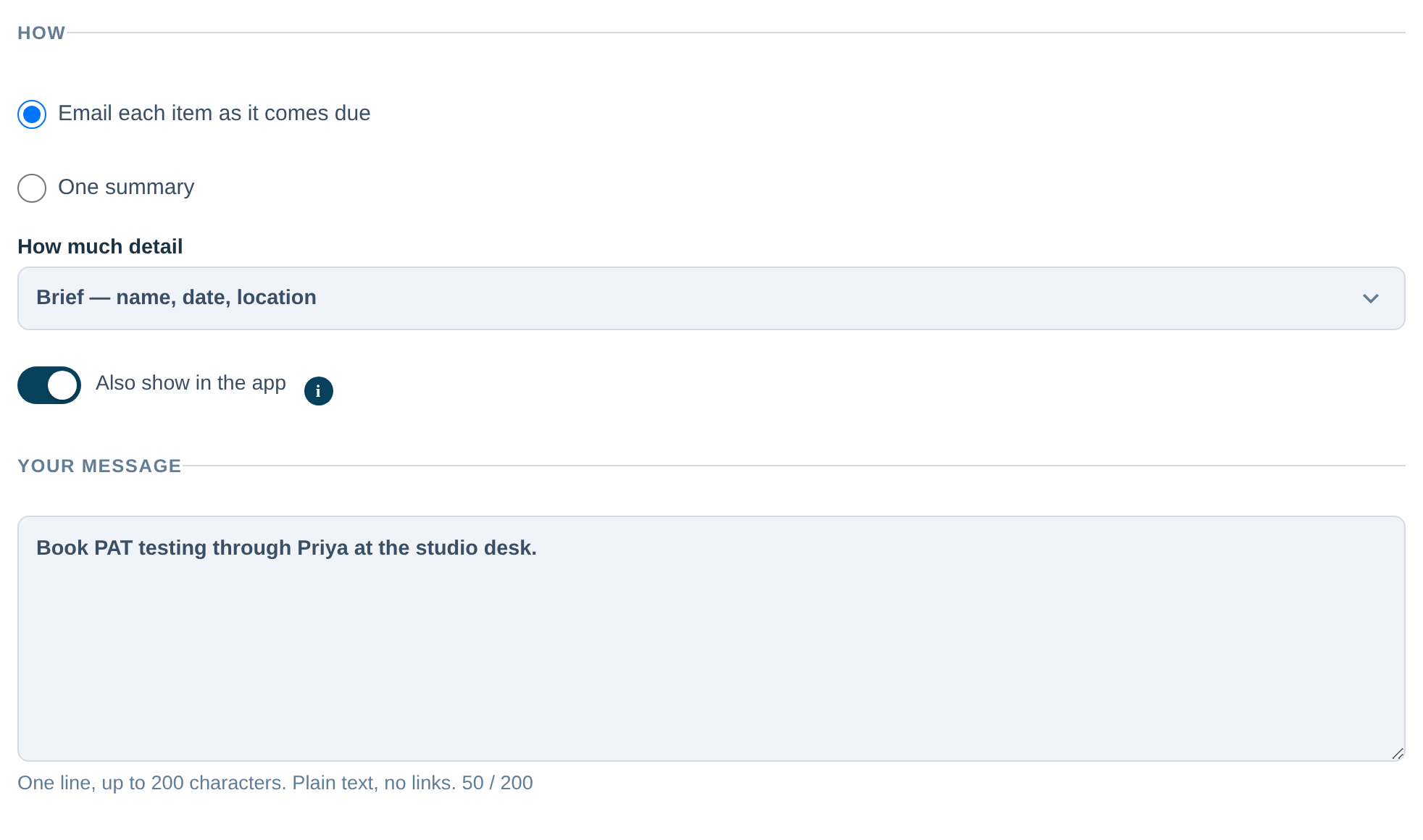
Choose Email each item as it comes due for an email per item — the right choice when someone needs to act on each one, such as a return or a single inspection. Choose One summary for a single round-up every day or every week, at the hour you pick in your company’s time zone; a summary suits a busy rule, so forty PAT tests due next month arrive as one list, not forty emails. A summary can also be told to wait until at least a certain number of items need attention.
Two more choices sit here: How much detail (brief — name, date and location — or every field on the item) and Also show in the app, which puts the rule’s items on the Alerts page, in the count on the menu and in the Attention needed panel on your dashboard.
Your message
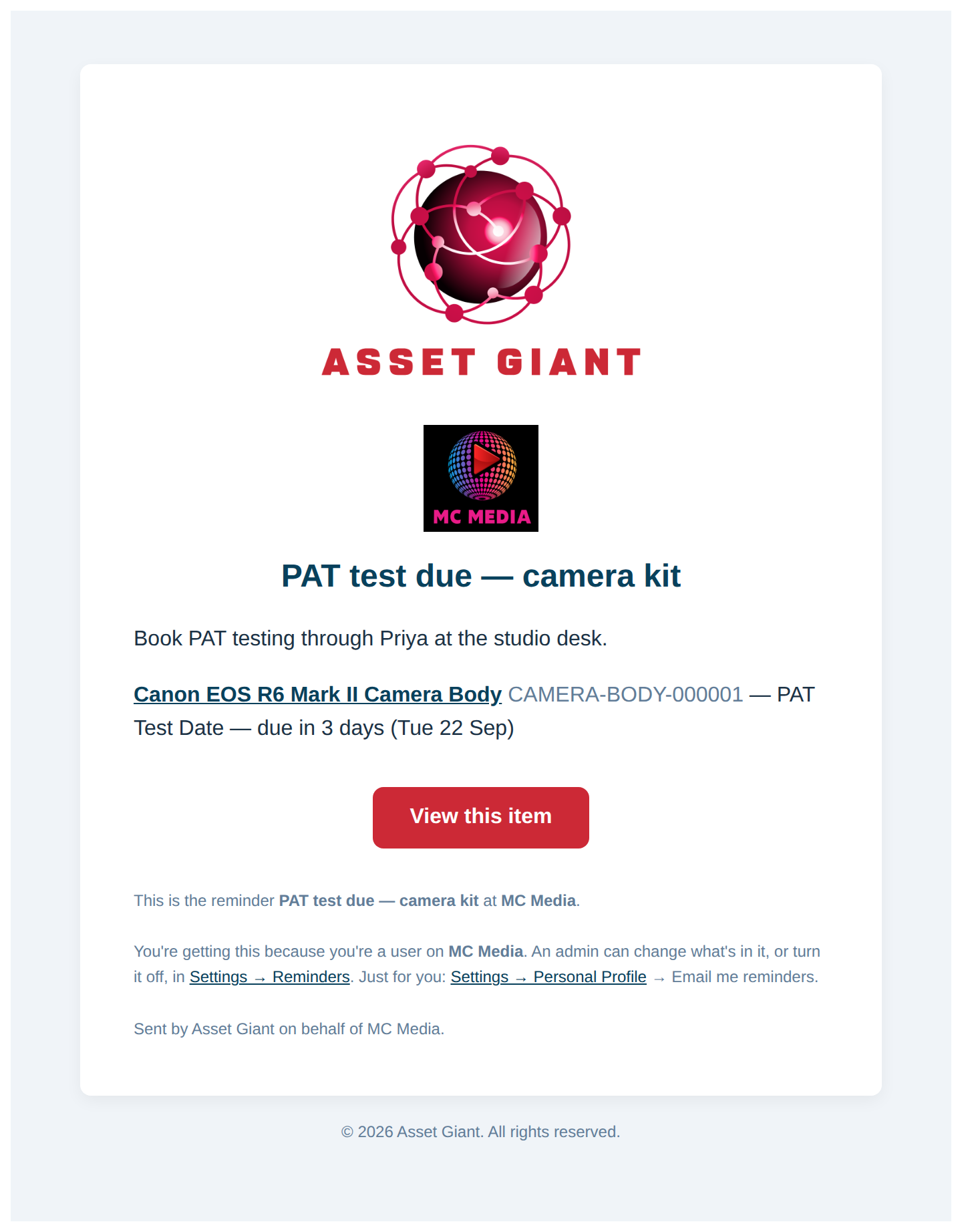
Add one line and it appears at the top of every email from that rule — Book PAT testing through Priya at the studio desk, or Send warranty claims to accounts. Plain text, up to 200 characters. Press Save rule.
Best Practice: Start with one rule and a generous lead time — thirty days, to yourself — and add narrower rules once you can see what arrives. A summary rule to the office plus a per-item rule to the person responsible covers most teams without anyone being emailed twice.
What the email looks like
Each email carries the rule’s name as its heading, your one-line message, and the item or items with their asset ID, the date and how long is left. A per-item email has a View this item button that opens the asset; a summary has See all alerts, which opens your Alerts page. Your company logo sits at the top if Show our logo on alert emails is on in the Alerts tab and a logo is set on your Company Profile.
The small print at the bottom tells the reader why they received it and where to change it: an admin can adjust the rule in Settings, and anyone can switch off their own copy in their Personal Profile. An outside address sees a Stop receiving these link instead.
Where reminders show in the app
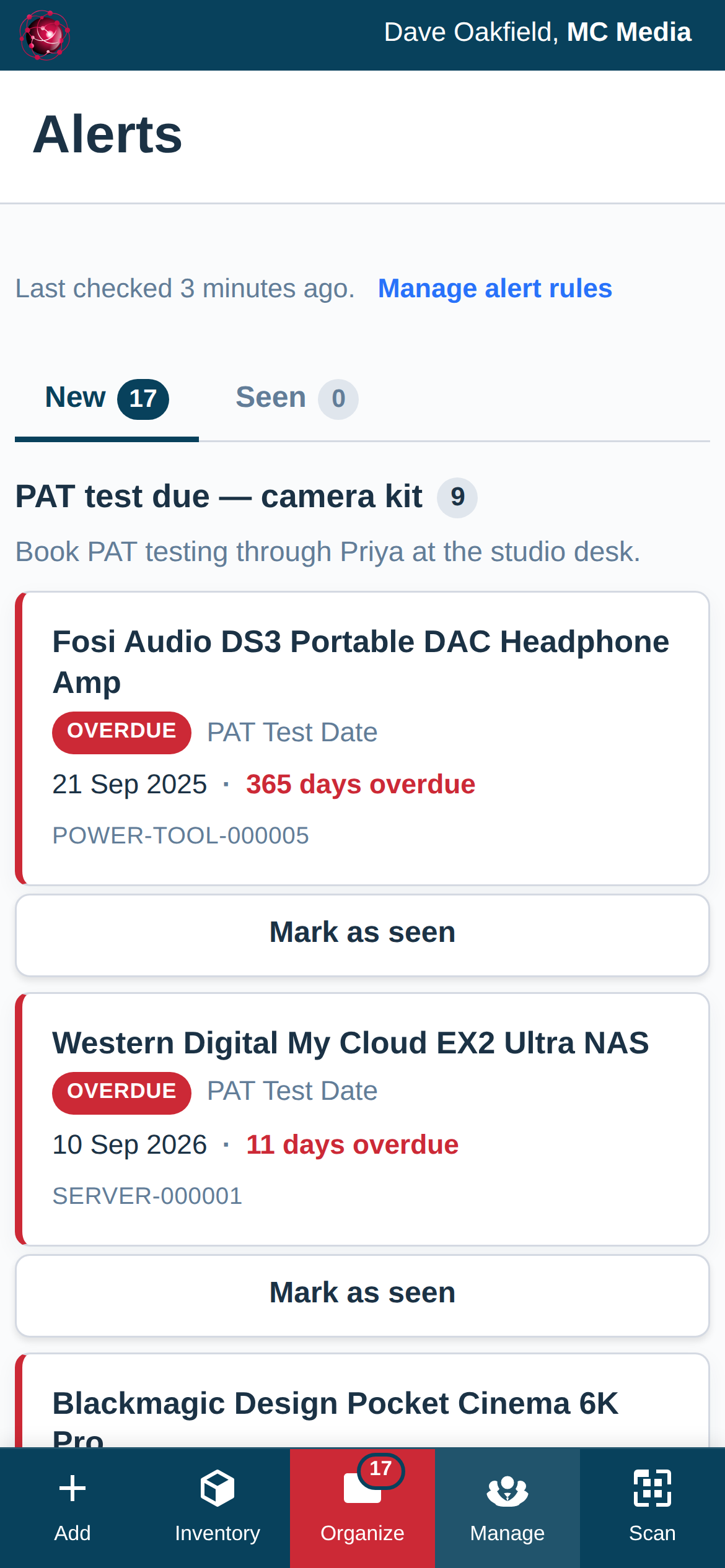
Every rule with Also show in the app on feeds three places: a count on the Alerts item in the menu, the Alerts page itself, which lists everything needing attention with the overdue items first and the rule’s message above them, and an Attention needed panel on your dashboard showing the three most urgent. Each row opens the asset, and a repeating date can be marked done on the spot.
Marking a reminder as seen
The Alerts page has two tabs, New and Seen. Once you have read a reminder, press Mark as seen and it moves to the Seen tab. The count in the menu, the dashboard panel and the New tab only count what is new to you, so the same overdue PAT test does not greet you every morning. Mark as new on the Seen tab brings one back.
A few things to know:
- Seen is yours alone. Marking a reminder as seen changes nothing for anyone else on the team — each person keeps their own New and Seen.
- Nothing is hidden or deleted. The item stays on the list under Seen for as long as the date still needs attention. It leaves both tabs only when the thing that raised it changes — the date is updated, the item is checked back in, the stock is topped up.
- A due item that becomes overdue comes back as new once, so the change is not missed. Mark it as seen again and it stays quiet.
- A summary email leaves out what you have marked as seen. An email sent for each item as it comes due is unchanged: it goes once, when the item first comes due.
Changing or switching off a reminder
Back in Settings then Alerts:
- Edit opens the rule again — change the notice, the people, the filters or the message and press Save rule. The next email uses the new settings.
- The On switch on each rule pauses it without losing anything. Switch it back on when you want it running again.
- Delete removes the rule for good and nobody is told about those dates any more.
If your plan changes to one without reminders, your rules are kept and paused, and they run again as soon as reminders are back on your plan.
Turn it off just for you
You don’t need to change the rule to stop your own copy. Go to Settings then Personal Profile:
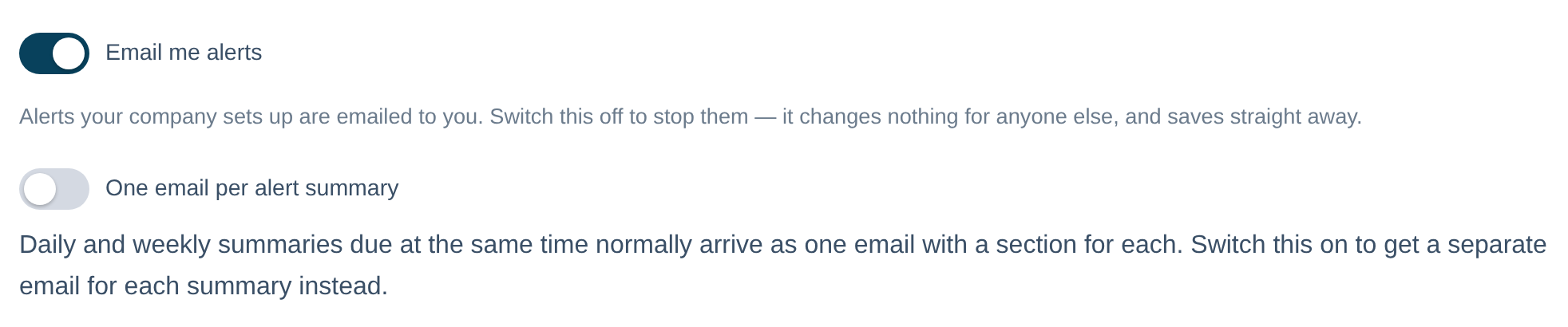
- Email me alerts — switch this off and no reminder email reaches you, whatever rules name you. Nothing changes for anyone else, and it saves straight away.
- One email per reminder summary — daily and weekly summaries due at the same time normally arrive as one email with a section for each rule. Switch this on to get a separate email for each summary instead.
An outside address has its own switch: the Stop receiving these link in any reminder it gets. One click removes the address from your list and the rule’s author sees it marked as declined.
Why didn’t I get a reminder?
Work down this list — it is the order in which the reasons apply:
- Is your plan one with reminders? Reminders are included from the Crew plan. On Free Forever, rules are shown but nothing is sent.
- Have you switched them off for yourself? Check Email me alerts in your Personal Profile. If you’re an outside address, check you pressed Yes, send me their reminders in the confirmation email — nothing is sent to an address that hasn’t confirmed.
- Is the rule on? A paused rule shows its switch off in the Alerts tab. A rule with nobody in Who gets it sends no email at all, even if its items show in the app.
- Is the item inside the window? A rule with 30 days’ notice says nothing about a date 45 days away. Check the item’s date and the rule’s filters — an item the filters exclude is never mentioned, and a filter that names a category or location that has since been deleted matches nothing until you edit it.
- Have you already been told? A rule set to email each item tells you about each date once, and once more if it goes overdue. If you want a regular list, use a daily or weekly summary — a summary includes everything still due every time it goes out.
Two more things to know: a rule cannot send anything about a date that isn’t filled in on the asset, and your company has a daily limit on reminder emails (shown at the top of the Alerts tab). Emails past that limit are gathered into one summary at 6pm the same day, so nothing is missed — a daily or weekly summary on a busy rule uses far fewer.
A rule you save or change takes effect within the hour. A date you add or change on an asset is picked up at the next check of your dates, which happens twice a day — so allow up to twelve hours before expecting it on the Alerts page.
Reminders and calendar feeds
Reminders and calendar feeds do different jobs. A calendar feed puts your bookings and projects into the diary app each person already uses, so the week’s schedule sits alongside their other appointments (see Calendar Feeds: See Your Bookings in Google, Outlook & Your Phone). A reminder watches a date and tells the right people before it passes. Use the feed to see what the week looks like; use a reminder when something has to happen before a date.