
Asset Giant prints any kit list as a blank tick sheet you can hand over and fill in with a pen. Every item gets a box and a row, your company name and logo sit at the top, and there are write-on lines for the job, the person and a signature. It is the sheet that goes out in the van — into the plant room with no signal, onto the site that bans phones in the work area, or into the hands of a sub-contractor who is not on your account and does not need to be.
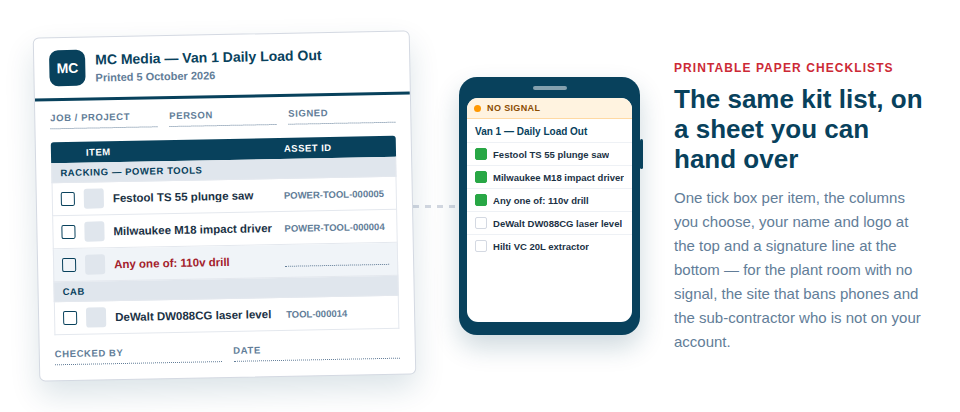
The columns are yours to choose
A tick box and the item’s name are always on the sheet. Everything else comes from the same field picker the exports use, so anything you can export you can print:
- Asset ID — what somebody writes down, reads back over the phone, or checks against the label on the item.
- Category, location, manufacturer, model or serial number — whatever it takes for the person holding the sheet to tell two similar items apart.
- A photograph of each item, small, beside its row — the fastest way for somebody new to the kit to know what they are looking for.
- Your own custom fields, so a sheet can carry the rating, the colour code or the van number you track yourself.
Four columns and a thumbnail read well at arm’s length on a windy site. The picker lets you prove that for your own kit in a couple of prints.
It prints like a document you would hand to a client
The first page carries your company name and logo, then the list name and the print date so two sheets can never be confused. Job/Project and Person are filled in when the list already knows them and left as blank lines when it does not. A Signed and Date pair sits underneath for the hand-over, and the list’s own description prints with it, so instructions written once travel with every copy. Section headings are kept, so a long sheet still reads as van, cab and trailer rather than as ninety rows.
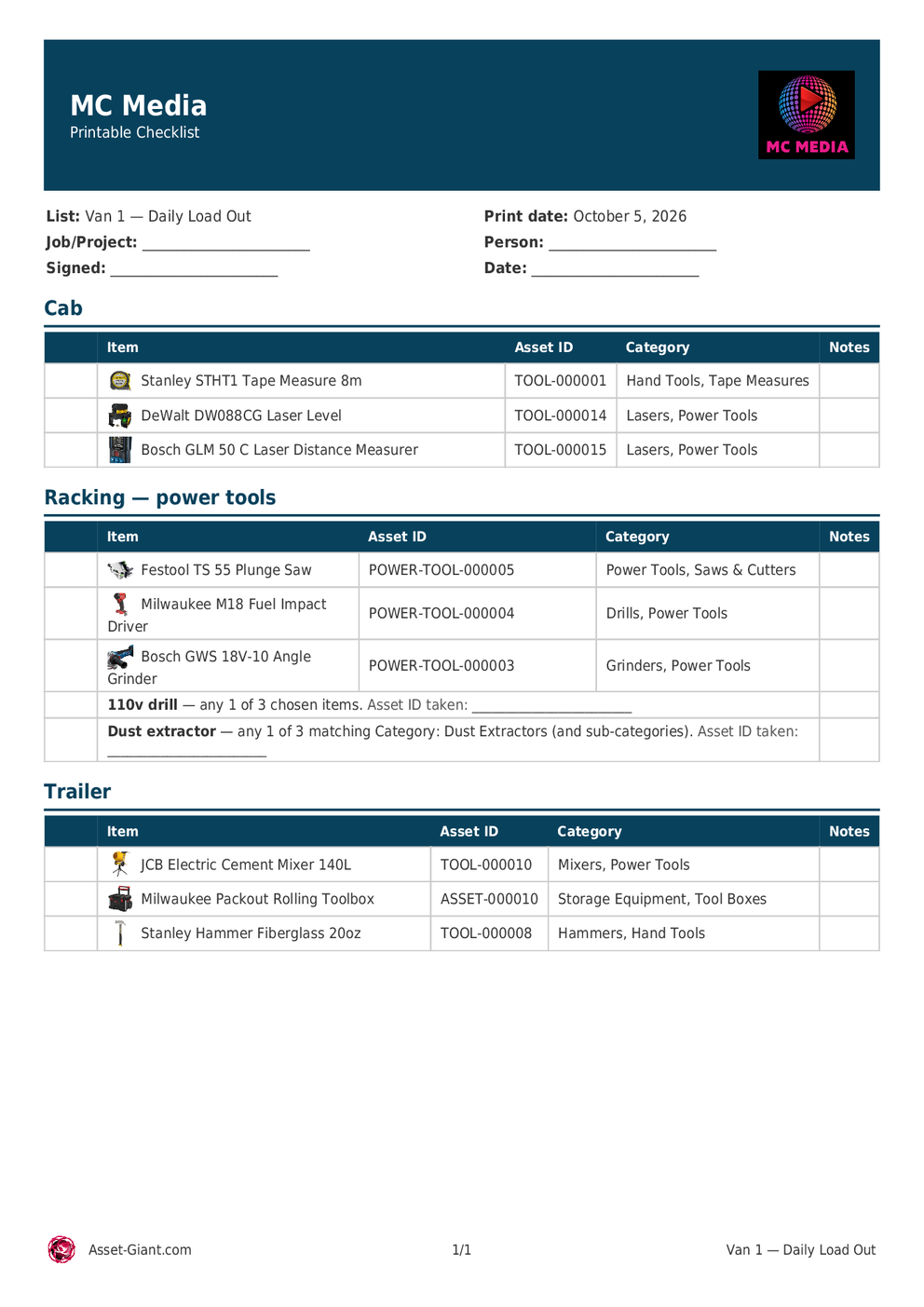
The sheet that goes out, and the record that comes back
This is a blank sheet, deliberately. It is not the report of a finished scan — that already exists, and records what was actually found when somebody worked the list off in the app (see Digital Checklists). The two work together: print the sheet for the job where a phone is no use, and scan the list off in the app for the job where it is.
A line that allows substitutes prints the way paper wants it: one row naming the line and what satisfies it, with a write-on line for the Asset ID that was actually taken, so the person loading decides and records their choice in the same movement (see Interchangeable Items in a Kit).
Best Practice: Reorder the list to match the order the van is loaded, so the walk round the yard runs top to bottom, and photograph the signed sheet back onto the project or the asset as a file. The paper trail then joins the digital one instead of living in a cab door pocket.
For the step-by-step, see Printing a Blank Paper Checklist. For building the list in the first place, see Lists & Kits.