
Checklists are powerful tools for ensuring nothing gets left behind. Whether you are loading a van for a kitchen installation or verifying a safety kit, the Checklist scanner provides a visual, real-time way to verify your gear.
Starting a Checklist
- Open the QR Scanner and click the Checklist button.
- Select the List you want to use (e.g., “Installation Tools”) from the dropdown menu.
- Click Start Checklist.
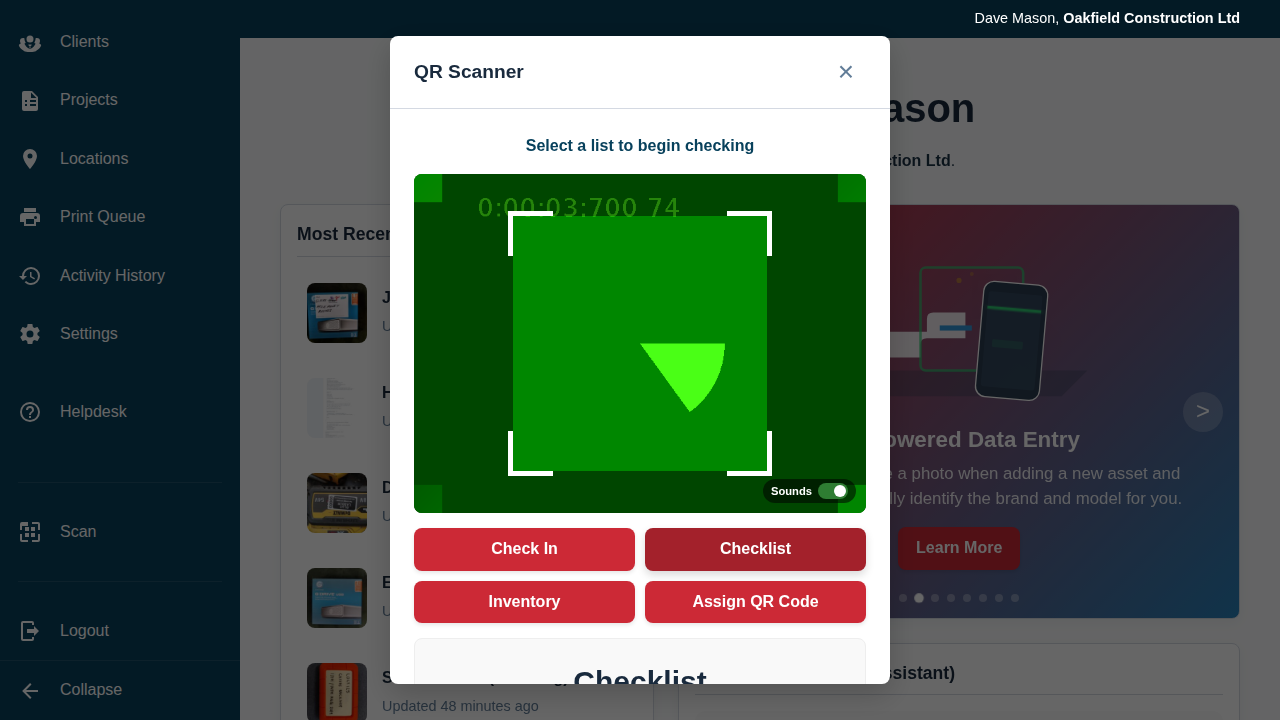
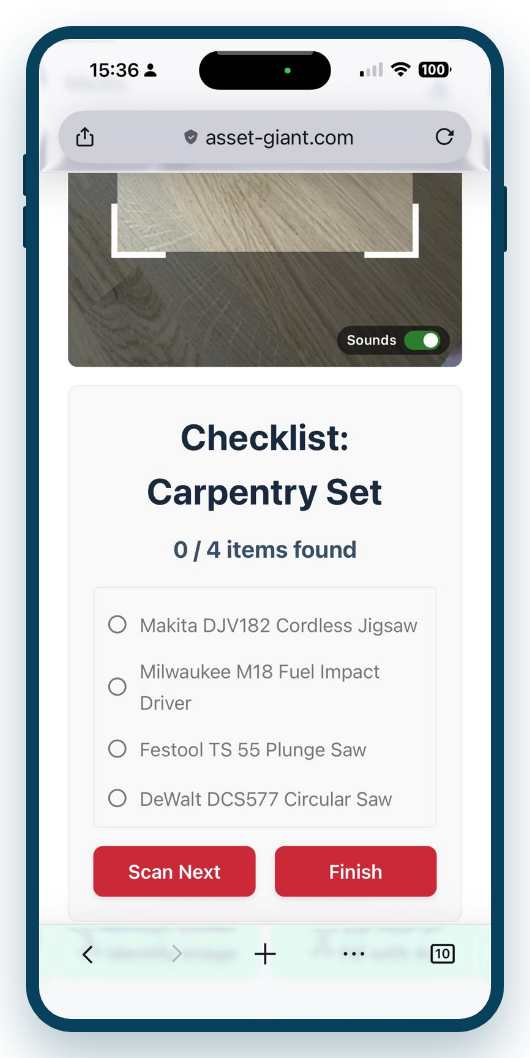
Scanning and Progress
Once started, the camera opens and shows your checklist progress at the top (e.g., “0 / 12 items found”).
- Point the camera at an asset’s QR code.
- If the item is on your list, it will turn green with a ✅ checkbox and a strikethrough in the list below the camera.
- The “items found” counter will update immediately.
- If you scan an item that is not on the checklist, a red notification will appear to warn you.
Lines that any one of several items can satisfy
A list can hold a substitute line — “any 110v drill”, “any one of these three vacuums” — instead of naming one exact item. On a checklist the line shows its name and what satisfies it, and scanning any one of the items that fits ticks it off. The saved record keeps which item actually filled it, so you can see later that it was the yellow vacuum that went. Where nothing that fits is in stock at that moment, the line is recorded as not found rather than quietly passing. See Adding Substitute Items to a List.
Finishing the Session
- Automatic Completion: If you scan every item on the list, the system will automatically pop up a confirmation to save the record.
- Manual Finish: If you cannot find everything, you can click Finish at any time to save an “Incomplete” record.
Reviewing Results
Every time a checklist is completed, a permanent Checklist Record is created.
- Go to the Manage List page for that specific list.
- Scroll down to the Checklist History card.
- You can see exactly who performed the check, when they did it, and how many items were found (e.g., 10 / 12).
Checking a list off without a camera
You do not need the scanner to complete a checklist. Open the list, use the Actions menu and choose Complete Checklist…. Every line on the list appears with a tick box — and a substitute line appears with its candidates, so you tick the one you actually have — with a running count of how many are found. Press Finish checklist and the same permanent record is written as a scanned session, with a link to Open the report.
This is the right route on a laptop with no rear camera, for a list that was checked off on paper and is being entered afterwards, and for a stocktake done at a desk.
Printing the list as a blank sheet instead
For the job where a phone is no use at all, print the list as a blank paper tick sheet: Actions then Print Checklist…, with the columns you choose, your logo at the top and a signature line at the bottom. See Printing a Blank Paper Checklist.
Best Practice: Create “Standard Loadout” lists for your different types of jobs. This allows employees to quickly self-audit their vehicles before leaving the warehouse.