
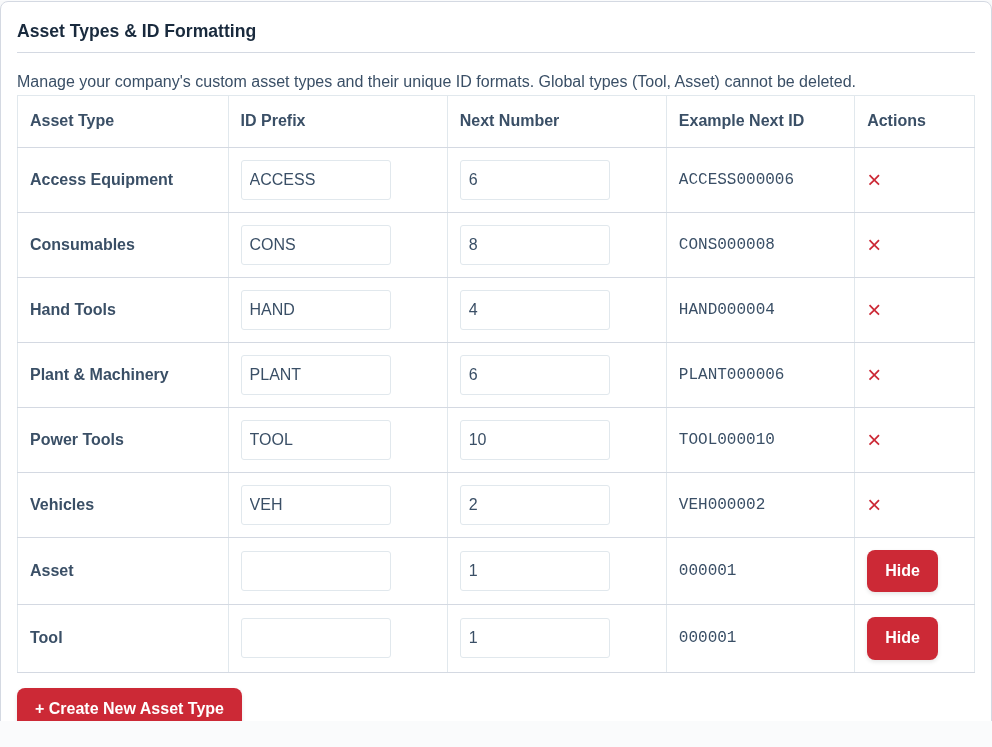
“Asset Type” is the primary classification for any item in your inventory. The system starts with two helpful defaults, “Tool” and “Asset,” but its real power comes from allowing you to create a system that is completely tailored to your business.
The Default Types: A Starting Point
Think of “Tool” and “Asset” as suggestions:
- Tool: A good choice for unique, serialized items like power drills, ladders, or laptops.
- Asset: A good choice for consumables or bulk items you track by quantity, like a box of screws or a pallet of bricks.
Crucially, all Asset Types have the exact same fields available to them. The type you choose is purely for organization, filtering, and reporting.
Why Create Custom Asset Types?
Every business is different. Creating your own Asset Types allows you to organize your inventory in a way that is natural and intuitive for you and your team. This makes filtering, searching, and running reports much more powerful.
Examples of Custom Setups:
- A Plumbing & Heating Company might want to separate items they use from items they install for customers:
- Internal Tools (Drills, pipe benders)
- Internal Consumables (Flux, solder, cleaning supplies)
- Client-Installed Boilers
- Client-Installed Radiators
- An IT Services Company could separate hardware by function:
- Laptops
- Servers
- Network Switches
- Cabling & Consumables
- A Photography Studio might organize by equipment type:
- Cameras
- Lenses
- Lighting
- Tripods & Mounts
- Batteries & Media
- An Events Management Company could classify their rental stock:
- AV Equipment
- Staging & Truss
- Linens
- Crockery & Glassware
Best Practice: Find Your Natural Fit
There is no “right” or “wrong” way to set up your Asset Types. The best system is one that mirrors how you already think about your inventory.
Ask yourself: “When I need to find something, what is the first big group I would look in?” The answers to that question are your ideal Asset Types. Consistency is key. Once you decide on a system, stick with it to ensure your data remains clean and easy to manage.
You can add, edit, and delete your custom Asset Types at any time by going to Settings -> Preferences.