
If you’re having trouble scanning a QR code with the in-app scanner, run through this quick checklist. Most issues can be resolved in a few seconds.
1. Check the Physical Label
- Is it clean? Wipe any dirt, dust, or grease off the label with a clean cloth.
- Is it damaged? A deep scratch or tear across the code can make it unreadable. If the label is badly damaged, you may need to generate and print a new one for that asset.
- Is it flat? The scanner works best on a flat surface. If the label is applied over a sharp curve or is wrinkled, try to smooth it out.
- Is there glare? Strong overhead lights or sunlight can cause a glare on glossy labels. Try tilting the tool or your phone to change the angle of the light.
2. Check Your Phone and Environment
- Is there enough light? The scanner needs to see the contrast between the black and white squares. Scan in a well-lit area.
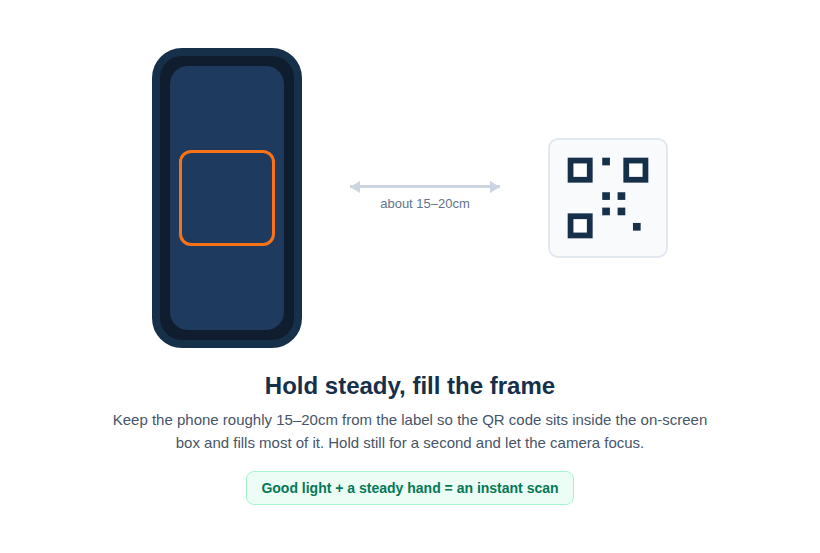
- Are you too close or too far? Start with your phone about 15-20 cm (6-8 inches) away from the label and slowly move it closer or farther until the camera focuses.
- Is the camera in focus? Tap the screen on the QR code to prompt your phone’s camera to focus on that area.
3. Check Your App & Browser Permissions
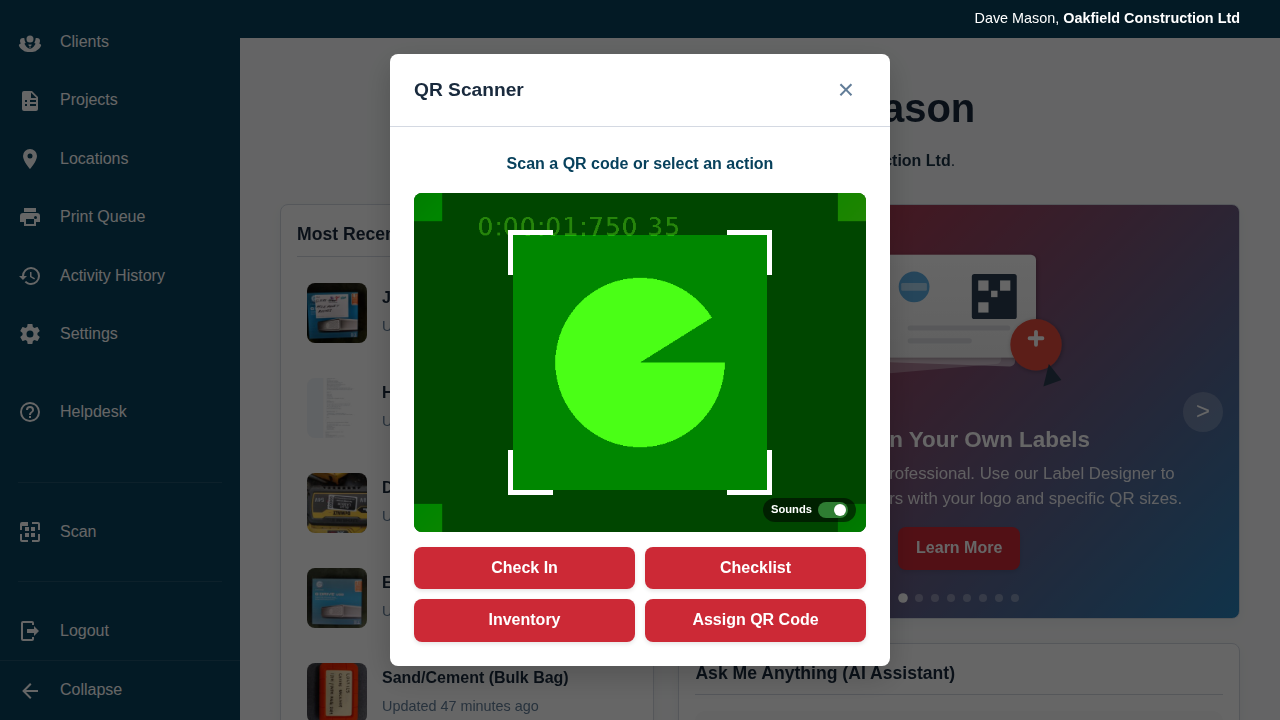
- Are you using the in-app scanner? The scanner is designed to work within the Asset Giant web app (by clicking the “Scan” button). While your phone’s native camera app might read the URL, the “check-in/check-out” workflow requires you to use the scanner inside the app.
- Did you give camera permissions? The very first time you use the scanner, your browser (e.g., Chrome, Safari) will ask for permission to access your phone’s camera. If you denied this, the scanner will not work. You will need to go into your browser’s settings for this website and re-enable camera access.
If you have checked all these steps and the code still won’t scan, it’s possible the label is too damaged or was poorly printed. The best course of action is to print a fresh label for that asset — see Print a Sheet of Labels from the Print Queue.