
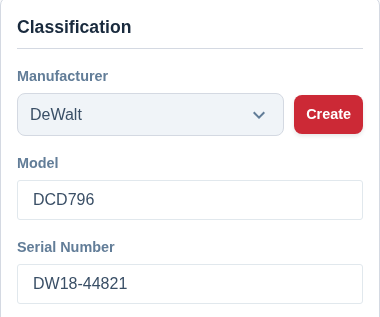
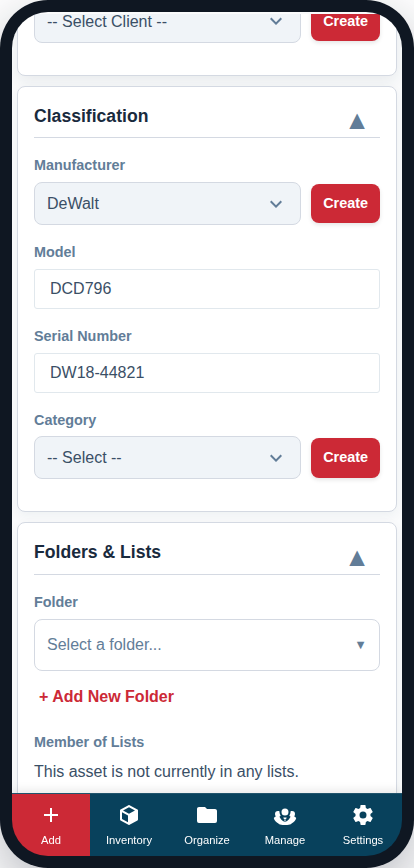
The “Classification” card holds the key details that uniquely identify your asset. Filling in this information accurately is crucial for both the AI and for your own record-keeping.
Manufacturer
Select the brand that made the asset (e.g., Canon, Sony, Sennheiser).
- The dropdown contains a list of all manufacturers you have used before.
- If the manufacturer you need isn’t in the list, simply click the “Create” button next to the dropdown to add it to your company’s database.
Model
Enter the specific model number or model name of the item.
- Example: For a Canon mirrorless camera, the model might be EOS R5.
- Best Practice: Be consistent. This field is searchable, so always using the same format for model numbers will help you find items later.
Serial Number
Enter the unique serial number provided by the manufacturer.
- Why it’s important: The serial number is the only truly unique identifier for a specific item. If you have five identical camera bodies, the serial number is the only way to tell them apart. It is essential for warranty claims, insurance purposes, and police reports in the event of theft.
- Where to find it: The serial number is usually found on the compliance plate or a sticker on the item’s housing.
Filling in these three fields gives you a highly specific record of your asset, which our AI can also use to provide better suggestions in the future.