
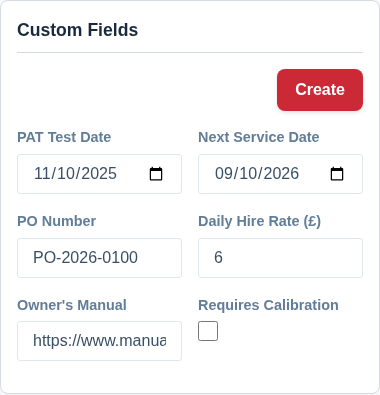
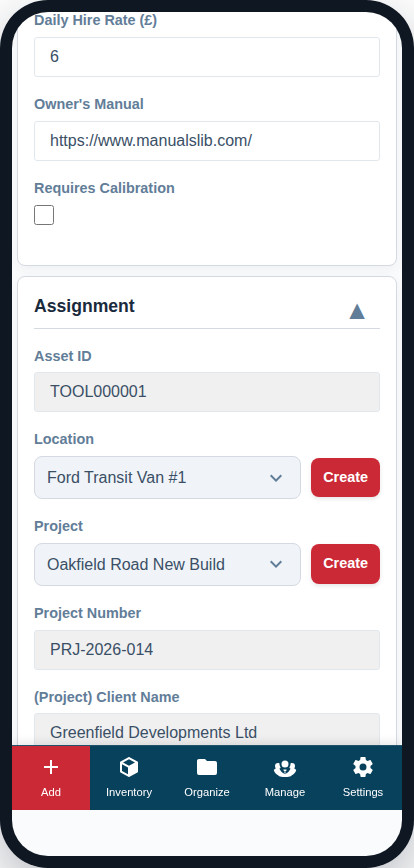
The “Custom Fields” card is where any additional data fields you’ve created for your company will appear. If you haven’t created any yet, this card will simply contain a link to the settings page.
What are Custom Fields?
Every business has unique data they need to track. Custom Fields allow you to add your own input fields to the Add/Edit Asset page.
Examples of common custom fields include:
- Next Service Date
- PAT Test Due Date
- Purchase Order Number
- Internal Asset Number
- Color
Using Custom Fields
Once you have defined your custom fields in the settings, they will automatically appear in this card for every asset in your inventory. You can then fill them in just like any other field on the page.
A field that is a list of options appears as a dropdown holding the choices set up for your company, so everyone picks from the same list and the values stay tidy. An empty choice is always offered, so a field you have nothing to put in yet can stay blank.
If you manage company settings, this card also carries a drag handle beside each field so you can reorder them without leaving the asset page. This changes the order for everyone in your company, and in exports and the spreadsheet template — see Add Your Own Fields to Track Anything Extra for the full walkthrough.
The data you enter here is fully searchable from the main Inventory Viewer, allowing you to create powerful, custom filters. For example, you could find all assets where the “PAT Test Due Date” is in the next month.
A date field can also drive a reminder. Set up a rule on “PAT Test Due Date” with, say, 30 days’ notice and the people who book your testing are emailed before each item falls due — every asset with the field filled in is covered, including ones you add later. If the test comes round every twelve months, set the field to repeat and press Mark as done today on the reminder when the work is done; the next date rolls forward by itself. Reminders are included from the Crew plan; see Getting Alerts Before a Date Passes.
To learn how to create, edit, or delete the fields that appear in this card, please read our full guide: Add Your Own Fields to Track Anything Extra.