
Asset Giant lets every custom field say which assets it belongs on. A Safe working load field can appear on your lifting gear and nowhere else; a PAT test due date can appear on power tools and leads; a Lens mount field can sit on cameras only. Each asset page then asks for the details that matter for that item, which makes it quicker to fill in and far more likely to be filled in correctly.
Nothing is lost by narrowing a field. A value already entered stays on the asset and is shown read-only, so a field you narrow later never throws anything away.
Setting where a field shows
- Go to Settings then Custom Fields.
- Add a field with Create New Field, or press Edit on one you already have.
- Find Shows on in the sheet.
- Tick the asset types this field belongs on, and leave the picker on All if it belongs on everything.
- Under and in categories, tick any categories it belongs on. A category covers everything filed under it, sub-categories included — tick Power Tools and every sub-category of power tools is covered.
- Press Save Field.
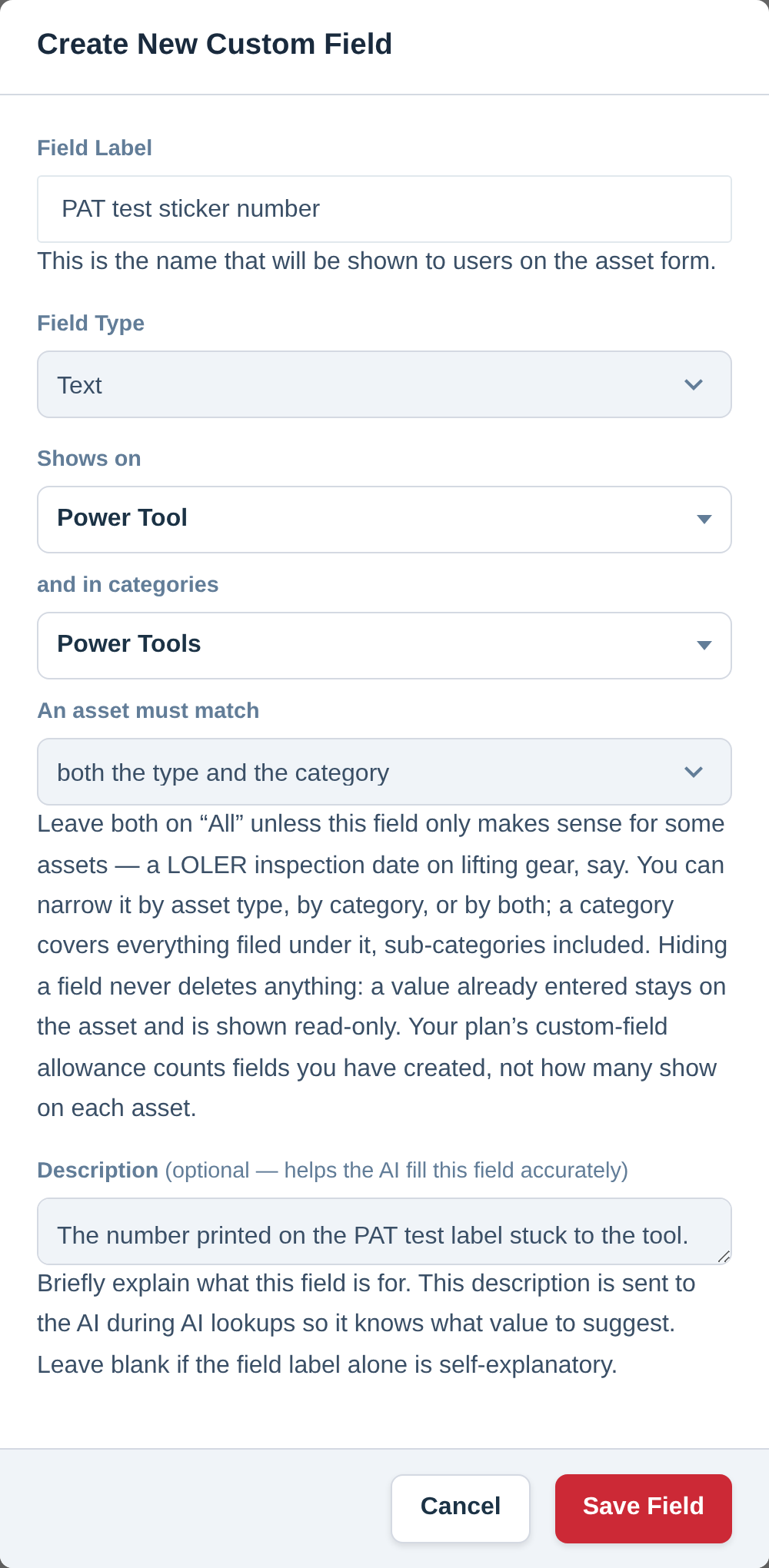
Using both at once
When you have ticked something in both pickers, one more question appears: An asset must match.
- both the type and the category — the field shows only where both are true. “Only on hoists that are also in the Lifting category.”
- either the type or the category — the field shows where either is true. “On every hoist, and on anything at all in the Lifting category.”
With only one picker used, the two settings mean the same thing, so the question is only asked when it makes a difference.
What narrowing a field changes, and what it does not
| Where | What happens |
|---|---|
| The asset page | The field appears only on assets it applies to. Where it does not apply but already holds a value, that value is shown read-only, so nothing is hidden and nothing is lost. |
| AI lookups | The AI is only asked to fill in fields that apply to the asset in front of it, which makes its suggestions sharper (see Using AI to Fill in Asset Details). |
| Reminder rules | The field picker in Settings then Alerts notes where a field applies, for example “LOLER Date (Hoists, or anything in Power Tools only)”, so you can tell two similar fields apart. |
| Filters, bulk edit, export and import | Every field stays available. A filter that only offered some fields would hide data you can see on the asset, and an import of a mixed spreadsheet needs every column it might meet. |
| Your plan’s allowance | Counts the fields you have created, not how many show on each asset. Narrowing a field frees nothing, and creating a narrow one costs the same as a broad one (see Check Your Plan, Your Usage and What You Can Add). |
Worked examples
- A testing date on the kit that gets tested. A date field called PAT test due, shown on your 110v and 240v power tool types. Add a reminder on it and only the right items are watched (see Getting Alerts Before a Date Passes).
- A rating on lifting gear. A number field called Safe working load (kg), shown on the Lifting category with sub-categories included, so slings, shackles and chain blocks all carry it.
- A detail that only cameras have. A list field called Lens mount with your own options, shown on the camera and lens types only.
- A hire detail on hire stock. A yes/no field called Hireable to clients, shown on the categories you actually hire out.
If a field has stopped appearing
- Check the asset’s type and category. The field shows where its Shows on settings are satisfied — open the field in Settings and read them back.
- Check the match setting. With both the type and the category chosen, an asset in the right category but of the wrong type will not show it.
- Check the category is still there. A category that is deleted is removed from the fields that named it, which can leave a field broader than you expected rather than narrower.
- Look for the read-only value. If the asset already held a value, it is still on the page, shown but not editable — that is the field telling you it no longer applies here, without throwing the value away.
For custom fields in general, see Add Your Own Fields to Track Anything Extra and Fill In Your Own Custom Fields on an Asset. For organising the types and categories a field can point at, see Set Up Asset Types for the Kit You Track and Organise Your Assets into Categories and Sub-Categories.