
Asset Giant keeps a register of who is signed off on which equipment. Each record names a person, the kit it covers, the programme and level they reached, the date, an optional renewal date and an optional certificate. On site, anyone can open an item and see at a glance whether they are signed off on it; in the office you can answer “who can run the cherry picker?” in one look, and be emailed before anybody’s ticket lapses.
Training is set up in Settings then Training, and read or added on each asset’s Training card.
Step 1: Set up your programmes and levels
Go to Settings then Training. The first card is Programmes and levels.
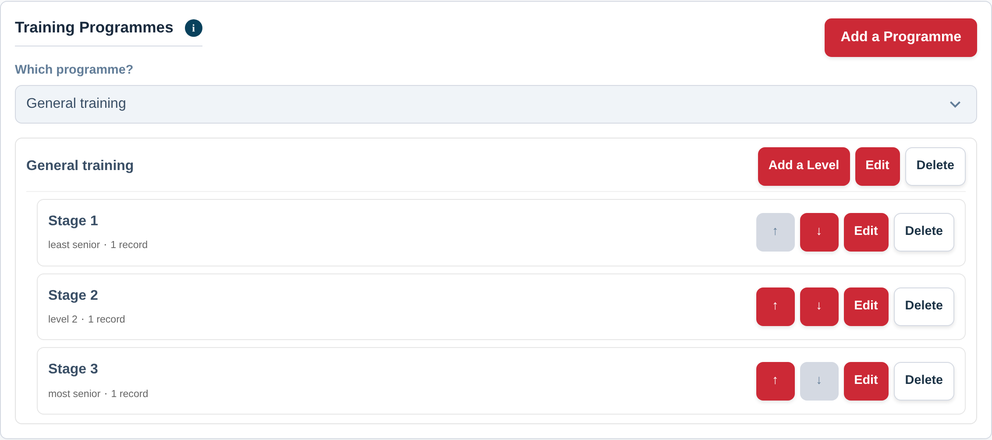
A programme is one course — “Safety training”, “Power tool proficiency”, “Abrasive wheels”. Its levels are the stages somebody works through on it. The order matters: the level at the bottom of the list counts as the most senior, which is how the app can answer “who has reached at least stage 2 of this?”
Press Add some examples to start with two ready-made programmes — Safety training with Stage 1, Stage 2 and Stage 3, and Power tool proficiency with Basic and Advanced — then rename them to match your own paperwork. Or press Add a Programme and build your own:
- Add the programme and give it the name your team uses.
- Add its levels, in order, least senior first. Drag them into the right order if you add one later.
- For each level, decide whether to remind about refreshers at this level by default and whether a certificate is expected at this level. Both are starting points you can change on an individual record.
You do not say here which kit a programme covers. You choose the programme and the level at the moment you record somebody’s training, so one programme can cover a whole class of machine or just the one machine.
Step 2: Record somebody’s training
There are two places to do it, and both write the same record.
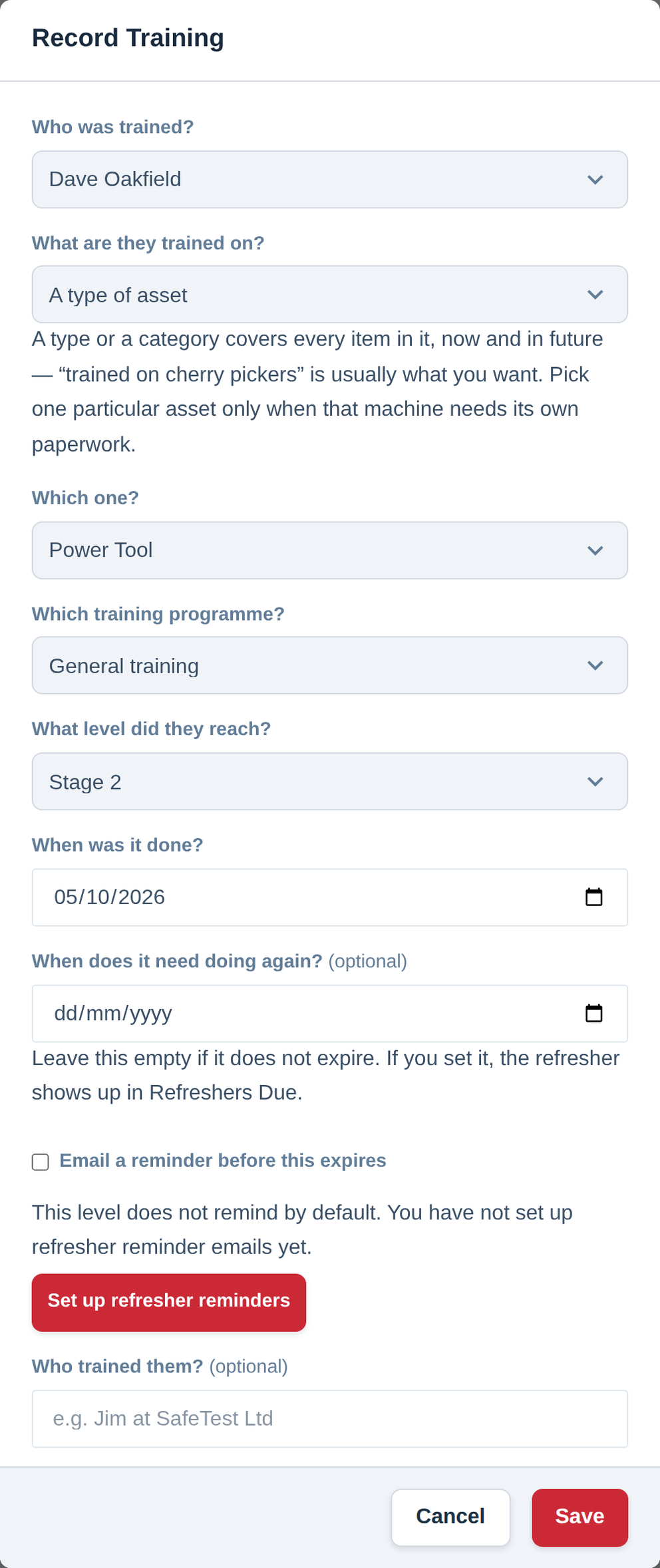
From Settings then Training, press Record Training in the Who is Trained on What card. This is the right place when you are entering a batch of certificates from a training day.
- Who was trained? Anyone on your team.
- What are they trained on? A type of asset, A category, or One particular asset. A type or a category covers every item in it, now and in future — “trained on cherry pickers” is usually what you want. Pick one particular asset only when that machine needs its own paperwork.
- Which one? The type or category, or — for particular assets — press Choose assets and tick them in your inventory. Tick a whole list of machines and one record is written for each, so a training day across twenty items is one sheet to fill in.
- Which training programme? and What level did they reach?
- When was it done?
- When does it need doing again? Optional. Leave it empty if the training does not expire. Set it and the refresher shows up in Refreshers Due, and can be emailed about in advance.
- Who trained them? Optional — the trainer, or the training company.
- Certificate. Optional. Attach the PDF or a photo of the card. It counts towards your plan’s storage like any other file (see Check Your Plan, Your Usage and What You Can Add).
- Notes. Optional.
From the asset itself, open any saved item and find the Training card, then press Record training. The sheet is the same, with one difference: What does it cover? offers this asset and the type or category it belongs to, because those are the only sensible answers when you are standing on the item.
What the Training card shows
Open an asset and the Training card answers the question the person holding the phone actually has — am I signed off on this? — before anything else. Below that is everyone who is, with their level, the date and whether their renewal has passed.
Each row says where it came from. A record made against an asset type or a category is marked as inherited, so it is clear that it covers every item in that group and not just this one; a record made against this particular asset is marked as its own. A record on the asset at the same level takes precedence over an inherited one, so a machine that needed its own sign-off reads correctly without the general record being touched.
The register, and what is due
Two more cards sit in Settings then Training:
- Who is Trained on What — choose somebody under Show the record for and you see everything they are signed off on, with levels, dates and renewals. This is what you print or screenshot when a client or a principal contractor asks.
- Refreshers Due — everything coming up for renewal, filtered to the next 30 days, 60 days, 90 days or year. Press Dismiss on a row to take it off this list; the training record itself is untouched, so nothing is lost and nobody’s history changes.
Being told before a ticket lapses
Go to Settings then Alerts, press + New rule and choose Training refresher due under Remind about. You can leave it covering everything, or tick particular programmes and levels — “Stage 2 on Safety training and Advanced on Power tool proficiency, and nothing else”. Sixty days’ notice is the usual starting point, since retraining has to be booked.
Two things decide whether a record is ever reminded about: it needs a renewal date, and its level (or the record itself) has to say it should be reminded about — that is the Remind about refreshers at this level by default tick, and the Email a reminder before this expires box on the record. The rest of the rule works exactly as any other reminder (see Getting Alerts Before a Date Passes).
A warning when somebody takes out kit they are not signed off on
When you check an item out to a person — on the scanner or in bulk — and the company already keeps training records for that item, the confirmation adds a line: either that the person has no training recorded for it, or that their training for it has expired.
It is a warning, and only a warning. The check-out goes through, because the person on site may have good reason and the app is not the right place to stop them. It appears only on items you already track training for, so an item nobody has ever been signed off on stays quiet (see Using the Mobile Scanner to Check Items In/Out).
Archiving a programme or a level
Open the programme or the level and tick Archived. It stops being offered on anything new, and everybody already signed off keeps exactly what they have. Archive rather than delete when a course is replaced: last year’s records keep meaning what they meant.
Who can do what
Recording training is its own permission, and it sits with the Owner and Admin roles — these are records about your people, not about your kit. Everyone else sees the Training card on an asset and can read whether they, and others, are signed off on it (see User Roles: Owner, Admin, Member, Scanner and Viewer).
For what this looks like from the outside, see Training Records & Certificates (feature overview). For keeping the kit itself in date, see Setting Up Maintenance and Test Schedules.