
Asset Giant can tell the right people the day a consumable runs short. Each item that you track by quantity — boxes of fixings, rolls of tape, bags of cement, batteries, gaffer tape — can carry a minimum stock / reorder level. When the quantity on hand falls below that level, a low stock alert is raised: an email to whoever you choose, and a row on the Alerts page in the app, until the stock is topped up.
Quantities and reorder levels are recorded on every plan. Low stock alerts are included from the Crew plan (see Check Your Plan, Your Usage and What You Can Add).
Step 1: Give the item a quantity and a reorder level
Open the item and look at its Core Details card. Two fields sit together:
- Quantity on Hand and its unit — how many you hold, and what one of them is: boxes, rolls, bags, metres (see Set an Asset’s Type, Status and Quantity).
- Minimum stock / reorder level — the quantity you never want to drop below. Leave it blank and the item is never reported low; type a number and the item counts as low whenever the quantity falls below it. Ten rolls with a level of ten is fine; nine is low.
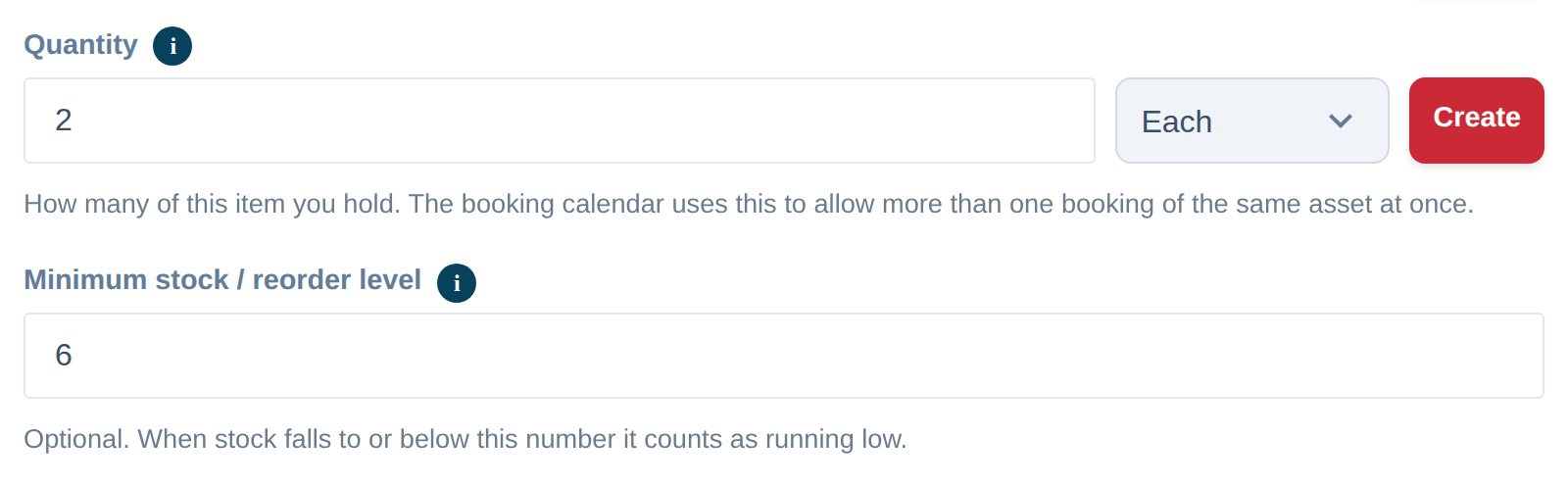
Press Save and the level is set. A quantity that is empty is never reported low, whatever level it has, so give every consumable a real count first.
To set a level on many items at once, tick them in your inventory and choose Bulk edit — Minimum stock / reorder level is one of the fields you can set across the selection (see Edit, Move or Delete Many Assets at Once). Importing a spreadsheet works too: a column headed Min, Minimum or Reorder is recognised and becomes the level on every row (see Importing Your Existing Spreadsheet).
Step 2: Switch on the low stock alert
Go to Settings then Alerts. A rule called Low stock is already there and switched On, so every item with a reorder level shows on your Alerts page and dashboard when it runs low. It emails nobody until you choose who should hear: press Edit on it, tick the people, and press Save rule.
To write your own rule instead, press + New rule and, under Remind about, choose Stock below its reorder level. There is no lead time to set for this kind of rule — it fires on the quantity, not a date.
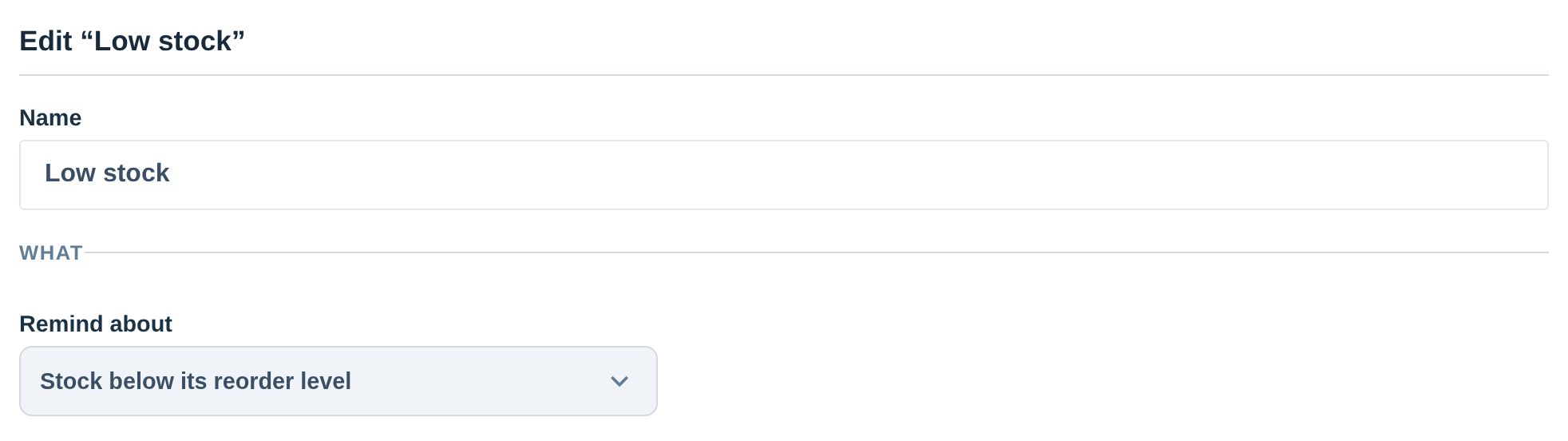
The rest of the form works exactly as it does for a date rule (see Getting Alerts Before a Date Passes):
- Which items — leave the filters empty to cover everything with a reorder level, or narrow it by asset type, category, folder, location or status, or hand-pick items. A Yard consumables rule and a First-aid stock rule can go to different people.
- Who gets it — people on your team, the person each item is assigned to, and up to ten outside addresses such as your supplier or the accounts inbox. An outside address is emailed once to confirm before it receives anything.
- Each item, or a summary — an email for each item as it drops, or one daily or weekly round-up at a time you choose. A Monday summary to whoever places the orders suits most companies.
- Your message — one line at the top of every email from this rule, such as “Order through the trade account” or “Tell Priya before ordering”.
What you see when stock runs low
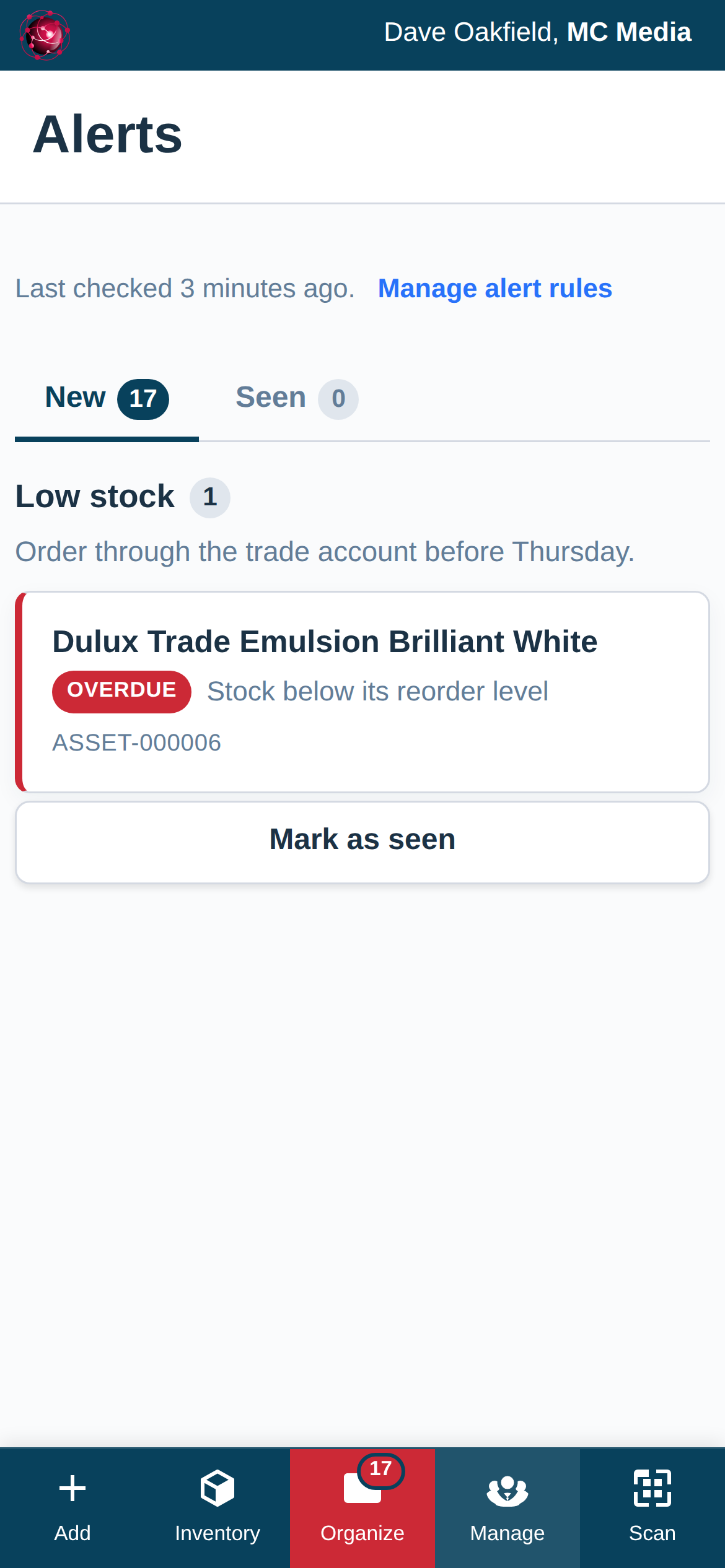
The email lists each item that has dropped below its level, with a button that opens the record. In the app the item appears on the Alerts page and the count in the menu goes up; the dashboard’s Attention needed panel lists it too. Read it and press Mark as seen to file it in the Seen tab without hiding it from anyone else.
Clearing the alert
Top the stock up — edit the quantity on the item, adjust it in bulk, or correct it in a stocktake — and the alert clears by itself once the quantity is back at or above the level. Nothing needs marking as done. If the same item runs low again later, it comes back as a new alert, even if you had marked the earlier one as seen.
Why isn’t an item showing as low?
- Is its quantity filled in? An empty quantity is never reported low. Type the real count.
- Is the level a number, and is the quantity actually below it? Equal is not low. A level of 0 can never be undercut.
- Is the rule on, and does it cover this item? Check the switch in the Alerts tab and the rule’s filters — an item the filters exclude is never mentioned.
- Has the check run yet? Quantities are checked twice a day, so allow up to twelve hours after a change before expecting the item on the Alerts page. An email needs someone in Who gets it; a rule that names nobody shows its items in the app only.
For what a low stock alert can do for your ordering, see Low Stock Alerts & Reorder Levels (feature overview). For tracking quantities in the first place, see Track Quantities & Consumables (feature overview).