
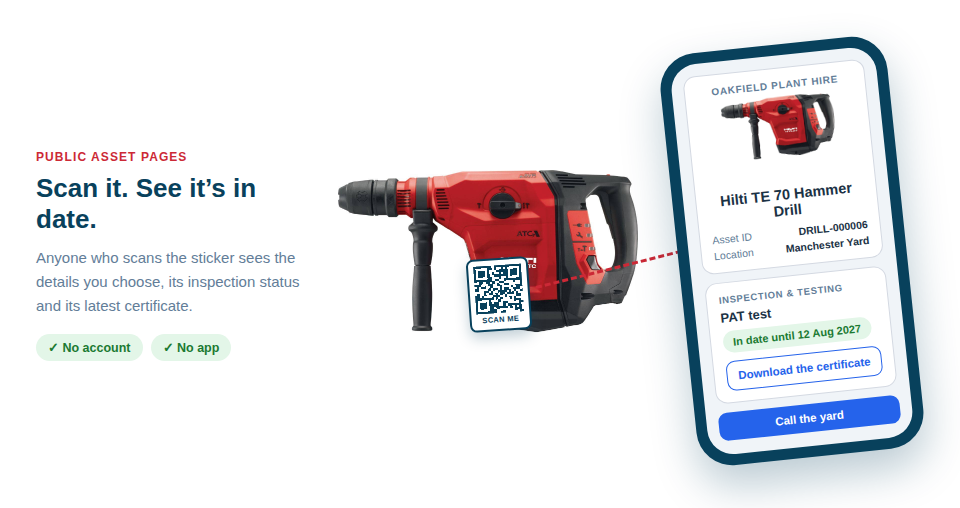
With Asset Giant, any item you own can have its own public information page. Anyone who scans the QR sticker on it, whether a site manager, a client or an inspector, sees that page on their phone straight away, with no account to create and no app to download.
You decide which items have one. Turn a page on or off for a single item from its QR card, or for a whole group at once, such as every item of one type, everything at one location, or anything that matches a rule you set. You also choose exactly what each page shows.
What a public asset page is
A public asset page is a web page for one item, reached by scanning the QR sticker already on it. The person holding the phone needs nothing from you — no account, no app download, no password, no link emailed in advance. They point a camera at the label and read the page.
You decide what the page says. The fields you can choose from are a fixed list, and you pick from it per item or for your whole company at once:
- What it is — name, photo, asset ID, type, category, make and model.
- Where it is — its current location.
- Your own fields — any custom field you have added, so a site reference or a serial number can appear.
- Inspection and testing — each kind of test you run, showing either the most recent result or the full history, with the date, the outcome, the inspector’s name, the next due date and an in-date or overdue badge.
- The latest certificate — off, a download link, or the document itself displayed on the page.
- How to reach you — a Call button and your email. The number can be your company’s, or one set for that item alone when a machine is out on hire.
Just as important is what can never appear. Prices and purchase costs, notes of any kind, who has the item, its history and activity, bookings and anybody’s email address are not on that list, so no setting and no mistake can put them on the open web.
The sticker never has to change
This is the part that saves the most work over a year. The label points at the asset’s record, not at a file. Record this year’s test in Asset Giant and the page is already showing this year’s certificate; the sticker on the item is the same sticker it has always been.
Replaced paperwork stops being reachable at the same moment. A certificate is only ever served through the item’s own page, so an old link that somebody saved months ago cannot keep handing out out-of-date documents.
Setting it up once instead of item by item
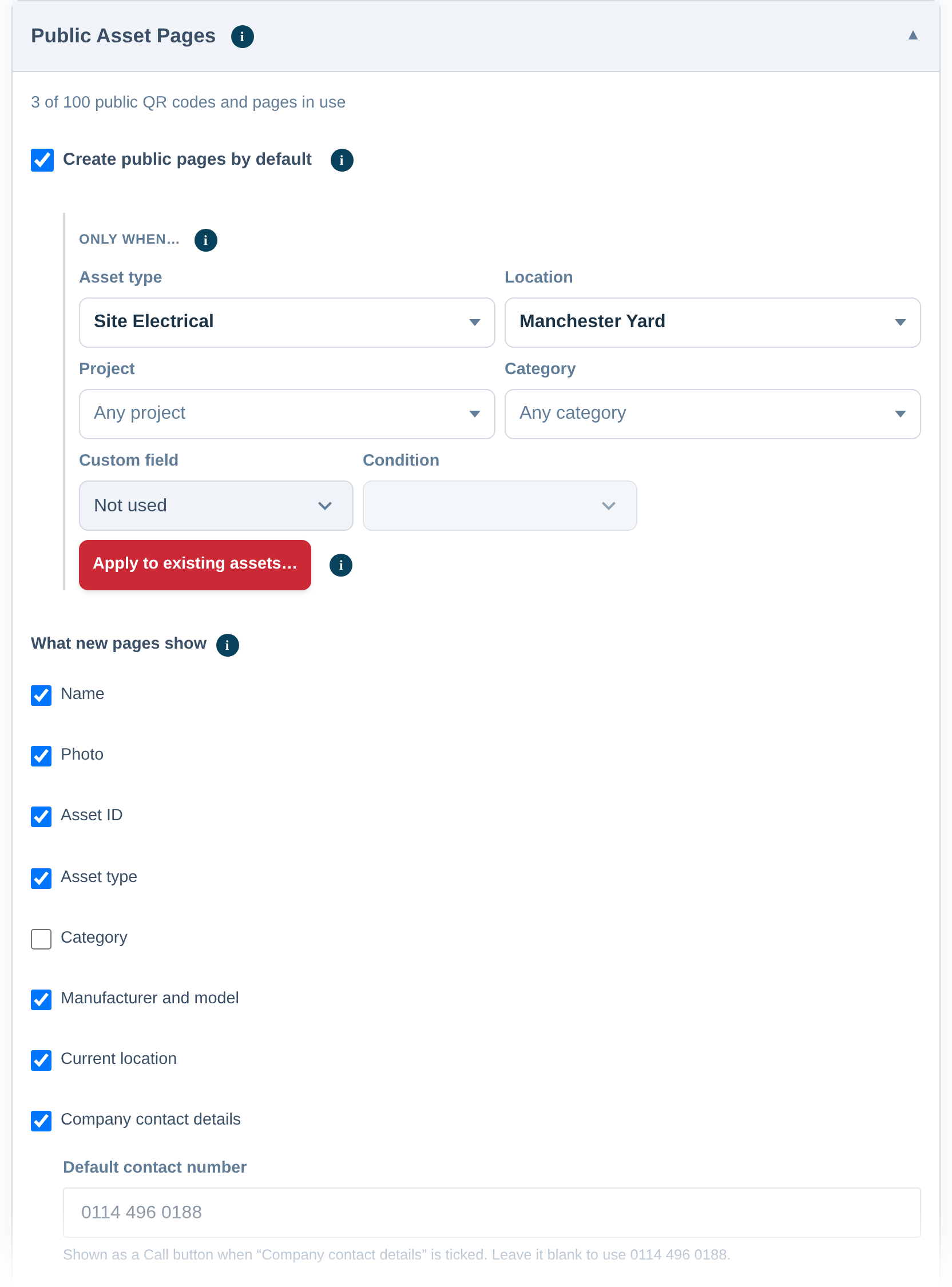
For a handful of items, ticking Create public asset page on the QR card is quick enough. For a fleet, you set the rule once in Settings → QR Codes → Public Asset Pages and every new item that fits arrives with its page already live.
Narrow it however your business works — by asset type, by location, by project, by category, or by one of your own custom fields matching a condition. The condition follows the field: a date between two dates, a number in a range, or a tick list of a drop-down field’s own choices. Several choices in one box mean “any of these”; choices in different boxes must all be true. Leave them all empty and every new item gets a page.
The same screen sets what every page shows by default, so a new generator is already showing its inspection record without anybody opening it. Items with their own choices keep them.
Who sees the app and who sees the page
Your own team is a separate question, answered once for the whole company. By default a signed-in team member who scans goes straight into the app, where they can check the item out, log a job against it or edit it — which is what somebody doing a stocktake wants. Switch it over and your crew sees the public page as well, with an Open in app button on it for when they need the real thing.
Anyone who is not signed in to your company always sees the public page, and every page carries a small Staff log in button for the times somebody scanned an item while signed out.
Where it earns its keep
- Electrical contracting — a test certificate on every distribution board, readable by the main contractor without a call to the office.
- Plant and tool hire — a hirer can satisfy themselves that a generator is in date before it leaves the yard, and again when it arrives.
- Access equipment — a tower or a ladder carries its own inspection record, so a site induction does not stall on paperwork.
- Events and AV — a client’s venue team can see what a flight case holds and when it was last PAT tested.
In each case the win is the same: the question is answered by the item itself, at the moment it is asked, by whoever is standing in front of it.
Getting started
Public asset pages share an allowance with your other public QR codes, and the settings screen shows how much of it you are using. Turn one on for a single item first, scan it with your own phone, and decide from there whether you want the rest to happen automatically.