
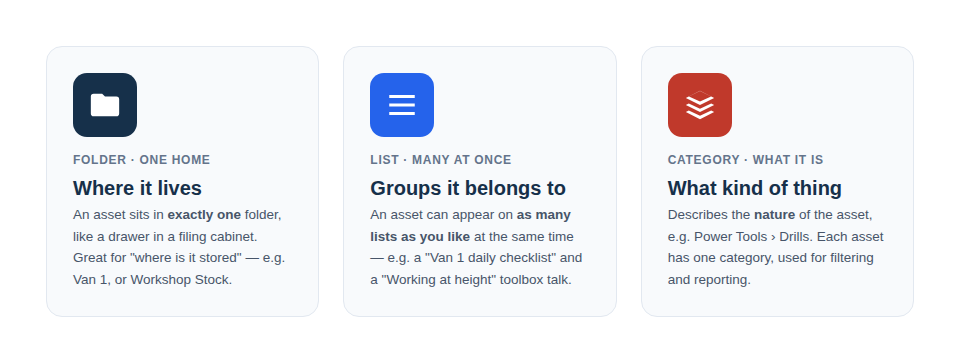
Folders, Lists, and Categories are the three main ways to organize your assets in Asset Giant. Understanding the purpose of each one is key to building a clean and easy-to-manage inventory.
Folders
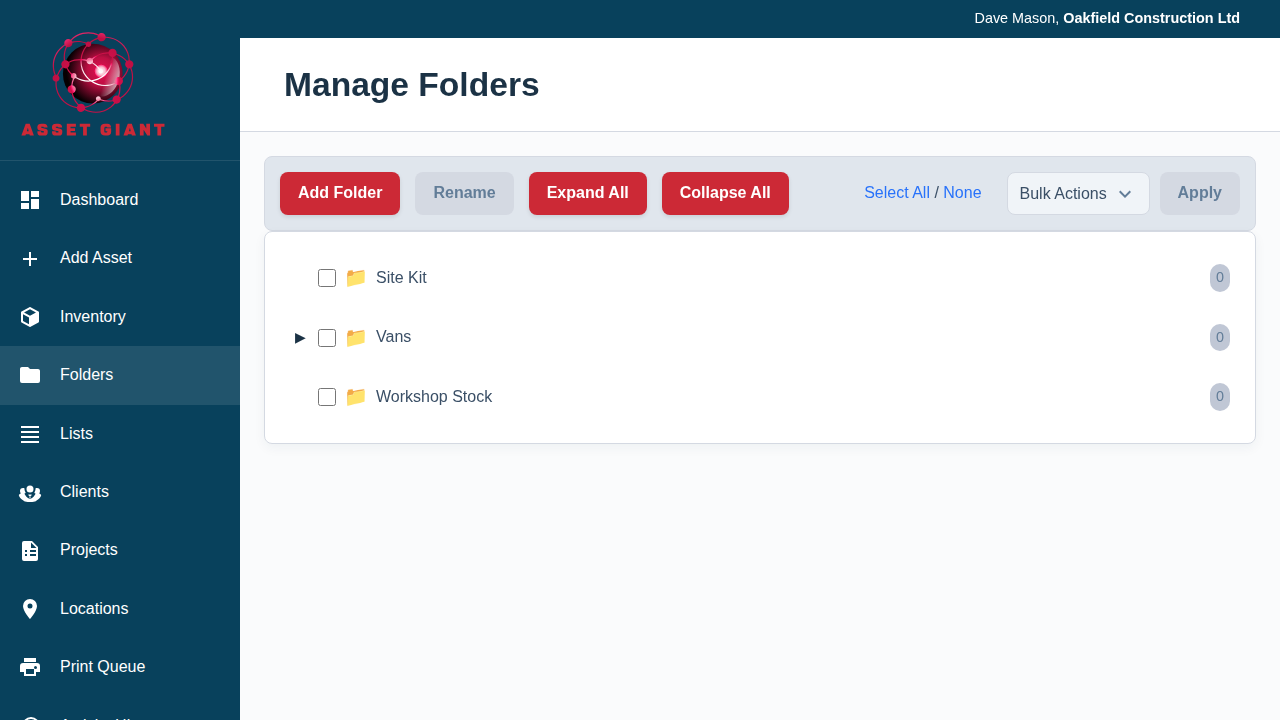
- What they are: A digital filing cabinet for your assets.
- Key Rule: An asset can only be in one folder at a time, just like a physical file can only be in one drawer.
- When to use them: Use Folders for the primary, permanent location or grouping of an asset. Think of it as the asset’s “home” department.
- Example: A film/media company might create a “Lighting” folder and a “Grip & Stands” folder. A specific LED panel would live in the “Lighting” folder.
Categories & Manufacturers
- What they are: Descriptive tags that define what an asset is.
- Key Rule: An asset can have one Manufacturer and be in one Category (and one Sub-category).
- When to use them: Use these to classify your items for filtering and searching. The AI uses these heavily to identify your equipment.
- Example: An LED panel might have “Aputure” as its Manufacturer and “LED Panels” as its Category. This lets you quickly find all your LED panels, or everything made by Aputure.
Lists
- What they are: Flexible, temporary collections of assets for a specific purpose.
- Key Rule: An asset can be in many lists at the same time.
- When to use them: Use Lists for short-term tasks, jobs, or collections. They are perfect for grouping items that need to go to a specific shoot, event, or job site, creating a checklist for a kit, or creating a manifest for a vehicle.
- Example: You could create a list called “Riverside Studio shoot” and add the LED panel, a light stand, and a couple of sandbags to it. The panel is still in the “Lighting” folder, but it’s also on this temporary shoot list.
In Summary:
| Feature | Purpose | How Many Can an Asset Be In? |
|---|---|---|
| Folder | The asset’s permanent “home”. | One |
| Category | Describes what the asset is. | One |
| List | A temporary group for a specific task. | Many |