
Lists are flexible collections of assets used for specific tasks, like packing for a job or creating a safety checklist. You can manage all your lists from the Lists Viewer page, found under Organize -> Lists in the main menu.
For an overview of what lists are for, see Organise Hundreds of Tools So You Can Find One.
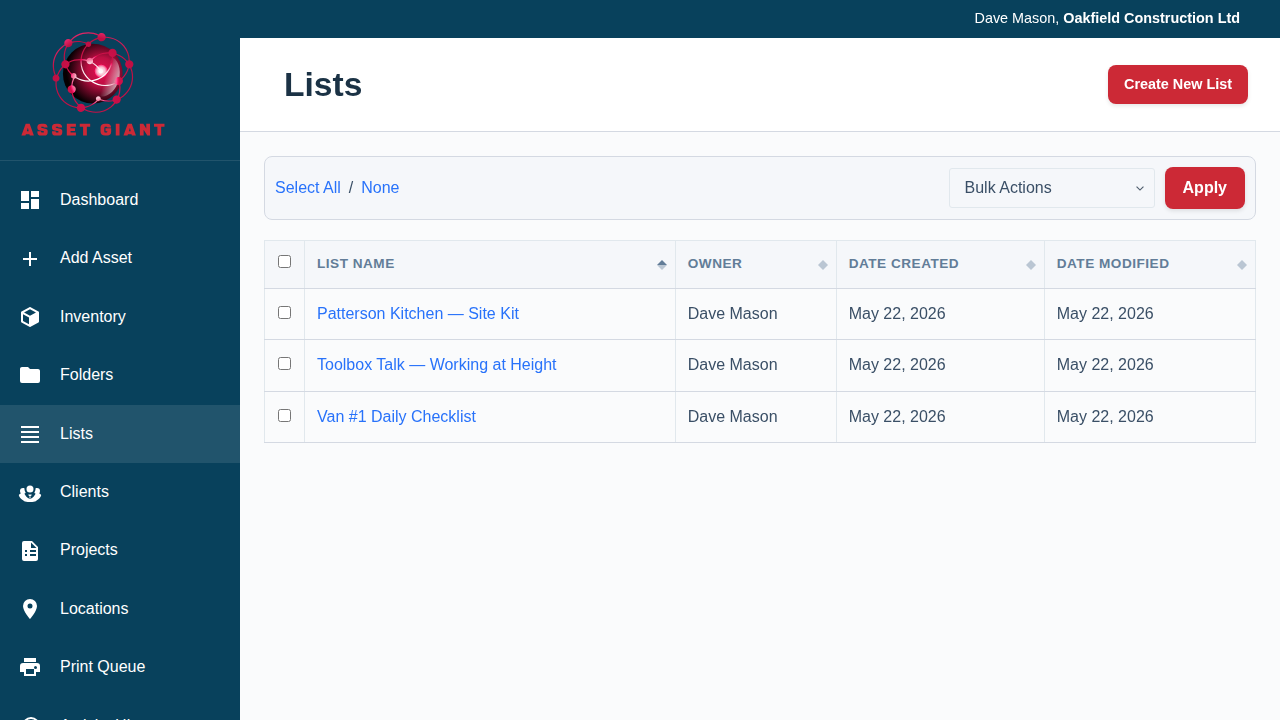
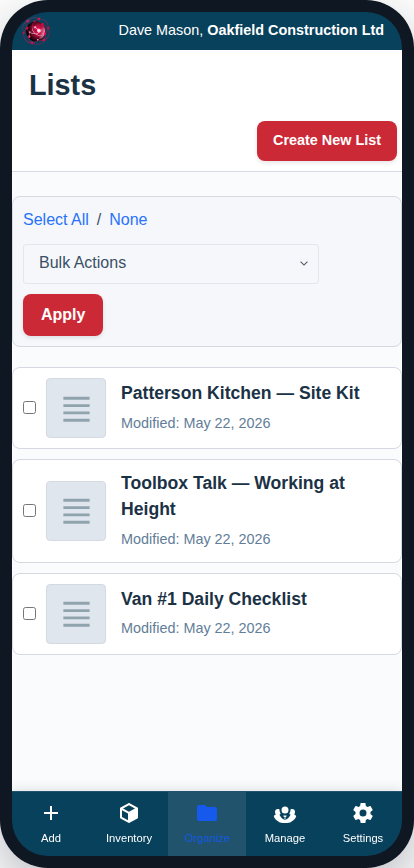
Creating a New List
- Navigate to the Lists Viewer page.
- Click the “Create New List” button in the header.
- A prompt will appear asking for a name for your new list. Enter a descriptive name (e.g., “Saturday Wedding — Grand Hotel”, “Crew Van #1 Loadout”).
- After you enter the name, you will be taken directly to the Manage List page for your new, empty list.
Managing Existing Lists
The main table on this page shows all lists created by your company.
- To Edit a List: Click on the list’s name. This will take you to the Manage List page where you can add or remove items, add section headings, and reorder the contents. See Put a Kit List in the Order You Pack It for more details.
- To Delete Lists: Use the checkboxes to select one or more lists. Then, from the “Bulk Actions” dropdown at the top of the table, select “Delete” and click “Apply”.
Adding Assets to a List
There are two main ways to add assets to a list:
- From the Inventory Viewer: Select multiple assets using the checkboxes and use the “Add to List…” bulk action.
- From the Add/Edit Asset Page: Use the “Folders & Lists” card to add the specific asset you are editing to any list. See Put an Asset in a Folder or Add It to a Kit List.
Lines that any one of several items can satisfy
A list does not have to name one exact item on every line. Press Add Substitute Slot on the Manage List page and the line can be satisfied by any one of a set — any 110v drill, any of three vacuums, anything in a category you choose. The list then stays correct whichever machine actually goes out, and a complete load never reads as incomplete. See Adding Substitute Items to a List.
Taking the list out on a job
The Actions menu on the Manage List page holds everything you can do with the list as a whole:
- Check In / Out… — check the whole list in or out in one go, or scan the items one by one.
- Create booking — reserve the lot for a job (see below).
- Add to List…, Print Labels and Export List… — see Exporting a List to PDF or CSV and Printing QR Code Labels.
- Print Checklist… — the list as a blank paper tick sheet to fill in by hand (see Printing a Blank Paper Checklist).
- Complete Checklist… — tick the list off on screen, with no camera needed (see Managing Assets with Digital Checklists).
- Delete — remove the list. The assets on it are not touched.
Booking a whole list for a job
Once a list holds the kit you send out together, you can reserve the whole thing in one action. Open the list and click Create booking in the header — you’re taken straight to the Calendar with every bookable asset on the list already loaded and the booking named after it. Set the dates and who it’s for, and the lot is reserved.
Because the booking is tied to the list, it shows on the Calendar as a single card rather than a dozen separate entries, and that card links back to the list — so “is the Carpentry Set out until Friday?” takes one click to answer. If any item is already spoken for, Asset Giant will say so and offer to find dates that work, book only what’s free, or suggest an alternative. Full detail is in Book Kit Out for a Job and See What’s Free.