
The Check In workflow is designed for speed. Use this when you are moving a set of equipment from your main storage to a specific project site or vehicle, so the system always knows where each item is.
Setting the Destination
- Open the QR Scanner, tap Check In / Out, and stay on the Check In tab.
- The system will ask where the items are being checked in.
- Set the Destination: Either scan the QR code of the target location (or vehicle) or select it from the dropdown menu. If your company keeps an item’s location when it is checked out (Settings → Preferences → Check In / Check Out), the dropdown also offers Where each item was, which sends every scanned item back to its own location.
- Tap Start Check-In to begin. The camera will stay open, ready for you to scan.
Batch Scanning
With the destination set, you can now scan your assets rapidly:
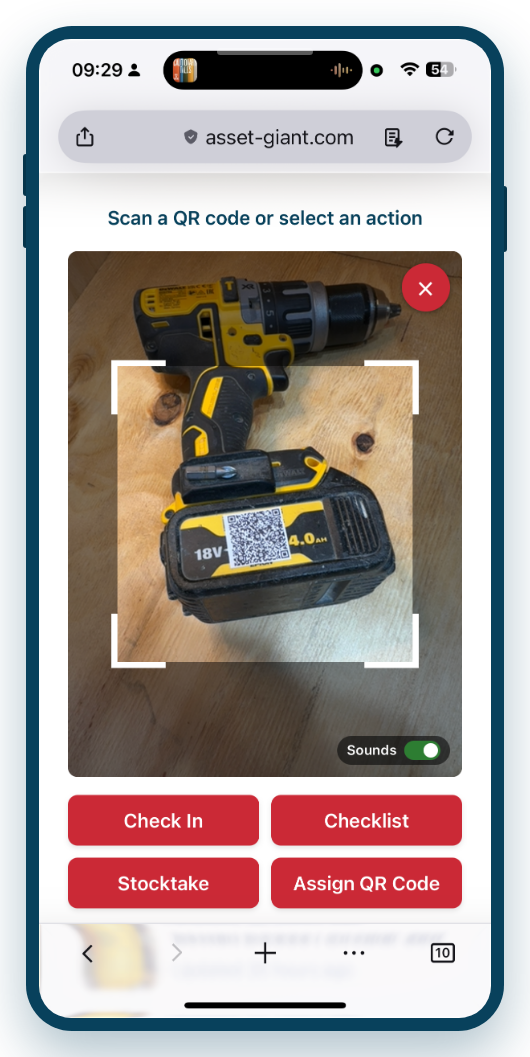
- Point the camera at an asset’s QR code.
- As soon as it’s recognised, the item is added straight to the session list below the camera — there’s no need to confirm each one, so you can keep scanning without pausing.
- Each scanned item shows its name with a Remove button, so you can take an item back out of the batch if you scan something by mistake.
Completing the Session
When you have finished, tap Finish Check-In. A summary message will confirm exactly how many items were checked in to the destination.
What this changes: Checking an item in updates its Location to the destination you chose. The item’s status and assigned user are left exactly as they were — Asset Giant keeps a record of who moved what and when in each asset’s Activity History instead.
Checking Several Items Out in One Go
Taking a batch of kit off site is the same speed in reverse:
- Open the QR Scanner, tap Check In / Out, then tap the Check Out tab.
- Say who is taking the items (a team member, or anyone by name) and when they are due back. Both are optional — leave them blank and just tap Start Check-Out.
- Scan each item. They are added to the list below the camera as you go, with a Remove button beside each one.
- Tap Finish Check-Out. Every item in the list is checked out to the same person with the same due-back date, and each one gets its own line in its Activity History.
If you scan an item that is already checked out, its row asks whether to check it out again — tap Yes to hand it on, or Remove to leave it as it was.
Tip — a single item: Scan an asset on its own (without starting a session) and its card offers Check Out too, with the same who and due-back choices. Checking out clears the asset’s location, marking it as having left that place. The inventory list then shows a Checked out pill — red once the due date has passed — with who has it and when it is due, until it is checked in again. The asset’s own page shows the same pill at the top of its Assignment card, lets you change the due-back date, and offers one-tap Check out and Check in buttons. As with Check In, none of this changes the asset’s status.