
The Add/Edit Asset page is the heart of your inventory management. Whether you’re creating a new item or updating an existing one, this is where all the details live. The page is designed to be a comprehensive, single-screen view of everything related to one asset.
Card-Based Layout
The page is organized into a series of “cards,” each dedicated to a specific type of information. This keeps the data organized and easy to find. The main cards include:
- Core Details: For the asset’s name, type, and status.
- Media: For all photos of the asset.
- Assignment: To link the asset to a location, project, client, or user.
- Classification: For identifying details like manufacturer, model, and category.
- Maintenance & Testing: The repeating jobs that apply to this item — PAT test, LOLER examination, calibration, service — when each is next due, and the history of every one ever recorded on it, with its certificate. Only shown once the asset has been saved (see Setting Up Maintenance and Test Schedules).
- Training: Who on your team is signed off to use this item, at what level, and whether anybody’s ticket has lapsed — with your own record at the top. Only shown once the asset has been saved (see Recording Who Is Trained on What).
- And more… for financials, files, notes, and other information.
Every card can be opened, closed, hidden or reordered to suit you, on desktop and on a phone — use the View ▾ menu in the page header. See Arranging the Asset Page: Collapsing, Hiding and Reordering Cards for the full guide.
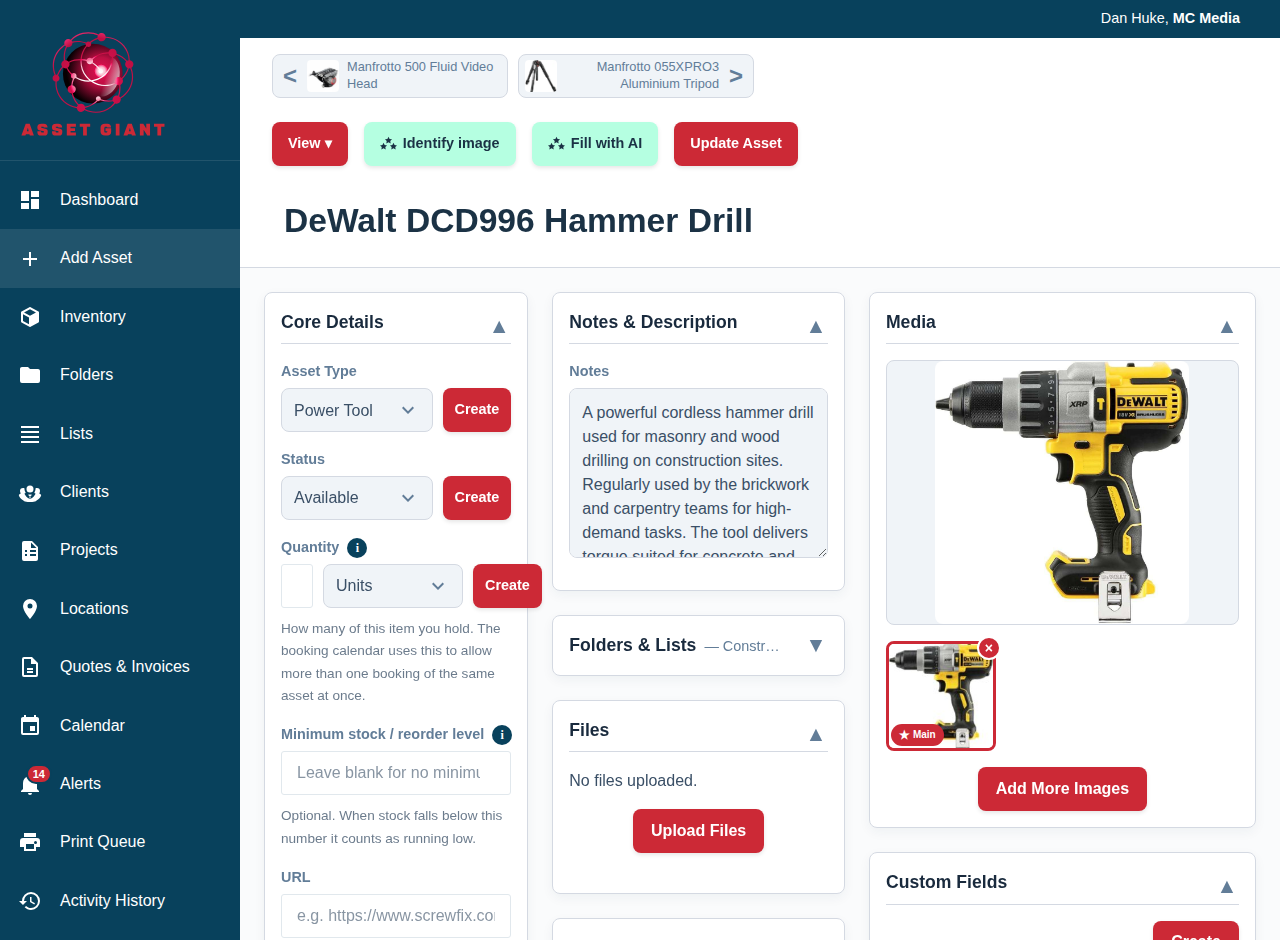
The Header
The header at the top of the page contains the most important information and actions:

- Asset Name: The main title of the page is the asset’s name. You can click on it to edit the name directly. See Rename an Asset for more.
- Asset Navigator: When editing an existing asset, “Previous” and “Next” buttons will appear, allowing you to quickly cycle through your inventory without returning to the main list.
- Action Buttons: This is where you’ll find the primary action buttons, such as “Identify Image” and “Save/Update Asset”.
This page serves as your central hub for all asset-related data entry and management.