
Asset Giant lets a line on a list say “any one of these” instead of naming one exact item. The line reads Any of: 110v drill, it is satisfied by whichever drill is actually loaded, and when the kit is checked off by scanning, scanning any one of them ticks the line. The list stops needing to be edited every time a different machine goes out, and a complete load stops looking incomplete.
Substitute lines sit alongside ordinary items and section headings on the same list, so a list can name the one tripod that must go and leave the camera body as a choice of three.
Adding a substitute line
- Open the list from Organize then Lists, and click its name to reach the Manage List page.
- Press Add Substitute Slot. A new line appears at the bottom, ready to fill in.
- Name the line in the first box — what it should say on a checklist. “110v drill”, “Vacuum cleaner”, “Spare battery”, “Any 2m podium”.
- Set Any … of if more than one is needed. Leave it at 1 for a single item; set it to 2 for “any two of these ladders”.
- Choose how the line is satisfied, in the dropdown beside the name.
- Press Save Changes.
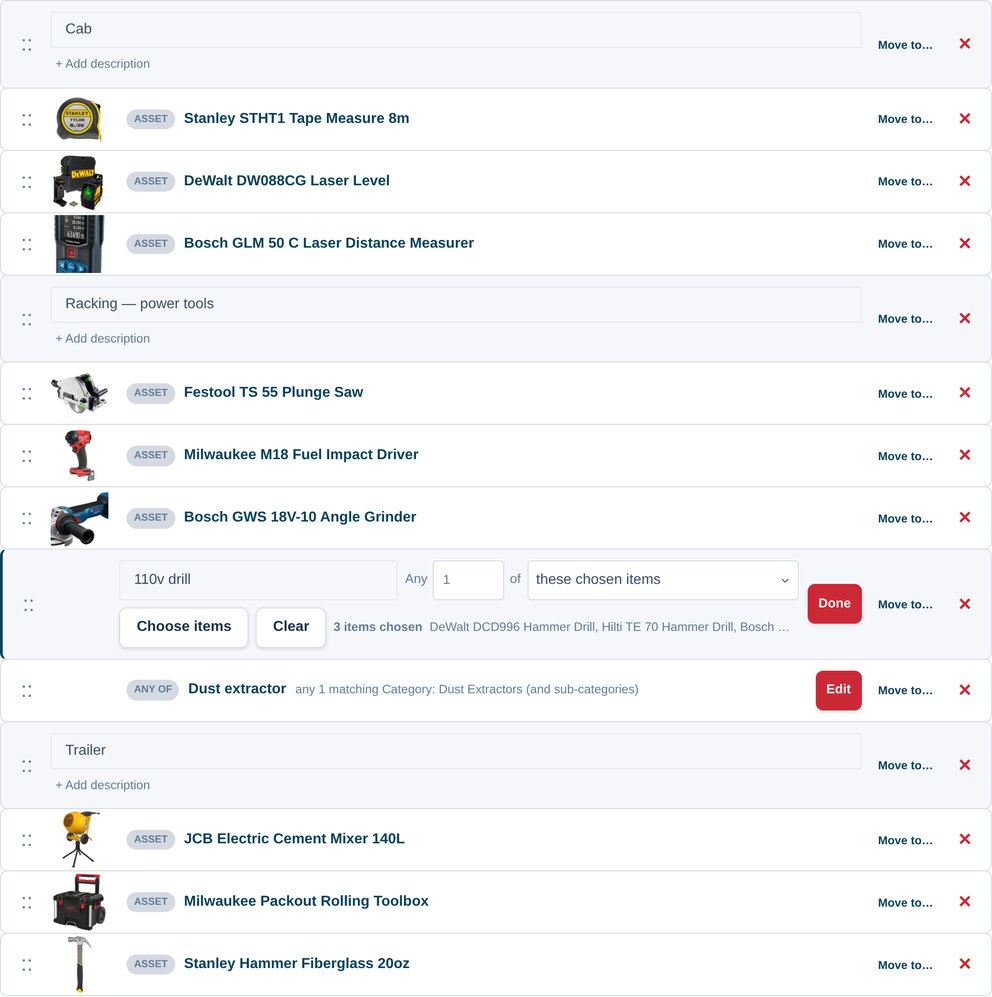
These chosen items
Pick the exact items that are allowed to fill the line. Press Choose items, tick them in your inventory and they are listed under the line, with a count. Clear empties the set and starts again.
Use this when the set is small and specific: your three cordless drills, two of your four vacuums, the one pair of podium steps that is tall enough.
Anything matching a rule
Instead of hand-picking, let the line match a group. Choose anything matching a rule, then pick Asset type or Category and the one you mean. Tick Include sub-categories and everything filed underneath it counts too.
Use this when the set changes on its own: “any 110v drill” should pick up the drill you buy next month without anybody remembering to edit the list. Items are matched when the list is used, so a rule-based line is always current.
What a substitute line does on a checklist
When somebody works through the list on the scanner, the line shows its name and how it is satisfied. Scanning any one of the items that fits ticks the line, and the record keeps which item actually filled it — so next month you can see that it was the yellow vacuum, not just that a vacuum went out.
If nothing that fits the line is in your inventory at that moment, the checklist says so plainly rather than silently passing or failing: the line is recorded as not found.
For the whole checklist flow, see Managing Assets with Digital Checklists.
When an action needs one real item
Some things cannot be done to a choice. Checking kit in or out, printing labels, exporting the list with full columns and creating a booking all need to know which actual item you mean.
When you start one of those from a list that has substitute lines, Asset Giant asks. A short sheet lists each substitute line with a Choose one… picker, limited to that line’s own set, and you pick as you go. Your choices are used for that one action only and are never written back to the list, so the list stays general.
Nothing is refused because an item is already checked out — you may be doing exactly that deliberately, and you are told rather than blocked.
Exporting and printing a list that has substitute lines
Both the export and the printable checklist ask what the substitute lines should show:
- Just the line name and how it is satisfied — one row per line, reading “110v drill — any 1 of 3 chosen items”. This is what you want on a blank sheet that goes out in the van, because the person loading it decides.
- A particular asset for each line, with all its columns — you choose which item, and the row is a full asset row like any other. This is what you want for a record of what actually went.
See Exporting a List to PDF or CSV and Use a List as a Toolbox Talk or Inspection Checklist.
Keeping a list readable
- Name the line the way the person reading it thinks. “Any 110v drill” is better than “Drill option A”.
- Mix fixed items and substitute lines freely. The specialist lens is a named item; the camera body is a choice of three.
- Use section headings to group a long list into van, cab and trailer (see Put a Kit List in the Order You Pack It).
- Press Edit on a saved line to change it, and Move to… to put it somewhere else in the list. A saved line reads like any other row until you open it.
For the thinking behind kit lists in general, see Interchangeable Items in a Kit (feature overview) and Make a Kit List for a Job.