

There’s a natural tension when you give a whole team access to a business system. You want everyone adding, scanning and finding assets — that’s the point of having them on board — but you don’t want everyone able to change company-wide settings, remove other people, or see and alter the billing. Without a way to draw that line, you’re forced to choose between locking the system down so tightly that it’s useless on site, or opening it up so completely that anyone could change your configuration by accident.
Roles resolve that tension. Asset Giant separates the everyday work, which you can safely open to everyone, from the sensitive administrative controls, which stay with the people who should hold them. The result is that you can confidently give the whole crew access without exposing your setup or your subscription.
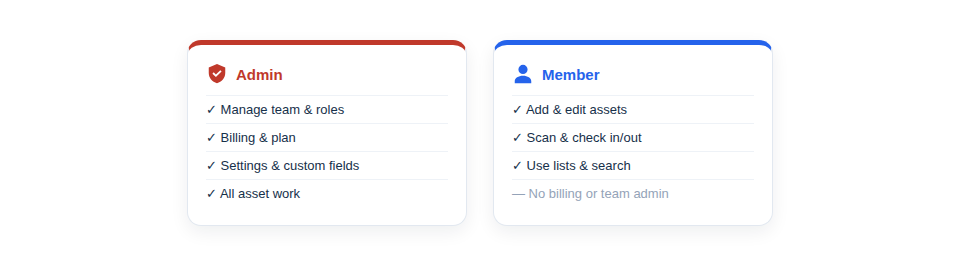
Two clear roles
The model is deliberately simple, so there’s no confusion about who can do what:
- Admins have full control. They manage company settings, the team, billing and the entire inventory — the people running the operation.
- Members get on with the real work. They can add, edit, scan and find assets, run checklists and stocktakes, and use everything needed on site — but they can’t reach settings or billing.
Safe to roll out widely
The practical benefit is confidence. Because Members simply don’t have access to your configuration or your subscription, there’s no risk of a well-meaning colleague changing a setting they shouldn’t, deleting another user, or stumbling into the billing screen. That removes the main reason businesses hesitate to give everyone access — and it’s giving everyone access that makes the inventory accurate in the first place.
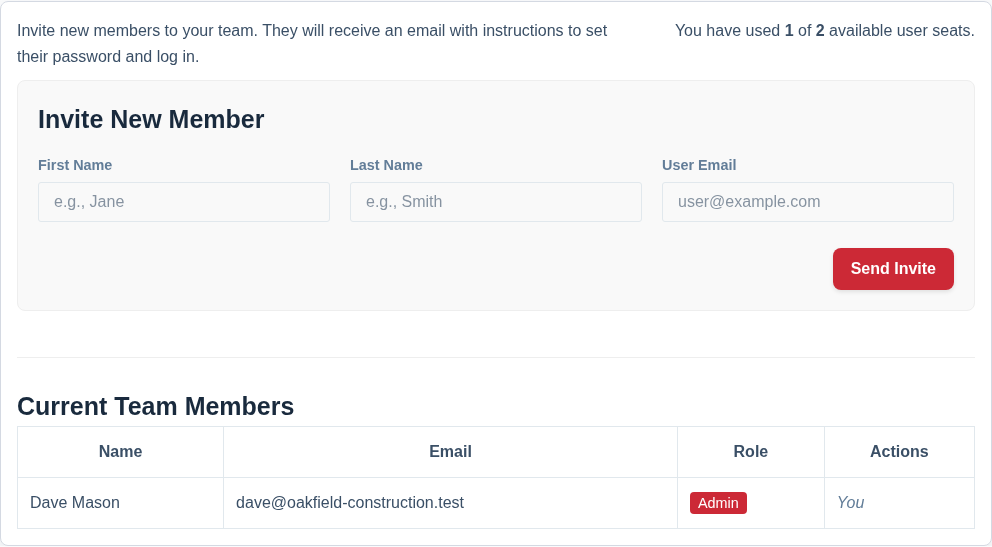
Assigning a role is part of bringing someone on board:
- Invite the team member.
- Set them as an Admin or a Member depending on whether they need the administrative controls.
- Adjust their role later if their responsibilities change.
Best Practice: Keep the number of Admins small — the owner and perhaps one or two trusted managers — and make everyone else a Member. It keeps your settings and billing safe while still giving the whole team the access they need to keep records current.
For the full guide, see User Roles: Company Admin vs. Team Member and Managing Your Team Members and Roles.