
Construction materials tracking falls apart the moment a job gets busy. The boiler is “ordered” — but who ordered it, and when is it due? The run of kitchen units is “somewhere on site” — but nobody can find them. Three weeks later the homeowner asks for the spec of what you fitted, and you’re scrolling through photos and old text messages trying to piece it together. Every one of those small gaps costs you time, and a few of them cost you money: duplicate orders, missed deliveries, idle labour waiting on a part that never came.
The fix isn’t more spreadsheets. It’s one clear thread for every material item — set up at the planning stage and followed all the way to installed — so anyone on the job can see exactly where a thing is at a glance, and your customer can scan it for themselves at the end.
Set up your own statuses before the job starts
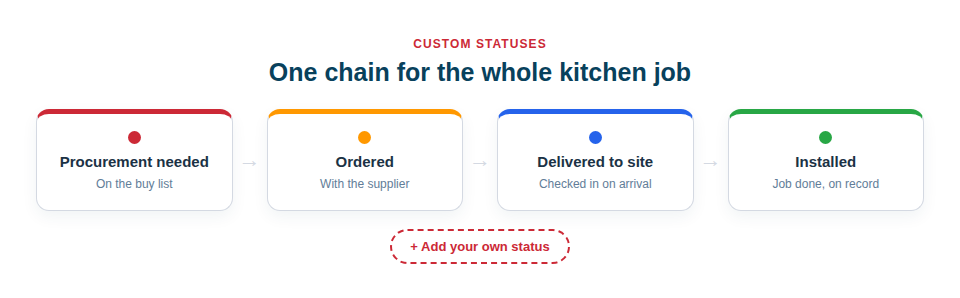
Asset Giant lets you define your own custom statuses, so the steps match how your job actually runs. For a kitchen or extension you might create a simple chain like this:
- Procurement needed — identified at planning, not yet ordered
- On order — placed with your supplier
- Arrived on site — delivered and checked in
- Installed — fitted and signed off
You set these up once in your settings and reuse them on every job. Be honest with yourself about what Asset Giant does here: it does not place orders, and it does not connect to your suppliers’ systems. There is no automatic purchasing. What it gives you is one place to record and update where each item is, by hand or by scanning its label, so the whole team is looking at the same picture instead of guessing.
Follow one item all the way through
Take a single material — say the combi boiler for an extension. At the planning stage you add it to your inventory. The fastest way is to point your phone at the box and let the AI catalogue it from the photo: it reads the make and model and fills in the details, then you confirm. You can also add it manually with custom fields for the spec, photos of the delivery, and the supplier’s quote on the financials.
Set its status to Procurement needed and it’s now a live item on the job, not a line on a list someone might lose.
Here’s the lifecycle, one item, start to finish:
- Procurement needed — added at planning. The AI suggests the details from a photo; you confirm and save.
- On order — you place the order with your merchant, then update the status to On order. Add the expected delivery date in a custom field so the whole team can see when it’s due.
- Arrived on site — when the boiler is delivered, you scan its QR label on your phone and move it to Arrived on site, and into the right location or storage folder. No more “is it here yet?”
- Installed — once it’s fitted, a final scan flips it to Installed and signed off.
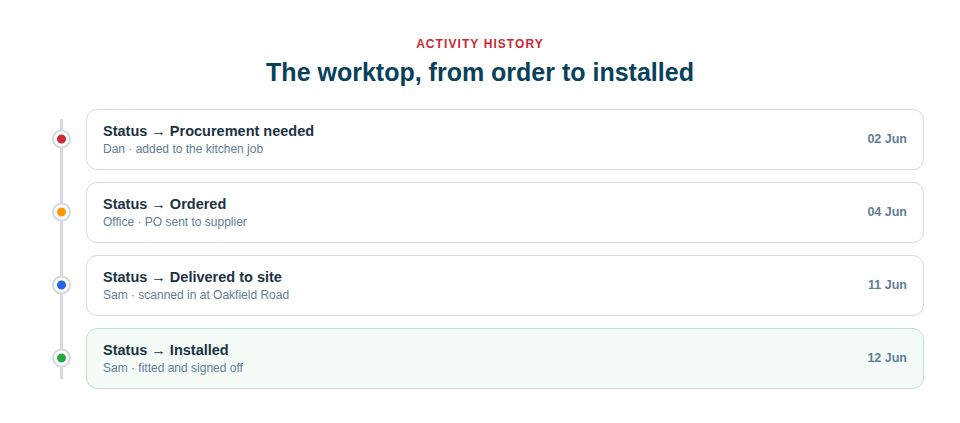
Every one of those moves is recorded automatically in the item’s activity history. Who changed the status, when, and what location it moved to — it’s all there as an audit trail. When the homeowner, or your own office, asks what happened to the boiler, you have the answer in seconds instead of a guessing game.
Hand the customer a public QR at the end
Once the item is installed, you can switch its QR code to public. A public QR shows a clean, customer-facing page when scanned — no internal data, just the information you want the homeowner to see. Stick the label inside the boiler cupboard or on the unit, and the customer can scan it for the make, model, and details whenever they need them.
It’s a small touch that does a lot of work: it looks professional, it saves you fielding “what did you fit again?” calls months later, and it puts your name in front of the customer every time they scan. For more on turning that into repeat work, see public QR codes for repeat business.
Because the statuses are yours to define, the same approach fits any trade and any job — that’s the whole idea behind tuning Asset Giant to your business. You can read more about the full feature set or see how AI cataloguing builds your inventory from a photo.
You don’t need to track every screw — start with the big, slow, easily-lost items on your next job. The Free Forever plan is enough to set up your statuses and follow your first few materials from planning to installed, and to see how much calmer the job feels with one clear thread instead of a dozen loose ends.