
Asset Giant has one booking screen, and everything goes through it. Tick the assets you want from a searchable list, give each one its own quantity, set the dates, and book. Every route in — the toolbar, a drag on the timeline, the agenda, the unbooked list, a link from an asset or a project — lands in the same place.
What you can do with it
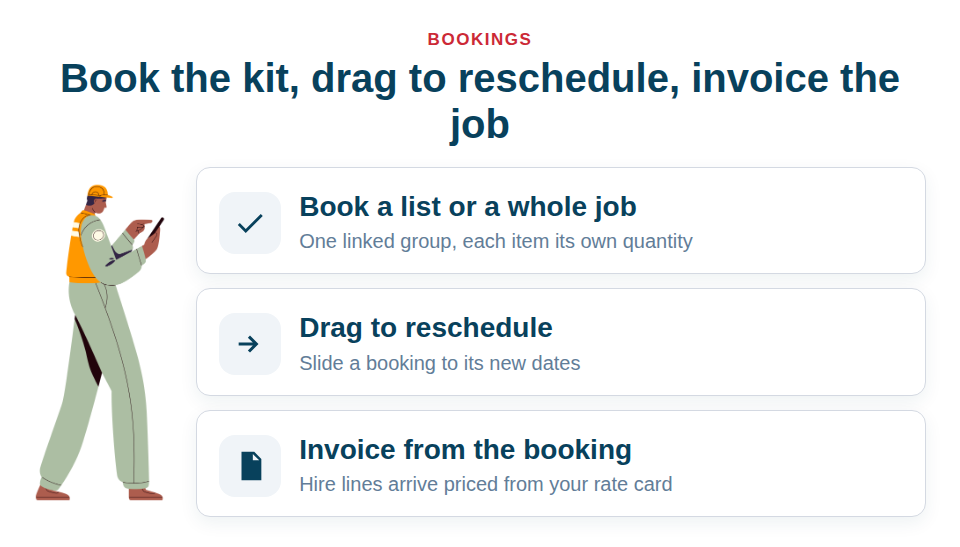
- Book a kit list or a whole project in one go. A saved list or a job goes out as one linked group, so you can edit or cancel the whole thing in a single action.
- Give each item its own quantity. Book 3 of your 10 harnesses and leave the other 7 available.
- Reschedule by dragging. Press and hold a booking on the timeline and slide it to its new dates.
- Four views. Timeline, month, week and agenda — one week or the whole quarter, whichever you need.
- Works on a phone. The agenda view opens on a handset and every row is a 44-pixel tap target.
- Invoice from the booking. The hire lines arrive priced from your rate card, and finished bookings sit in an uninvoiced queue so none get missed.
Making a booking
- New booking.
- Tick the assets you want. Search to narrow the list, tap any row to tick it, then Add selected. One item or twenty.
- Give each item its own quantity.
- Name it if you like — “Henderson loft, first fix”.
- Choose a status, tick All-day or set times.
- Under Assign to, pick a project, client, location or user. More than one is fine.
- The button tells you what you are about to get: Create booking, or Create 6 bookings.
It checks the dates for you
As soon as the dates are set, every item you have added is checked against what is already out. A warning reads “2 of 8 assets are already booked for 4–6 Aug”, then a line per item saying exactly what is in the way:
- Makita SDS Drill — 4–5 Aug, Henderson loft
- Insulation Board — 2 requested, only 1 free
Each clashing item carries a Change the other booking link straight to it, so if the other job is the one that should move, you are one click from moving it.
Then three ways forward, and you pick:
- Find dates that work — searches forward for the next window where everything you have picked is free, and offers to move your dates there.
- Book those that are free — drops the clashing items and books the rest.
- Swap for alternatives — suggests similar assets in the same category that are free. It only ever suggests; you choose.
It counts your quantities as well as your items. Hold four of something with one still free, and that one is offered as a genuine alternative rather than hidden because “it is booked”. And while you are editing an existing booking, the check ignores that booking’s own items, so you are never warned that your kit clashes with itself.
Tentative holds the kit just as firmly as confirmed
There is no book anyway button, and that is worth knowing before you look for one. A tentative booking reserves capacity exactly as firmly as a confirmed one — otherwise two people could both “provisionally” grab the same generator for the same Friday.
If you genuinely need something out twice, move one of the two bookings. The resolver puts that link right in front of you.
A booking is a plan, not a location
Booking something never moves it, and scanning something never changes the plan. The calendar shows a flag telling you whether the asset was actually checked in where it was supposed to be, so you can see the difference between what was arranged and what happened.
The full walkthrough, including drag-to-reschedule, is in Book Kit Out for a Job and See What’s Free, and booking a whole kit against a job in Reserving Assets for a Project. Free Forever includes 10 active bookings — try it free.