
Whatever shape your Excel asset register is in — a sheet on a laptop, a shared file the office keeps, a tab in the job-costing workbook — Asset Giant will take it as it is. Your headings, your values, your order. Upload the CSV, tell it which column is which, and it does the rest.
Four steps, one screen
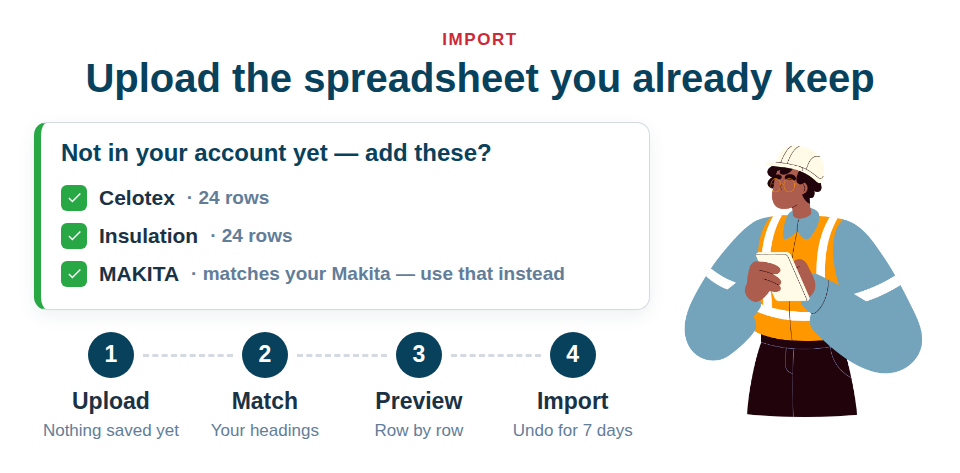
The importer lives at Settings → Import. It works in four steps and nothing is written to your account until the last one.
- Upload. Drag the CSV on, or click to choose it. At this point the file is only read — nothing is saved.
- Match your columns. One row per column in your file, showing its heading and a couple of your own real values, with a dropdown to pick the Asset Giant field it belongs to. Common headings are matched for you: Make to Manufacturer, Cost to Purchase Price, Qty to Quantity, Job to Project. Anything it does not recognise is left blank on purpose, because a confident wrong guess is worse than no guess.
- Preview. Every row is checked and you are told how many will be created, updated, skipped and rejected — with a specific reason for each rejection. Still nothing saved.
- Import. A progress bar, and larger files processed in batches.
Three decisions that save you from a mess
Under the matching table there are three whole-file settings, and they are the difference between a clean import and a duplicate-strewn one.
- Recognise an existing asset by — your de-duplication key. Serial number is usually the right answer. Asset names are the worst, because two people will always spell the same drill differently. There is also Do not match, for a genuinely fresh list.
- When a row matches an existing asset — leave it alone, update it, or import it anyway as a second asset.
- When a category, location or similar does not exist — skip that row and tell you (the default), or import it anyway leaving that one field empty. Either way you are offered the chance to create the missing values first — see below.
It tells you what is missing, and offers to add it
This is the part that makes an importer worth using. Once every row has been checked, the importer shows you everything in your file that your account does not hold yet — categories, manufacturers, folders, asset types, statuses, units of measure, locations, projects and clients — grouped by kind, most-used first, each with a tick box. Tick the ones you want and it creates them, then re-checks every row against the new list.
It is careful about it, which is the point:
- Near-duplicates are flagged. If you already hold Makita and your file says MAKITA, it says so and offers to use yours instead — an alias that applies to this import only and creates nothing.
- Your file is de-duplicated against itself. A file containing both Nike and Nike Inc would otherwise add two brand-new manufacturers in one click.
- A mis-mapped column is caught. If one column produces fifty or more different categories, it tells you that a column with that many distinct values is usually a description or a note.
- A new asset type shows its consequence. Tick Vehicle and it tells you the ID series it will start — VEHICLE-000001 — before it exists.
Nothing is created from a spelling on its own. Everything was shown to you, with its duplicates flagged, and ticked by hand.
Categories and locations are matched by name, so capitals and stray spaces do not matter, and a sub-category can be written either as the child name or as the full path — Power Tools > Drills.
Start from a template built out of your own account
If your spreadsheet is a mess, do not fight it. Use Download CSV template: it is built from your account, so your own custom fields are already columns and the example row uses your real asset types, categories and locations.
What happens when something goes wrong
Rows that cannot be imported are handed back as their own CSV — Download the rows that failed — containing only the problem rows, in your original columns, with a first column saying what was wrong. Fix them in Excel, upload that file, done.
And every import can be undone for seven days from the Recent imports table. Created assets are deleted, changed assets are put back, and anything somebody has edited since the import is deliberately left alone and named in the result, so an undo never quietly destroys someone’s afternoon.
The practical limits
- CSV only. Not .xlsx, not .numbers — every one of those exports a CSV in two clicks.
- 5,000 rows and 5 MB per file. Over either, split it.
- Only Asset Name is required. Everything else is optional.
- Dates are read day-first — 31/01/2026 or 2026-01-31. An impossible date is rejected rather than quietly rolled forward.
- Quantity, unit of measure, hire rates and sale prices all import and export, so the round trip through Excel lines up column for column: Exporting a List to PDF or CSV.
If the file is awkward, do not wrestle with it. Concierge import is included on any paid plan — send us the spreadsheet and we will match it and import it for you at no charge.
The full step-by-step is in Importing Your Existing Spreadsheet. Start free and bring the list you already have.