
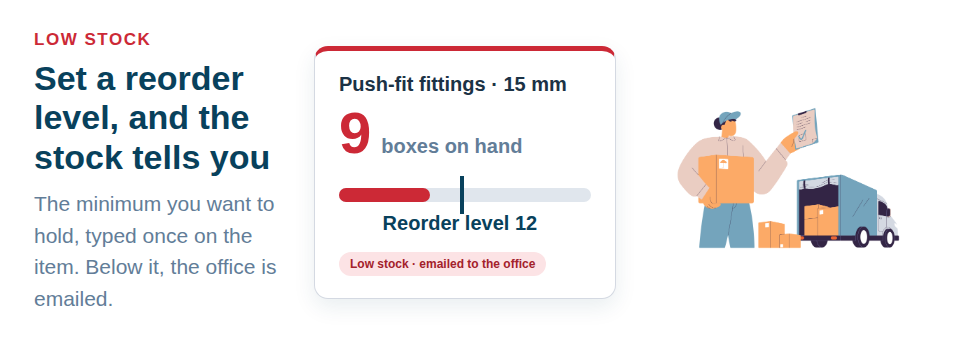
Asset Giant gives every consumable a reorder level — the minimum quantity you want on hand — and raises a low stock alert the moment the count drops below it, so the order goes in while there is still time.
The number itself
A reorder level is one number, and there is a simple way to arrive at it:
A van that empties four boxes of push-fit fittings a fortnight, with a week’s lead time from the merchant, gets through two boxes while the order is in transit. A level of six leaves four boxes of cover on the day the alert fires. Round it up rather than down — the cost of a spare box is smaller than the cost of a return trip.
Two adjustments are worth making after the first month:
- Seasonal lines — anything that moves faster at one time of year wants the level set for the busy period, not the average.
- Single-source items — if only one supplier stocks it, or it comes in on a fortnightly run, put the whole lead time into the level.
Setting it in three places
Ten boxes with a level of ten is fine; nine is low. Leave the level blank and the item is never watched, which is exactly right for anything you do not restock.
- On the item. The Core Details card of any asset carries Quantity on hand and Minimum stock / reorder level, side by side.
- In bulk. Select the consumables in your inventory and set one level across all of them at once — see Bulk Actions.
- From a spreadsheet. A column headed Min, Minimum or Reorder is recognised on import and becomes the level on every row, so a long register arrives already set up — see Import From a Spreadsheet.
Quantities carry on changing the way they always do: edited on the item, adjusted in bulk, reduced by an invoice that sells stock, or corrected in a stocktake. The check runs against the number you hold now.
Who gets told, and how often
Low stock is one of the things an alert rule can watch, alongside test dates, warranties and items due back. The Alerts tab in Settings already holds a Low stock rule, switched on, so every consumable with a level shows in the app when it runs low — choose who is told and they get an email too. Or write your own:
- Which items — every consumable, or a filter by asset type, category, folder, location or status, or a hand-picked list. “Fixings in the yard” to the buyer and “First-aid stock” to the office can be two separate rules.
- Who — your team, the person the item is assigned to, and up to ten outside addresses such as the merchant’s account manager or the accounts inbox.
- Each item, or a summary — an email as each item drops, or a Monday round-up to whoever places the order.
- Your own line — “Order through the trade account”, or “Tell Priya before ordering”.
There is no lead time to choose, because a low stock alert fires on the quantity rather than on a date. Each email lists what has dropped below its level with a button to open the record, and when stock is topped back up the alert clears by itself.
Where it shows without an email
A count in the menu, the Alerts page, and the Attention needed panel on your dashboard. The inventory’s quantity column shows what you hold on every plan, so a low item is visible even before a rule exists.
A sensible first pass
Give a level to the things that hold up work when they run out — fixings, cable, sealant, PPE, filters, blades — and leave everything else blank. One summary rule to whoever places the orders is enough to start with; add a per-item rule later for anything a site cannot be without.
Quantities, units and reorder levels are recorded on every plan, Free Forever included; the alerts are part of the Crew plan. The feature page is Low Stock Alerts & Reorder Levels, and the step-by-step guide is Setting a Reorder Level and Getting Low Stock Alerts.
Start free and put a level on the five things you reorder most.